On this page
Start with the destination
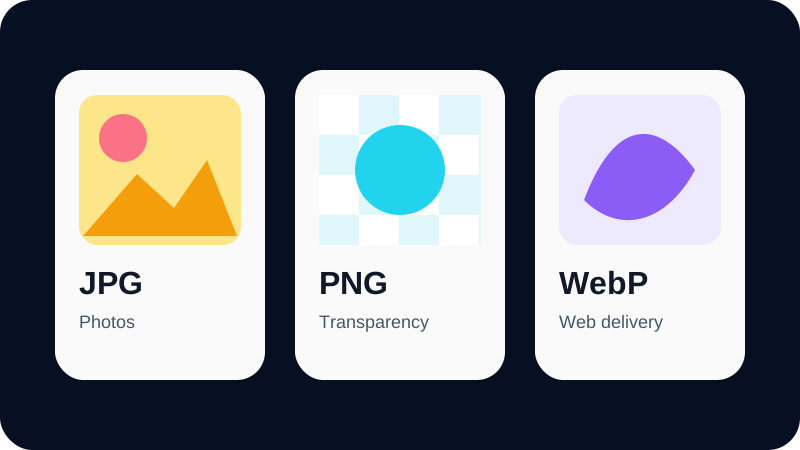
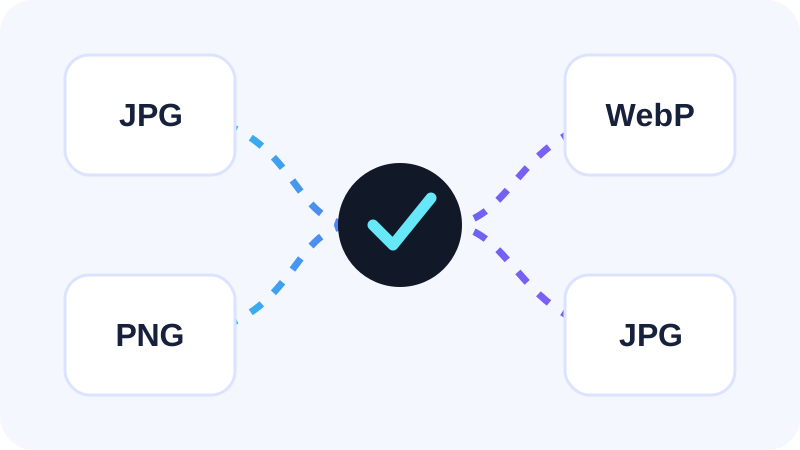
Choose JPG when compatibility and compact photo delivery matter, PNG when an editing workflow prefers lossless-style pixel storage, and PDF when several photos need to behave like document pages.
Keep the original HEIC files. A conversion creates a delivery copy and does not add detail that is missing from the source.
Prepare and preview the photo
Add the HEIC or HEIF source and wait for the local decoder to show real dimensions and image count. Multi-image containers can produce more than one output.
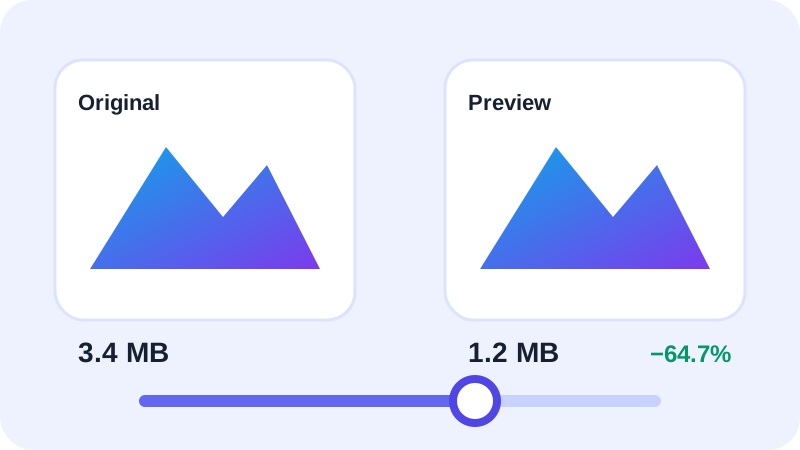
Review orientation, important edges, transparency behavior and the measured preview rather than relying on an estimated result.
Use settings deliberately
JPG quality changes real encoder compression. PNG can be larger because it prioritizes lossless-style pixel data. PDF page size, orientation, fit and margins change the physical page layout.
For advanced resizing, use a dedicated image resizer after choosing the delivery format.
Review before sharing
Open the finished output and confirm dimensions, page order, cropping and readability. Files with unusual HEIF variants may require a different decoder.
Nexynto performs this HEIC workflow locally in the browser, so the selected photos are not uploaded for conversion.
Put the workflow into practice
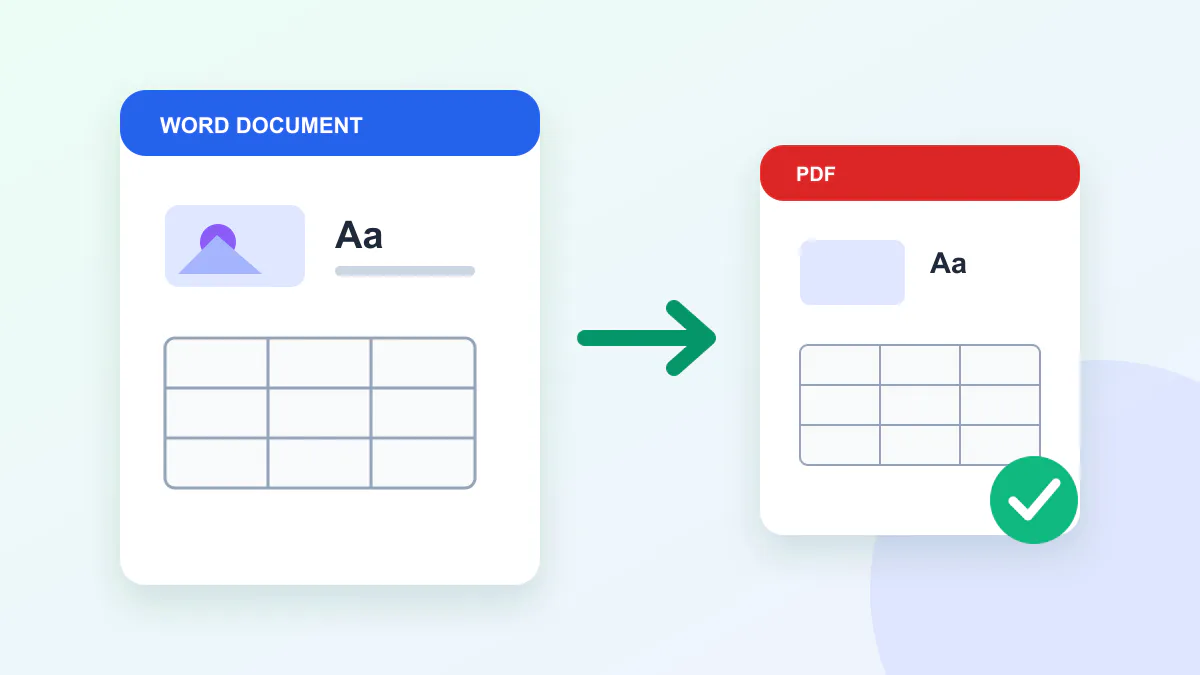
Arrange source documents, select the pages you need, and create one PDF locally in your browser. Review the result before choosing any optional next step.
Try HEIC to PDFFrequently asked questions
Clear answers before you merge
Are HEIC photos uploaded?
No. This HEIC workflow decodes and converts supported files locally in the browser.
Should I delete the original?
No. Keep the original HEIC as the source-quality copy.