

On this page
Prefer saved print layout for prepared workbooks
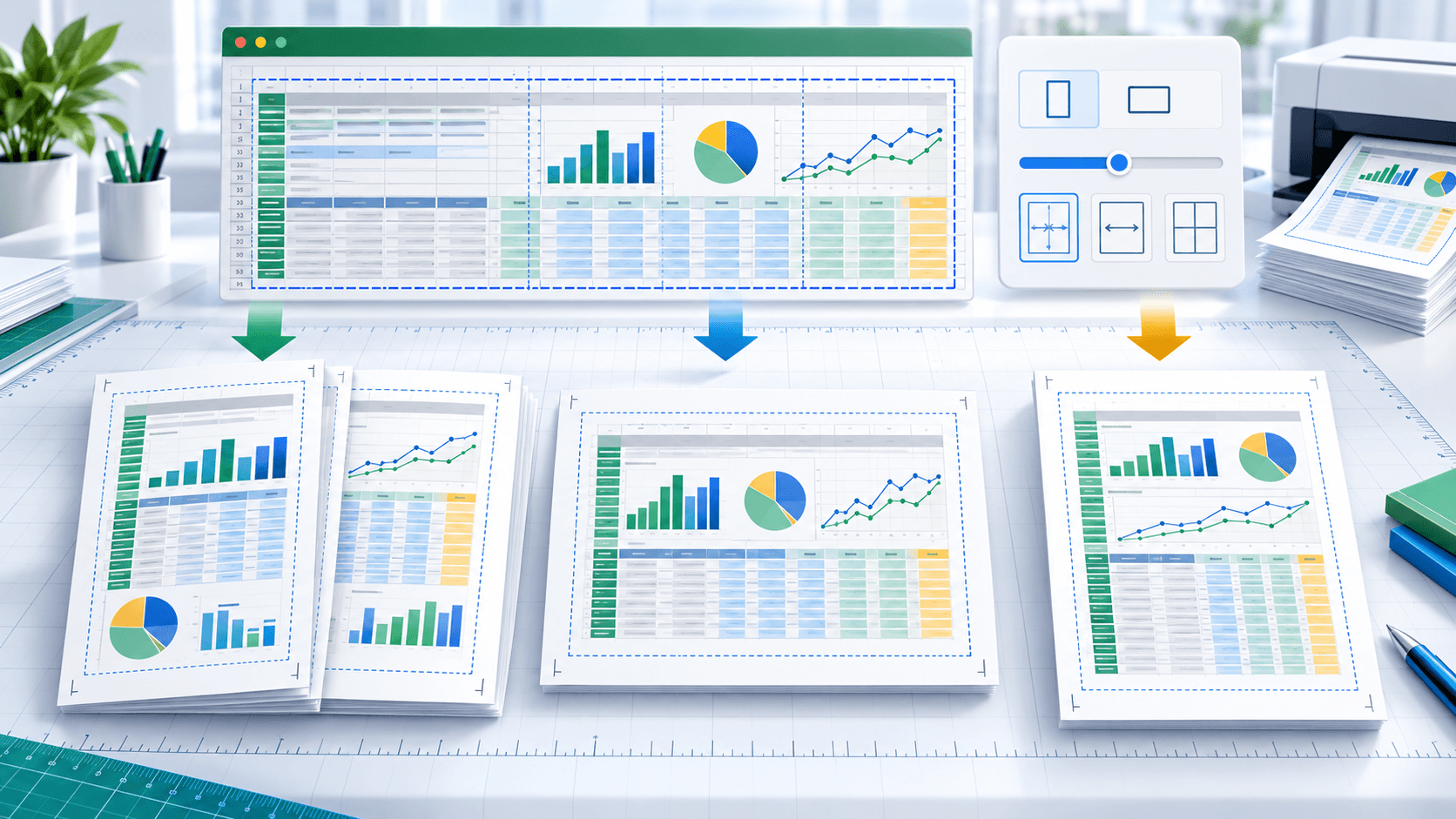
A workbook with deliberate print ranges, page breaks, orientation and repeating header rows already contains a publication plan. Preserving that plan usually produces the most readable result.
Before conversion, use Calc page preview to check unexpected blank columns, distant formatted cells and manual page breaks.
Use one-page sheets for summaries, not raw data
One-page-per-sheet is effective for dashboards and compact schedules. It can shrink hundreds of rows or dozens of columns onto one page, making the PDF technically complete but practically unusable.
Convert one representative workbook first and inspect it at 100% zoom before applying the setting to a batch.
Select output pages after pagination
The PDF page range refers to pages after Calc has laid out the workbook. A range such as 1-3,5 can select final report pages but does not identify sheets by name.
| Check | Question | Action |
|---|---|---|
| Width | Are columns readable? | Use saved print layout or revise the sheet |
| Blank pages | Are unused regions printing? | Enable skip empty pages and clean print ranges |
| Charts | Are labels and legends visible? | Preview at normal reading zoom |
| Page range | Are required sheets represented? | Confirm pagination before selecting pages |
Put the workflow into practice
Arrange source documents, select the pages you need, and create one PDF locally in your browser. Review the result before choosing any optional next step.
Try ODS to PDFFrequently asked questions
Clear answers before you merge
Why is spreadsheet text tiny?
One-page-per-sheet scales the complete used area into one page. Preserve print layout for large sheets.
Does the page range select sheet names?
No. It selects PDF pages after Calc pagination.
Can blank pages be skipped?
Yes, enable Skip empty pages.