
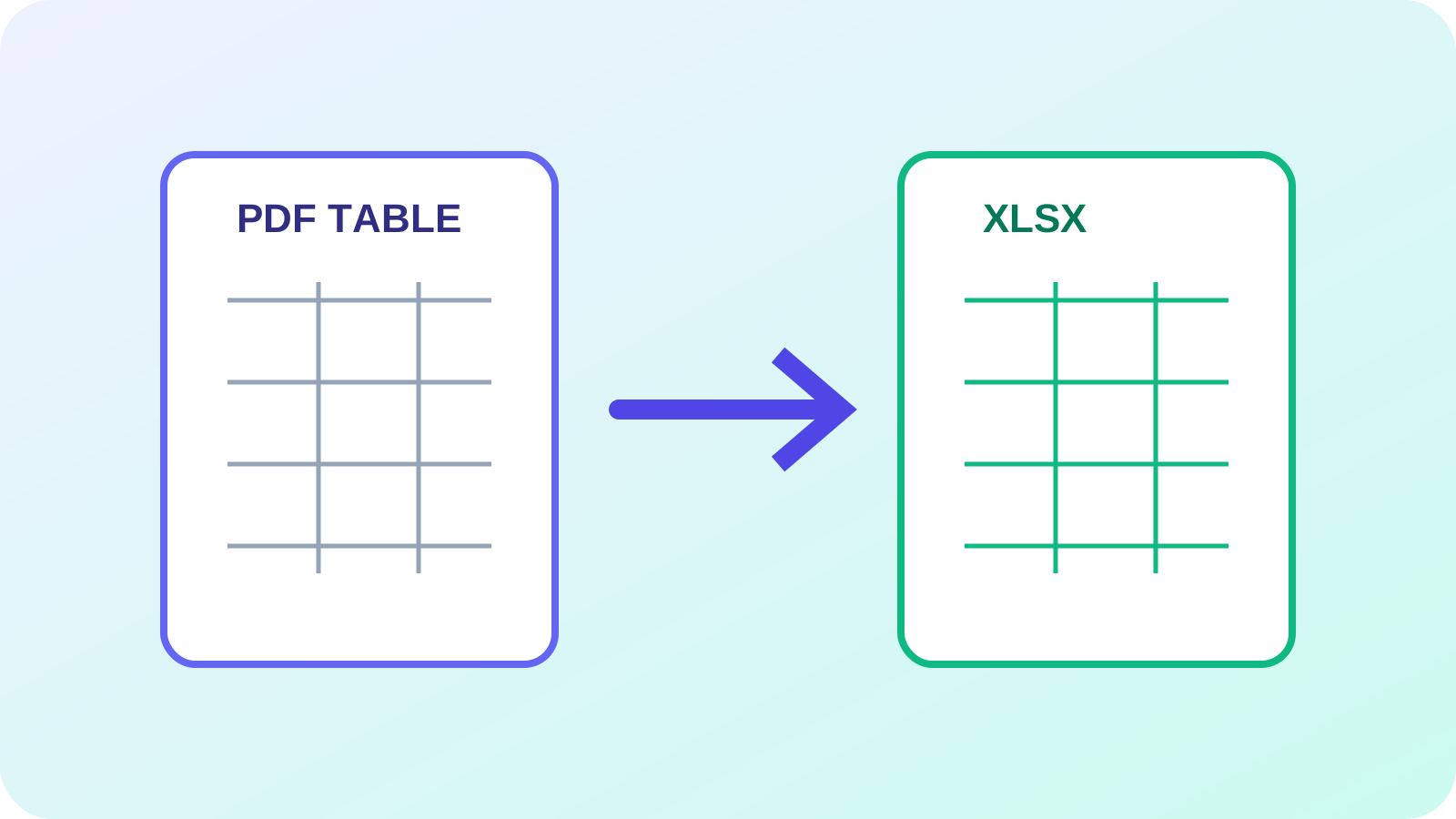
PDF conversion
Convert PDF Tables to Excel Without Losing Structure
Digital versus scanned tables, merged cells, multi-page extraction and verification.
Read articleConvert tables and structured data from PDF files into editable Excel spreadsheets.
PDF files with tablesMax 50MB per fileText-based PDFs
A clear three-step workflow
The tool stays focused: add the right source, make an informed choice, then inspect the output before using it.
Confirm whether the PDF has selectable text or scanned page images.
Choose a detection mode and page range that match the table structure.
Convert, then compare row order, merged cells, totals and headers with the source.
Tool profile
PDF to Excel is for documents that already contain table-like rows and columns. It detects tables, creates XLSX or CSV output, and reports how many tables and sheets were produced so the result can be checked—not assumed.
Practical example: For a 30-page financial report, select only the statement pages, export each detected table to its own sheet, then reconcile totals against the PDF before analysis.
Know before processing: PDF stores positioned page content rather than spreadsheet cells. Complex spans, nested tables and scanned pages can require OCR or manual cleanup.
Choose lattice, stream or automatic table detection
Split detected tables into separate worksheets
Limit conversion to selected pages
Preserve headers and skip empty rows when supported
Core tasks
Specific needs
Detailed questions
Frequently asked questions
It reconstructs detected rows and columns from positioned PDF content. It does not recover original formulas or guarantee the original workbook structure.
Yes, but image-only pages require OCR PDF to Excel. Recognition and cell alignment must be checked against the source.
PDFs describe page appearance rather than cells, so spanning headers can have several reasonable spreadsheet representations.
Use Extract Tables when you want to review candidate regions first. Use PDF to Excel for direct workbook or CSV output.
Connected workflow
Expert guides
Detailed, tool-specific guidance with practical limits and verification steps—not generic conversion copy.
PDF conversion
Digital versus scanned tables, merged cells, multi-page extraction and verification.
Read article
OCR & tables
Choose OCR and structured extraction when the PDF contains page images.
Read article
Source analysis
Identify whether a document contains usable text before choosing a workflow.
Read article