
On this page
Does merging PDFs reduce quality?
Original pages
Text, vectors and images
Copy pages
Keep source objects intact
Merged PDF
New order, same page detail
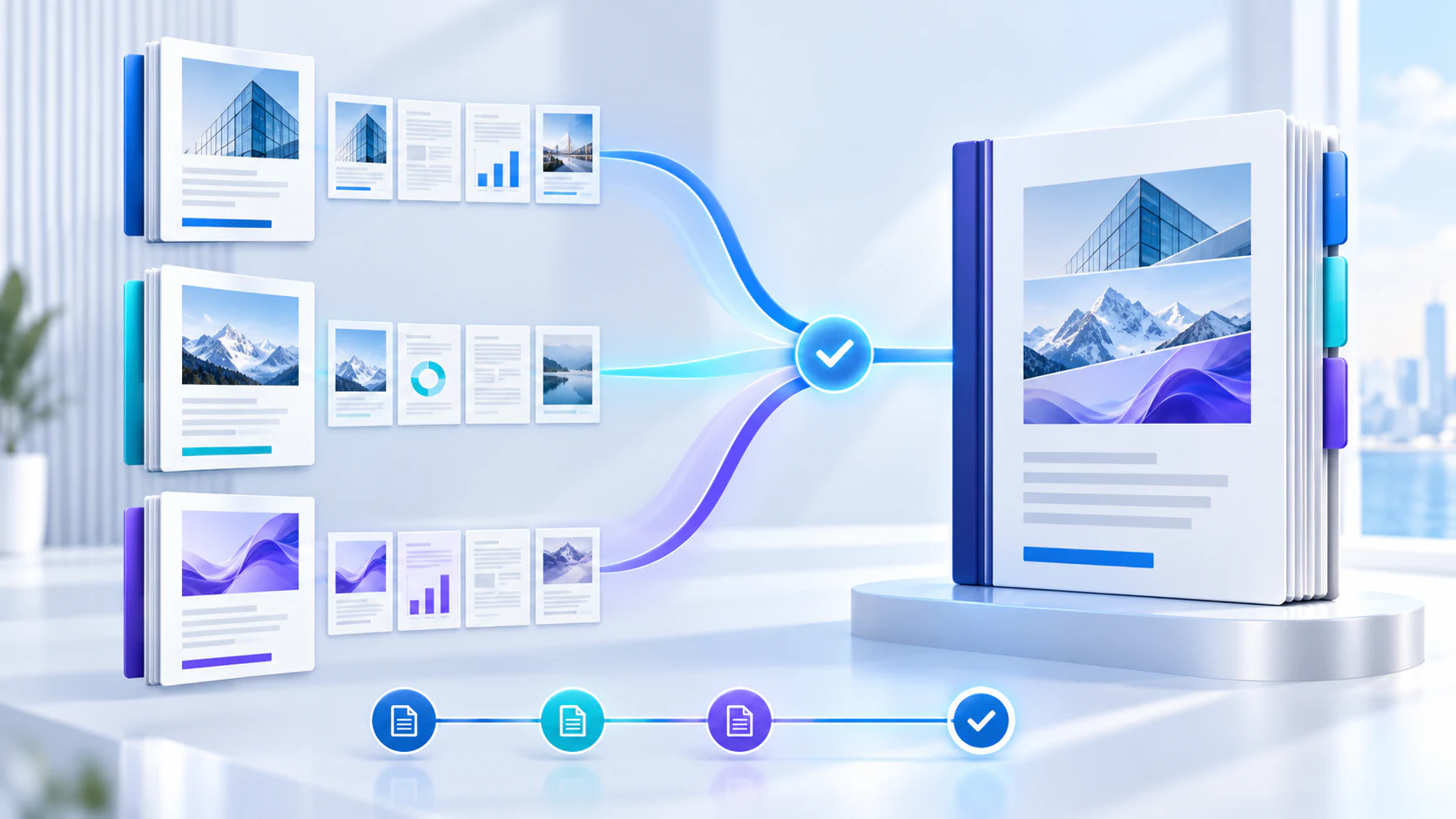
Merging by itself does not need to reduce quality. A PDF is a container of pages, and each page can contain text, vector paths, embedded fonts, photographs, scanned images, annotations and form objects. A page-copying merger imports those existing page objects into a new PDF and writes a new page tree. It does not need to redraw the page or change its image resolution.
Quality changes when a workflow does more than merge. Printing files to a virtual PDF printer can flatten transparency, substitute fonts or rasterize content. Converting every page to an image discards searchable text and vector precision. Running compression at the same time may downsample photographs. These are separate operations, even when an application presents them behind one button.
Nexynto Merge PDF uses browser-local page copying. It preserves original page dimensions and orientation and does not intentionally downsample images. That means the output should look like the inputs. It does not repair quality that was already lost in a scan, nor can it reconstruct a missing font or low-resolution source image.
Visual fidelity still needs a final review because source PDFs can contain unusual transparency, annotations or viewer-specific behavior.
Page copying versus rasterization
Page copying keeps the internal description of a page. A line drawn as a vector remains a vector. Text that was searchable generally remains text. Embedded images are carried across using their existing encoded data. The merger may rewrite object references and remove unreachable document-level objects, but those changes are structural rather than visual.
Rasterization takes a picture of each page at a chosen resolution and builds a new PDF from those pictures. It can be useful for flattening complex content, but it is the wrong default for a quality-preserving merge. Zooming into rasterized text reveals pixels; copied vector text stays sharp. Rasterization also makes files difficult to search and may increase size when text-heavy pages become full-page images.
| Method | Text and vectors | Images | Typical use |
|---|---|---|---|
| Copy original pages | Preserved as source objects | Original embedded data retained | Combining complete PDFs |
| Rasterize pages | Converted to pixels | Re-rendered at chosen resolution | Flattening or compatibility troubleshooting |
| Print to PDF | Depends on print driver | May be recompressed | Creating a printable copy, not archival merging |
| Compress after merge | Usually retained | May be downsampled intentionally | Reducing delivery size after review |
What happens to images, fonts and vector graphics?
An image inside a PDF has its own pixel dimensions, color space and compression. Copying its page does not improve or reduce those properties. A 300 dpi scan stays a 300 dpi scan relative to the same page size; a small web image remains small. If a later compressor resamples that image, quality can change, so treat compression as a deliberate second step.
Fonts are more nuanced. Properly embedded font subsets travel with the copied page. A page that merely references a system font may already render differently between devices; merging cannot correct that source defect. Before combining an important print package, open each input in a second viewer and zoom into headings, special symbols and form fields.
Vector diagrams, CAD exports and digital signatures also deserve attention. Vector artwork normally remains resolution-independent. Existing cryptographic signatures, however, usually become invalid when the signed document is modified because merging creates a different file. Preserve the signed original separately and treat the combined copy as a convenient package, not as the signed record.
A safe workflow for combining PDFs
Start with the best available sources. Avoid a chain such as Word to image to PDF to merged PDF when the original application can export a proper PDF directly. Open each source, confirm page orientation, and identify encrypted files before building the final order. Give files short, meaningful names so the order is understandable without opening every preview.
Add the documents to Nexynto Merge PDF, choose Standard mode, and arrange them in reading order. Use first-page previews to distinguish similar files. Search narrows the visible workspace without removing anything from the merge. Sorting can establish a starting sequence, while manual movement creates the final custom order.
Before processing, compare the displayed file count and selected-page count with your source checklist. Enter a descriptive output filename. After merging, preview the result, check document boundaries and download the local copy. The result hub can pass the same browser-held file to compatible tools without another upload.
- Keep untouched source PDFs until the combined file is accepted.
- Resolve rotation, blank pages and encryption before the final merge.
- Use page ranges rather than deleting pages from original records.
- Review the first and last page of every source boundary.
- Record the expected final page count for controlled workflows.
How scanned PDFs behave
Most scanned PDFs contain one image per page. A page-copy merge preserves those images, so the output quality is limited by the scanner settings used at capture time. Faint text, skew, shadows and low resolution will remain. Merging is not OCR, deskewing or cleanup.
Color scans can be much larger than digitally generated documents. Combine them first when sequence is the priority, verify the result, and only then decide whether compression is acceptable. Repeatedly compressing JPEG-heavy scans can produce halos around text and block artifacts in photographs.
If the scan must be searchable, run a dedicated OCR workflow on an appropriate source or the final merged copy. OCR adds a text layer; it should not be described as improving the visible pixels. Keep the original scans when recognition accuracy or evidentiary value matters.
Combine only selected pages
A quality-preserving merge does not require copying every page. Per-file page ranges select source pages before the order is assembled. Use all for a complete document, 1-5 for a continuous section, or 1,3,5-8 for a mixed selection. Each selected page is still copied from its original source.
Page ranges are useful when a report contains a long appendix, when a cover appears in several files, or when only approved sections belong in the package. Validate the range against the source page count. An out-of-range value should block processing rather than silently omit a page.
Selected pages retain their original size. A merged file can therefore contain A4, Letter and landscape pages together. That is accurate to the sources, although the result may feel inconsistent when printed. If uniform paper size is required, use a separate page-size operation and inspect the scaling policy.
Large PDF merge jobs
Large jobs fail more often because of memory pressure than because of page quality. Browser-local processing holds source data and the growing output in device memory. Hundreds of small digital PDFs may be easier than a handful of image-heavy scans. File count alone is not a reliable estimate.
Use Compact List for large collections, search instead of scrolling, and sort before applying a custom order. The bounded Nexynto workspace keeps controls available while rows scroll internally. For very large sets, thumbnails are intentionally limited and only visible rows are mounted, reducing unnecessary rendering work.
Process on a device with sufficient free memory, close unrelated heavy tabs, and divide the job into logical volumes if the browser becomes unstable. A staged approach—merge each chapter, verify it, then merge the chapter outputs—can be easier to audit. Preserve a manifest of the source files so every item can be accounted for.
When to compress after merging
Merge first and compress second when you need both operations. This separation gives you a quality-controlled master and makes the compression decision measurable. Compare actual file size, zoom into small text, and inspect gradients and scanned signatures before replacing the master.
Compression is most useful for delivery copies, email limits and web downloads. Text-heavy digital PDFs may already be compact, while high-resolution scans offer more opportunity. The correct setting depends on the output purpose: screen review tolerates more reduction than professional printing or archival retention.
Use the downloaded merged PDF as the master, then open Compress PDF through the result hub. The temporary handoff avoids another selection step, but the compressed result is still a different artifact. Name it clearly so users do not confuse it with the quality-preserved master.
Common mistakes that reduce quality
The most common mistake is using screenshots as source pages. Screenshots capture a display-sized rendering, not the original vectors or full image data. Another is printing to PDF as an intermediate step when direct export is available. Print drivers can change page boxes, color handling and font embedding.
Repeated conversion and compression also compound defects. A JPEG scan saved again as JPEG cannot recover discarded detail. Merging a low-quality copy instead of the master permanently carries that limitation into the combined file. Check filenames carefully when several versions exist.
Finally, do not assume a smaller file is automatically better. A dramatic size reduction often means image downsampling or object removal. Keep quality and size as separate acceptance criteria, and confirm that links, forms, bookmarks and signatures still behave as required.
- Merging screenshots instead of original PDFs
- Using a virtual printer unnecessarily
- Compressing every intermediate version
- Ignoring missing or substituted fonts
- Discarding signed originals after creating a combined copy
- Skipping the final boundary and page-count review
Continue after the merge without another upload
Once the merged PDF is ready, download remains the primary preservation step. You can also preview and print the Blob created in the browser. Compatible Nexynto tools can receive that same temporary browser-session file for editing, compression, protection or splitting.
The handoff is deliberately temporary and browser-local. It is not a cloud save and does not create a public URL. If the next tool is not compatible, download the result and select it manually. This distinction keeps operational claims accurate and prevents an unavailable storage or sharing feature from appearing live.
Put the workflow into practice
Arrange source documents, select the pages you need, and create one PDF locally in your browser. Review the result before choosing any optional next step.
Try Merge PDFFrequently asked questions
Clear answers before you merge
Can I merge PDFs without compressing them?
Yes. A page-copy merge can combine original PDF pages without intentionally downsampling their embedded images. Compression should be a separate, optional step.
Why is the merged PDF larger than the source files?
PDF structures, duplicated resources, metadata and object rewriting can add overhead. The output may also retain all source image data. A larger file does not necessarily mean higher or lower visual quality.
Will searchable text remain searchable?
Text normally remains searchable when original page objects are copied. Pages that began as image-only scans remain image-only unless OCR is performed separately.
Does merging preserve digital signatures?
The signed originals should be retained. Creating a merged document changes the file and generally invalidates cryptographic signatures associated with the original byte sequence.
Can I merge PDFs with different page sizes?
Yes. Each copied page retains its original dimensions, so A4, Letter, landscape and custom-size pages can coexist in the result.