

On this page
Prepare the source and define the result
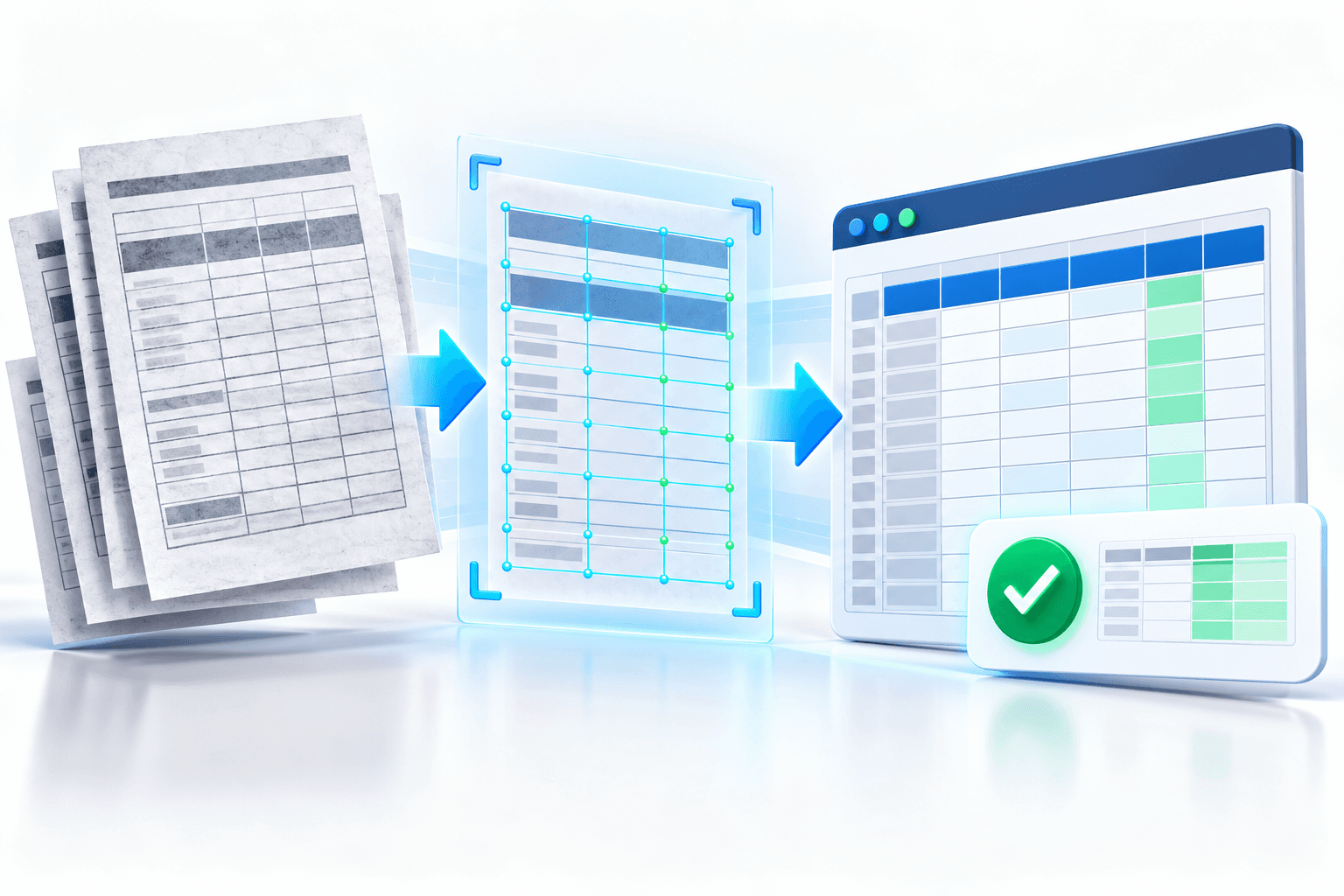
Mark high-risk columns and expected totals before conversion. Keep source page and row references beside uncertain values.
Set acceptance criteria before processing: expected pages or records, languages, critical fields and destination format.
Use a reviewable OCR workflow
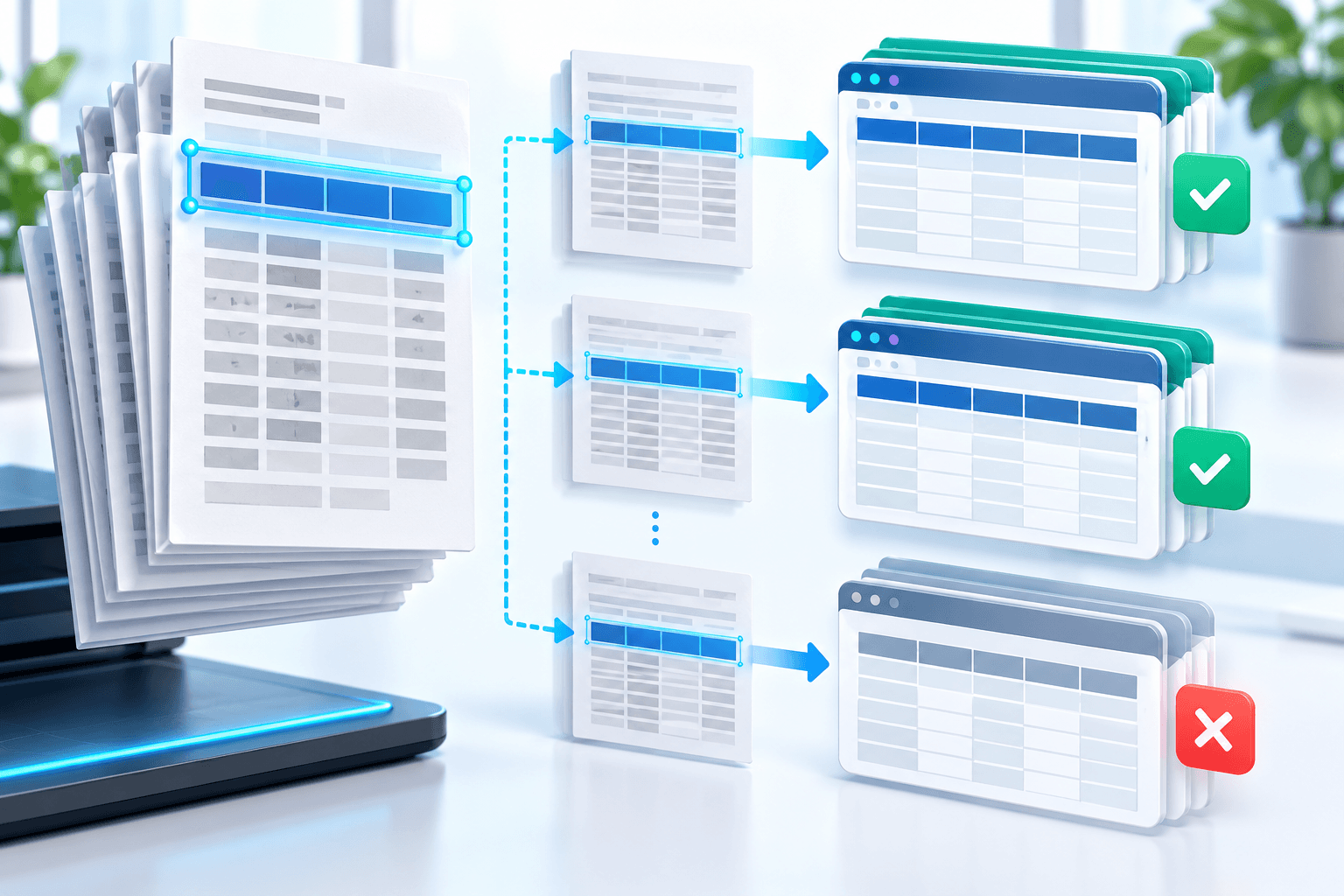
Flag low-confidence digits, out-of-range values and format outliers. Use formulas to detect mismatches but correct only after checking the scan.
Keep recognition evidence beside the source. Confidence prioritizes review but does not guarantee a word or number.
Verify before using the output
Review material totals and sample every page. Confirm minus signs, separators and leading zeros, then save reviewed and raw outputs separately.
Keep the original until the reviewed derivative is accepted. Valid structure does not prove semantic accuracy.
- Balanced totals can hide offsetting errors.
- Locale settings can reinterpret dates and decimals.
Put the workflow into practice
Arrange source documents, select the pages you need, and create one PDF locally in your browser. Review the result before choosing any optional next step.
Try OCR PDF to ExcelFrequently asked questions
Clear answers before you merge
Is OCR PDF to Excel always exact?
No. Accuracy depends on source quality, language, layout and review.
Should I keep the original?
Yes. Keep it until the reviewed output is accepted.
What improves OCR accuracy?
Sharp upright input, correct language selection, restrained cleanup and focused review.
How should I verify the result?
Reopen it, test its intended function and compare critical content with the source.