
On this page
Normalize the source set before conversion
Place only the intended Markdown files in the batch and use filenames that sort in the desired order. Prefixes such as 01-, 02- and 03- are helpful for a sequence of lessons or chapters. Remove temporary drafts and generated copies before selecting the files.
Check that every file uses the same structural conventions. A batch can expose inconsistent heading levels, table syntax or page-break markers that were not noticeable when documents were edited separately.
Understand browser-local file handling
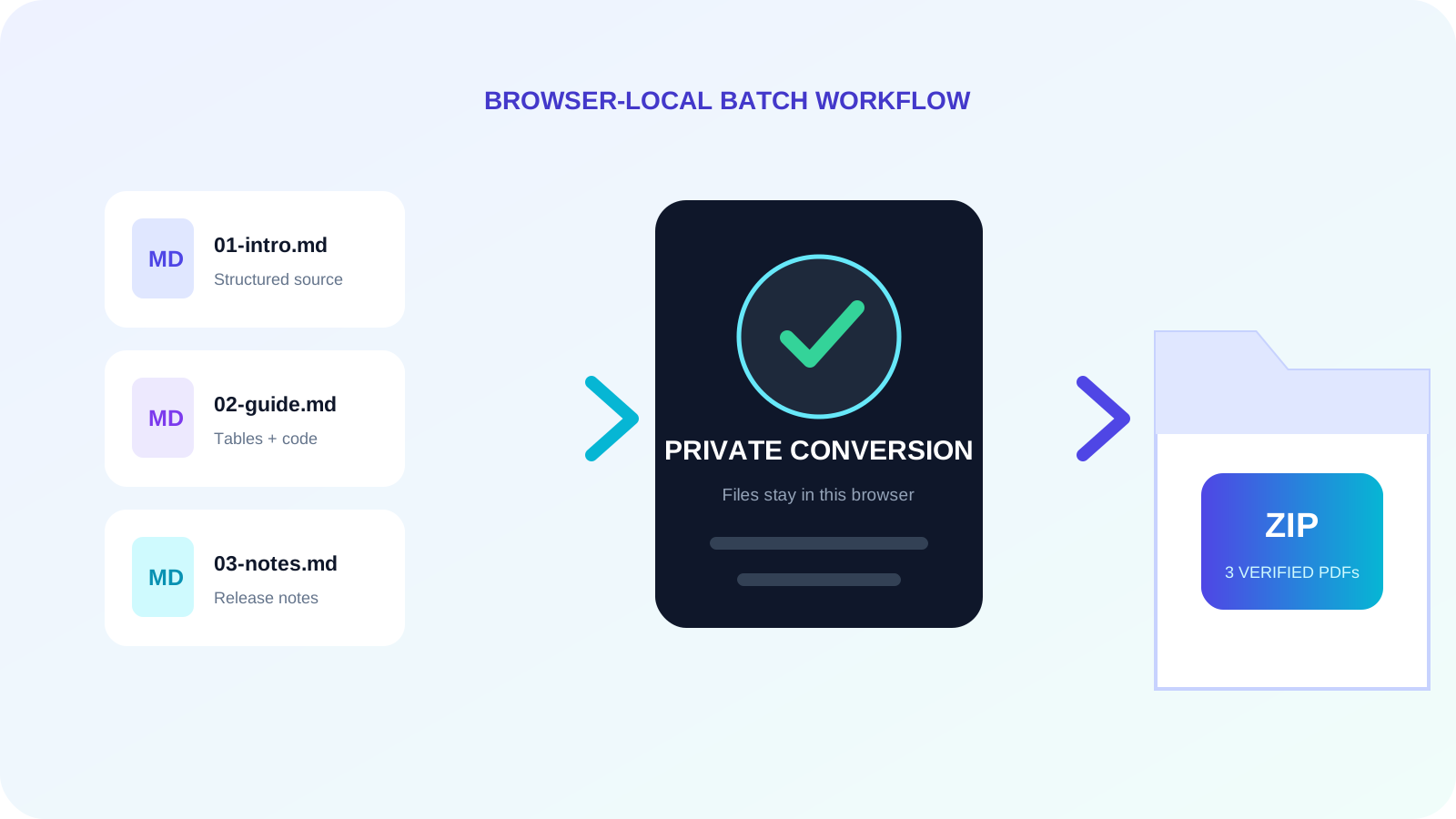
Nexynto Markdown to PDF reads selected MD files and generates their PDFs in the browser. The files do not need to be uploaded to the Nexynto processing service for this workflow. The browser then packages multiple results into a ZIP for download.
Browser-local processing reduces unnecessary transfer, but it does not replace endpoint security. Use a trusted device, keep the operating system and browser current, and store sensitive outputs in an appropriate location after download.
Preserve clear filenames and document titles
The batch exporter derives each PDF filename from its MD source. Clean source filenames before selecting the batch because the output package should not require manual renaming after every conversion.
A filename and a PDF document title serve different purposes. Filenames support storage and sorting; document titles help readers identify an open file. Review both for controlled publishing workflows.
| Source | Output | Reason |
|---|---|---|
| 01-introduction.md | 01-introduction.pdf | Keeps sequence and identity |
| release-notes-2.4.md | release-notes-2.4.pdf | Preserves version context |
| draft-final-new.md | project-summary.pdf | Replace ambiguous draft naming first |
Sample and verify the downloaded batch
Open the first, middle and last PDFs from the ZIP. Include at least one document with a table or code block in the sample. Confirm that every expected source produced one output and that no unrelated file entered the package.
For high-value publishing, keep a manifest containing the source names, output names and expected count. Browser-local creation is fast, but editorial acceptance still requires human review of the delivered files.
Put the workflow into practice
Arrange source documents, select the pages you need, and create one PDF locally in your browser. Review the result before choosing any optional next step.
Try Markdown to PDFFrequently asked questions
Clear answers before you merge
Does batch mode create one combined PDF?
No. It creates one PDF per Markdown file and packages the results into a ZIP.
Are batch files uploaded?
No. Markdown reading, PDF creation and ZIP packaging occur in the browser for this tool.
Can each file use different settings?
Batch mode uses the active shared settings. Convert exceptional files separately when they need a different layout.
How should I verify a large batch?
Confirm the file count and sample the first, middle, last and structurally complex outputs.