
On this page
Prepare the Markdown source before conversion
Start with semantic structure. Use one level-one heading for the document title, level-two headings for major sections and deeper headings only when the content genuinely needs them. Consistent hierarchy improves scanning and makes the PDF easier to review.
Close fenced code blocks, keep table rows consistent and place blank lines around lists, blockquotes and headings. These small corrections reduce ambiguous parsing. If the source comes from a repository or CMS, work from a copy so the published Markdown remains unchanged.
Compare source structure with the live preview
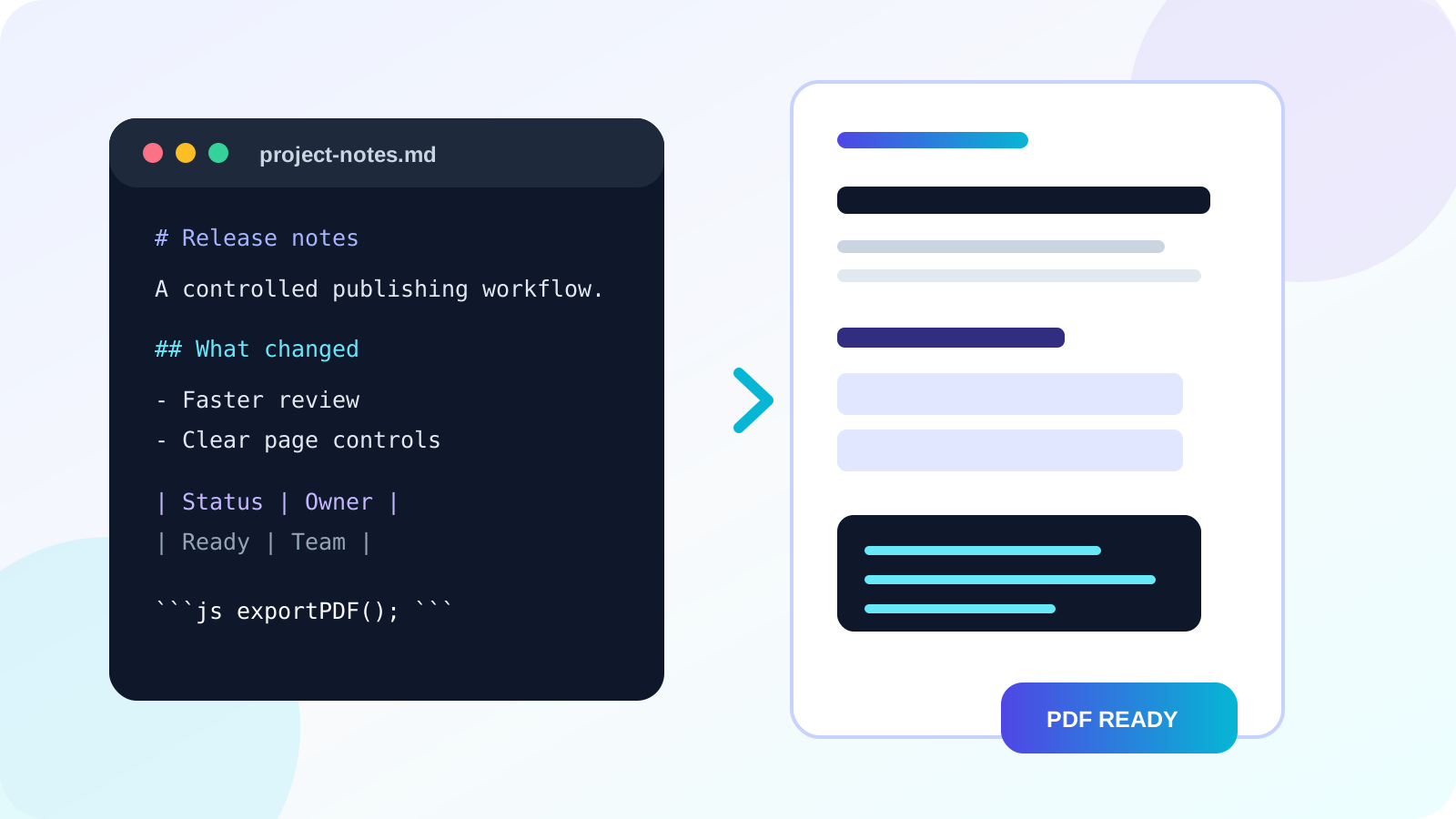
A preview should show whether headings, emphasis, links, lists, quotes, tables and code blocks were recognized. Review representative content rather than only the first screen. A document may begin correctly but fail later because of an unclosed code fence or malformed table.
The preview is a structural approximation of the PDF. Page size, printable width and font metrics determine the final pagination, so very wide tables and long code lines need extra attention. Keep important text inside ordinary line lengths whenever possible.
Choose page geometry for the reading context
Margins protect content from printer edges and create room for annotation. A moderate margin is safer than trying to maximize every line. Landscape can solve occasional width problems, but it should not become a substitute for simplifying an oversized table.
Add page numbers when the PDF may be printed or reviewed collaboratively. A running title is useful for reports and specifications, provided it remains short enough to fit every page.
| Setting | Choose it when | Review |
|---|---|---|
| A4 portrait | International reports, notes and documentation | Long tables and code lines |
| Letter portrait | North American office delivery | Header and footer spacing |
| Landscape | Wide tables, logs or code-heavy documents | Page count and reading comfort |
Place manual page breaks deliberately
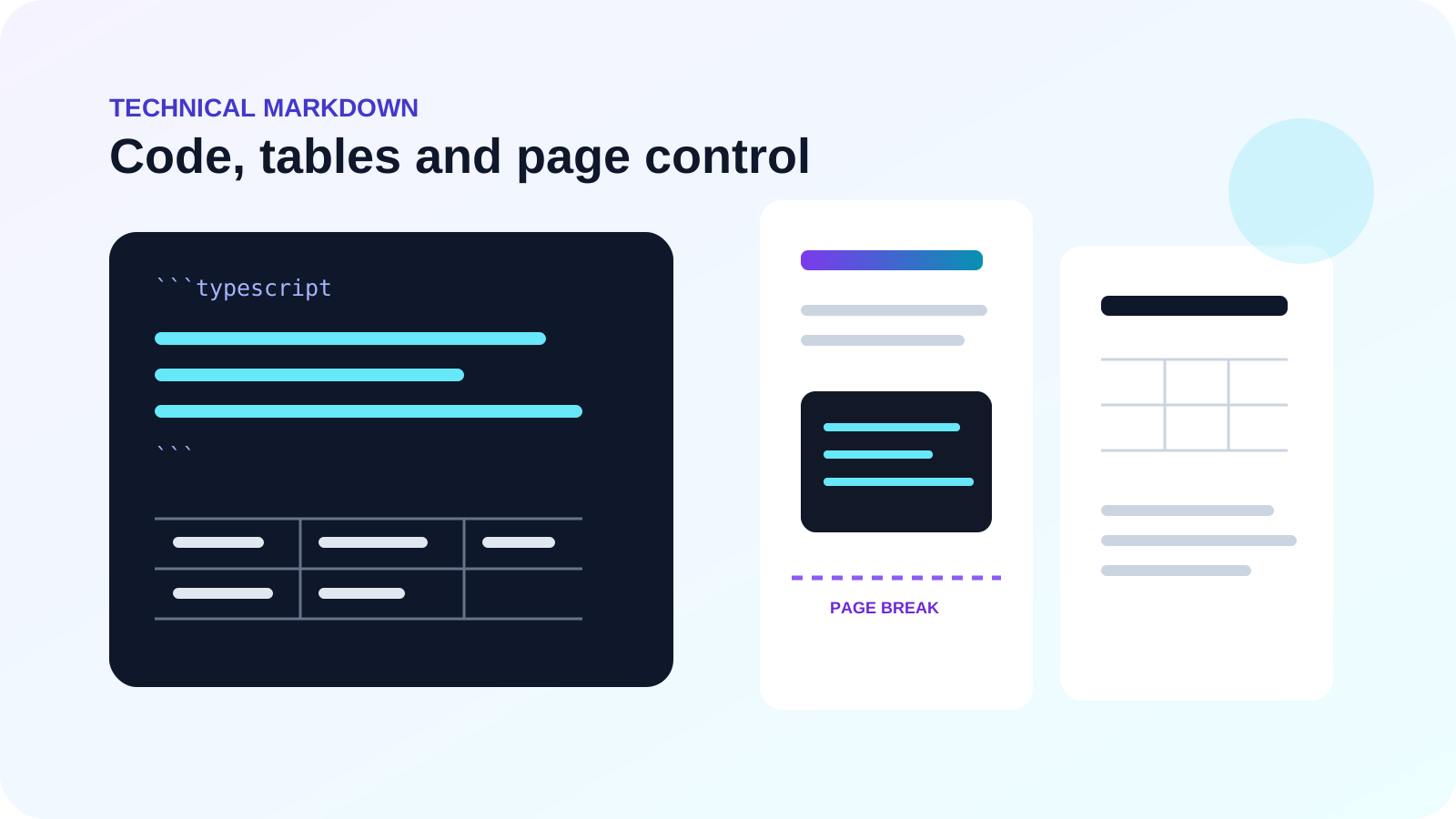
Automatic pagination follows available vertical space. Use a manual break only when a new chapter, appendix or controlled section must begin on a fresh page. In Nexynto Studio, place ---pagebreak--- on its own line.
Avoid adding breaks after every short section. Excessive manual pagination produces half-empty pages and becomes difficult to maintain when text changes. Generate the PDF, review section boundaries and add only the breaks that improve navigation.
Validate the PDF before publishing
Open the generated PDF and inspect the first page, a page containing a table, a code-heavy page and the final page. Confirm that text remains selectable, links are represented clearly, page numbers are present when requested and no content extends beyond the page.
Keep the Markdown source as the editable master and the PDF as the delivery copy. If the document contains diagrams, mathematical notation or embedded images outside the supported subset, render those elements through a workflow that explicitly supports them rather than assuming silent compatibility.
Put the workflow into practice
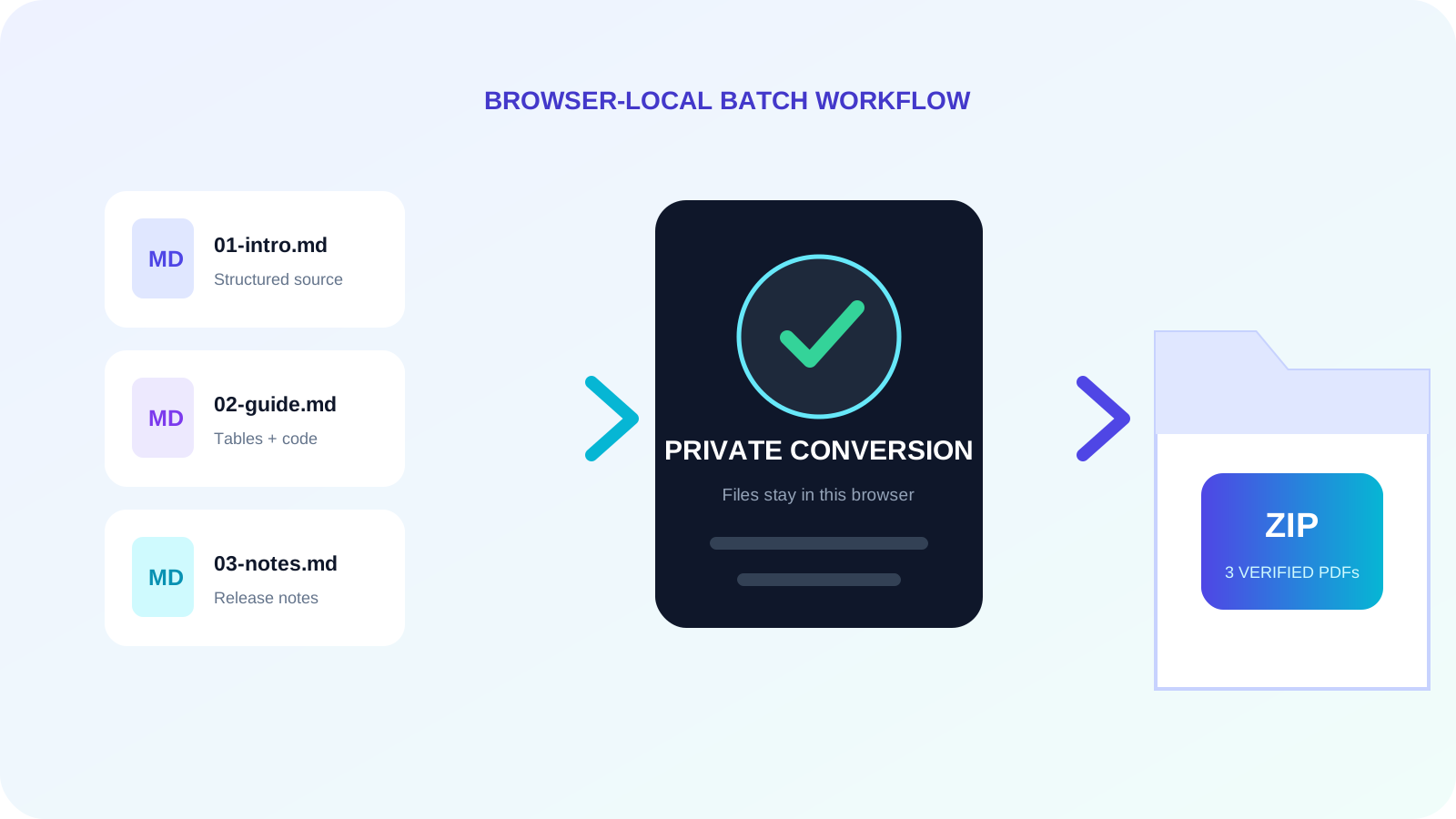
Arrange source documents, select the pages you need, and create one PDF locally in your browser. Review the result before choosing any optional next step.
Try Markdown to PDFFrequently asked questions
Clear answers before you merge
Does Markdown preserve the exact GitHub appearance?
No. Markdown defines structure, while each renderer applies its own typography and spacing. Review the Nexynto preview and PDF output.
Can I force a new PDF page?
Yes. Put ---pagebreak--- on a line by itself.
Why does a table run wide?
A table can contain more text than the printable width allows. Shorten cells or use landscape orientation.
Should Markdown or PDF be the master copy?
Keep Markdown as the editable source and use PDF as the fixed delivery copy.