
On this page
Use complete fenced code blocks
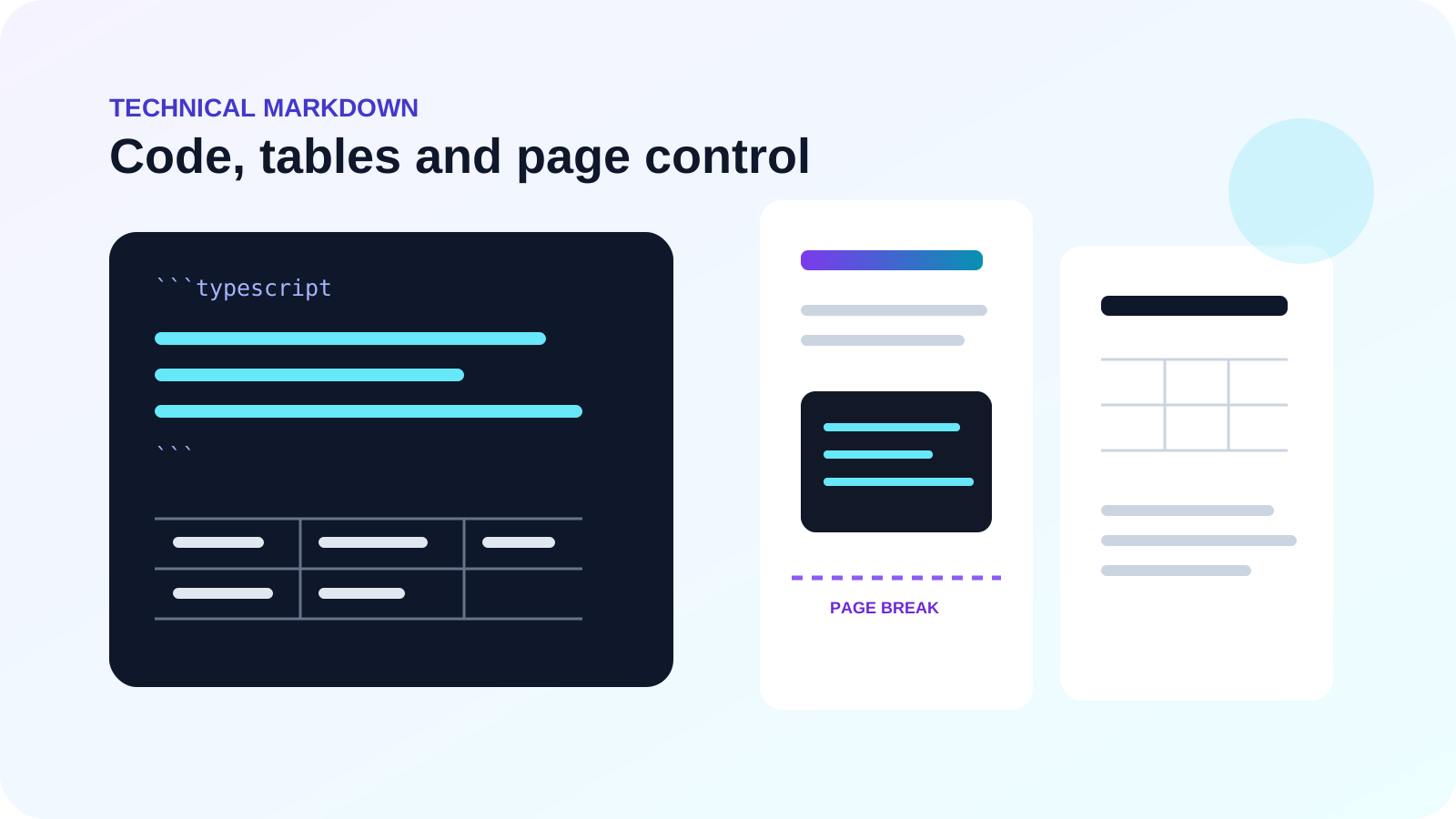
Open and close every fenced block with three backticks. An optional language label can document the source language even when the PDF uses a neutral monospace treatment. Keep the fence on its own line and avoid nesting it inside malformed lists.
Long code lines do not wrap as naturally as prose. Prefer meaningful line breaks in the source, especially for commands, URLs and generated identifiers. If exact whitespace matters, test a representative block before exporting the complete document.
Control code width without shrinking the whole document
A single unusual line should not dictate the typography of the entire report. Edit or split that line first. Choose landscape only when wide technical content is common throughout the document.
PDF is a reading format, not an interactive code editor. Preserve the repository or source file alongside the PDF when users need to copy, run or diff the original code.
| Problem | Preferred response | Avoid |
|---|---|---|
| One long line | Break the command or expression safely | Tiny body text on every page |
| Many wide blocks | Use landscape orientation | Clipping the right edge |
| Long generated output | Summarize and link to the source | Hundreds of unreadable lines |
Build tables that fit the printable width
Markdown tables work best with a small number of concise columns. Use the first row as the header and include a valid separator row. Keep each subsequent row aligned to the same column count so the renderer does not have to guess the intended structure.
For a very wide data set, consider splitting one table into two related tables or moving detailed values to an appendix. Landscape orientation can provide extra width, but dense cells may still become difficult to read.
Prevent awkward pagination
Automatic page creation should handle ordinary paragraphs and lists. Review places where a heading lands at the bottom of a page, a short table row separates from its header or a code block begins with too little remaining space.
Insert a manual break before a major section when it improves the document, not simply to reproduce the editor viewport. Source edits can change all later page boundaries, so pagination should be checked again after substantial revisions.
Run a technical output review
Check that indentation remains understandable, table headers are visually distinct and inline code is not confused with body text. Search the PDF for a known code identifier to confirm the output retains usable text.
Inspect the PDF at normal zoom and at print size. A layout that looks spacious on a large monitor may become dense on paper. Confirm the output filename and PDF title are meaningful before sharing or archiving.
Put the workflow into practice
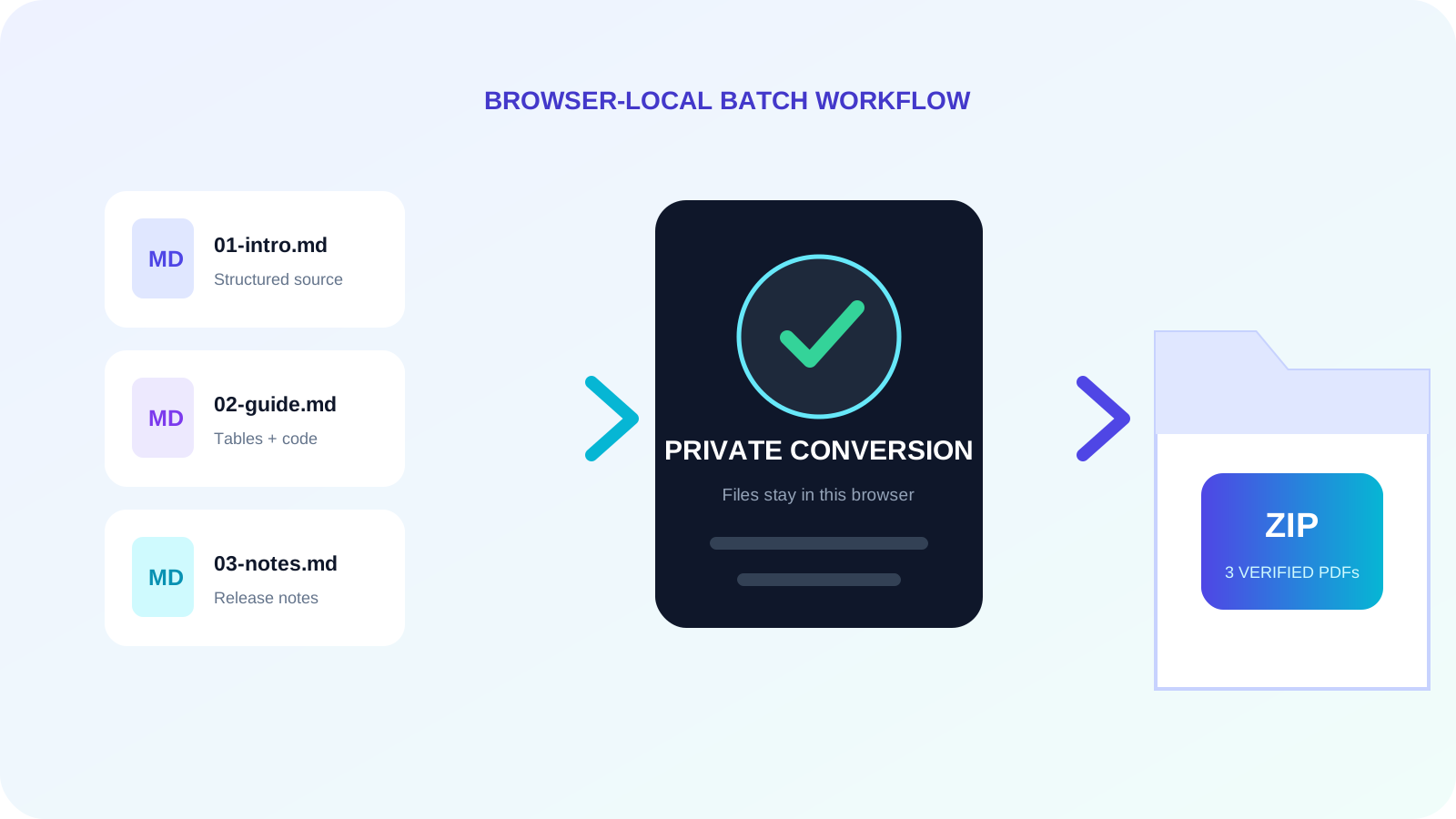
Arrange source documents, select the pages you need, and create one PDF locally in your browser. Review the result before choosing any optional next step.
Try Markdown to PDFFrequently asked questions
Clear answers before you merge
Does the converter apply syntax highlighting?
The current renderer uses a readable monospace code treatment rather than full language-specific syntax highlighting.
Can a table continue across pages?
Large tables may paginate, but complex repeated headers are not reconstructed. Review long tables carefully.
When should I use landscape?
Use it when wide tables or code blocks are common, not merely for one exceptional line.
Will code remain selectable?
The generated PDF writes supported code content as text, so it should remain selectable.