On this page
Treat TIFF frames as PDF pages
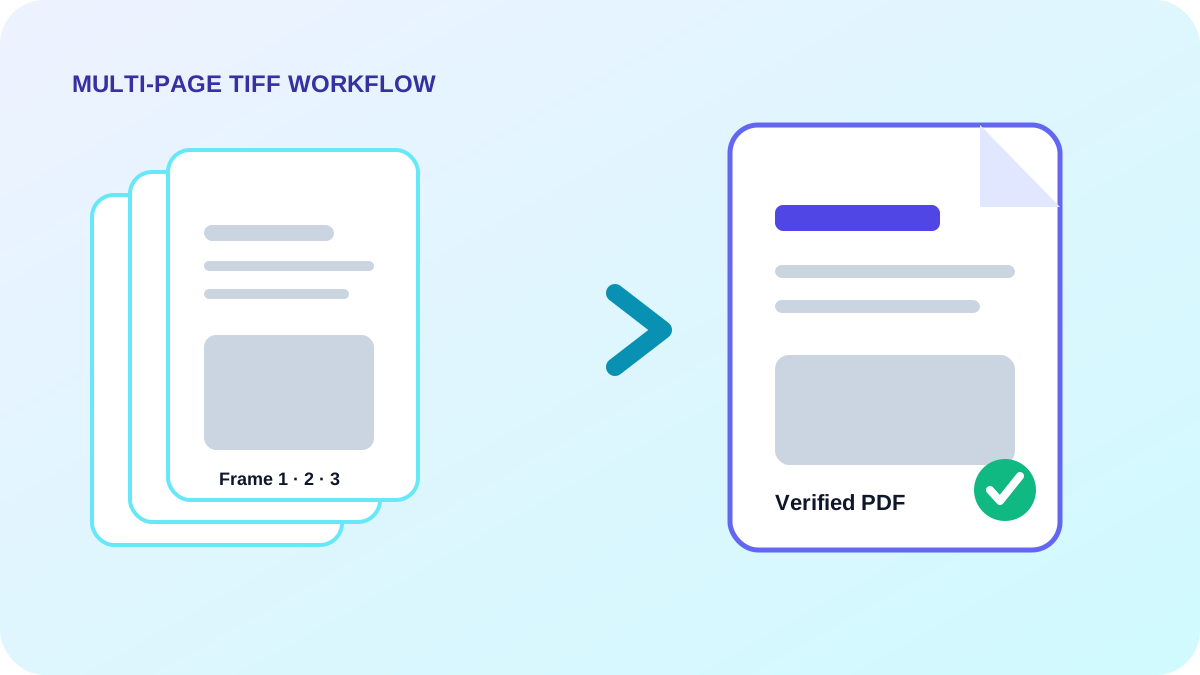
Each decoded TIFF frame becomes one PDF page. Keeping the original order is the safest default for scanned contracts, faxes and archive records.
When only part of a file is needed, choose explicit ascending frames such as 1-3, 5 rather than deleting pages after conversion.
Choose source or standardized geometry
Source size follows the pixel dimensions and selected DPI. A4, Letter and Legal create consistent sheets for printing and records systems. Contain keeps the full scan; cover fills the sheet and can crop edges.
Review the generated PDF
Open the result and check the first page, last page, page count, orientation and edge content before distribution. Keep the original TIFF until the PDF has passed review.
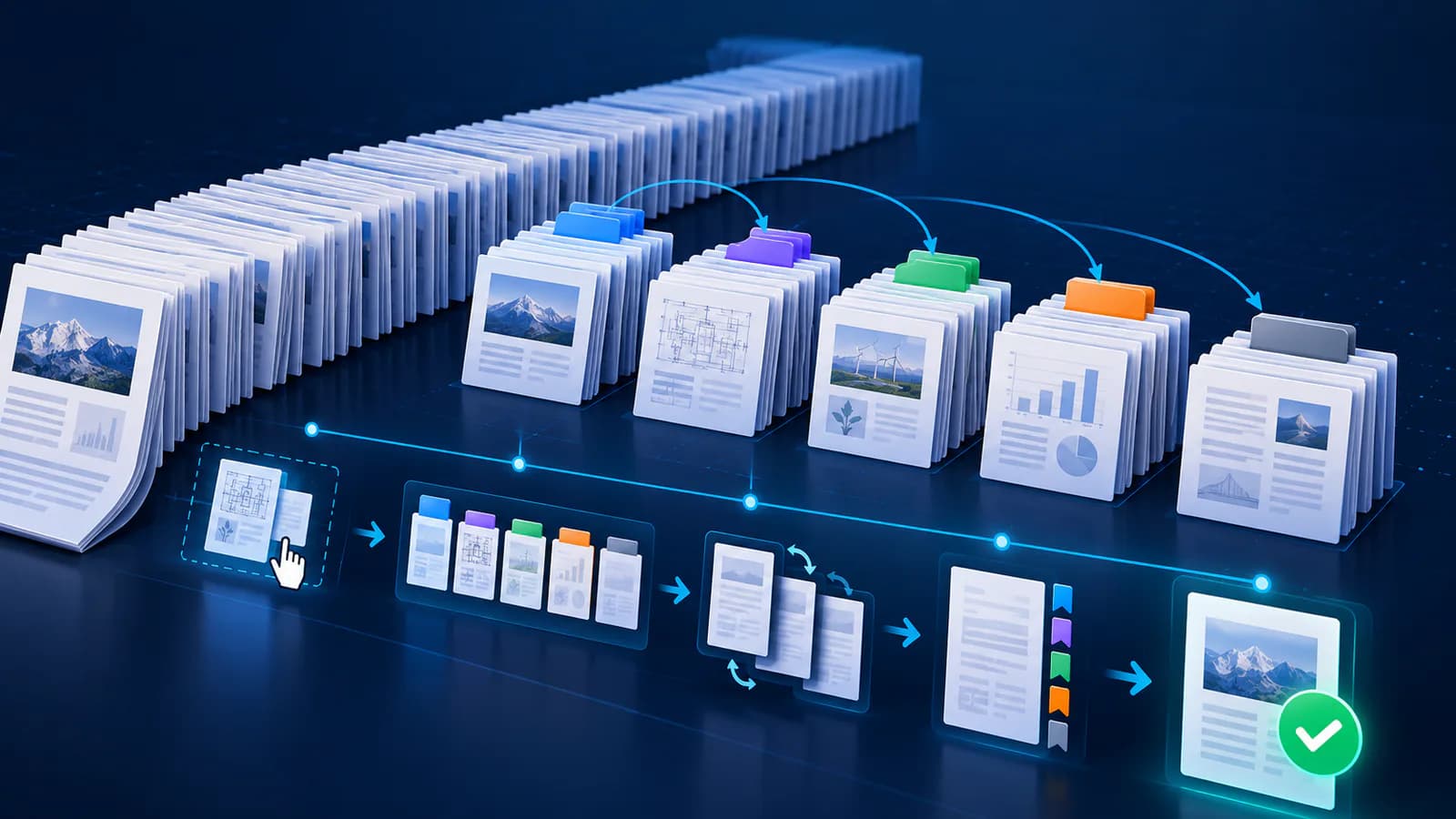
- Confirm frame count and order.
- Check small text at the selected zoom.
- Inspect margins for clipped stamps or signatures.
- Merge separate converted PDFs only after individual verification.
Put the workflow into practice
Arrange source documents, select the pages you need, and create one PDF locally in your browser. Review the result before choosing any optional next step.
Try Merge PDFFrequently asked questions
Clear answers before you merge
Does a multi-page TIFF become one PDF?
Yes. Every selected readable frame from one TIFF becomes an ordered page in one PDF.
Can frames be skipped?
Yes. Use an explicit list or ascending ranges such as 1-3, 5.
Will the original TIFF change?
No. The result is created as a separate PDF.