On this page
Use individual files for page-level workflows
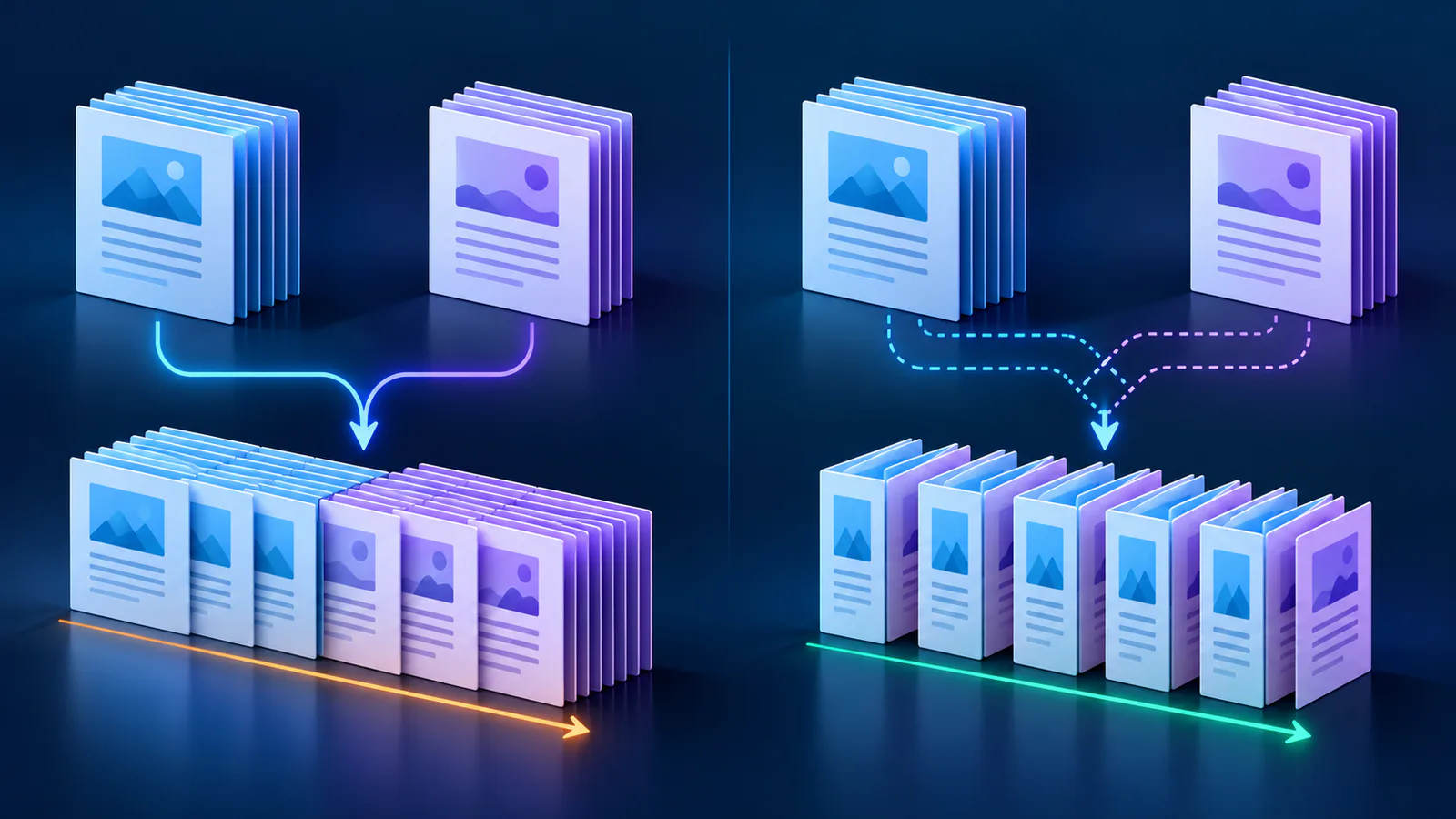
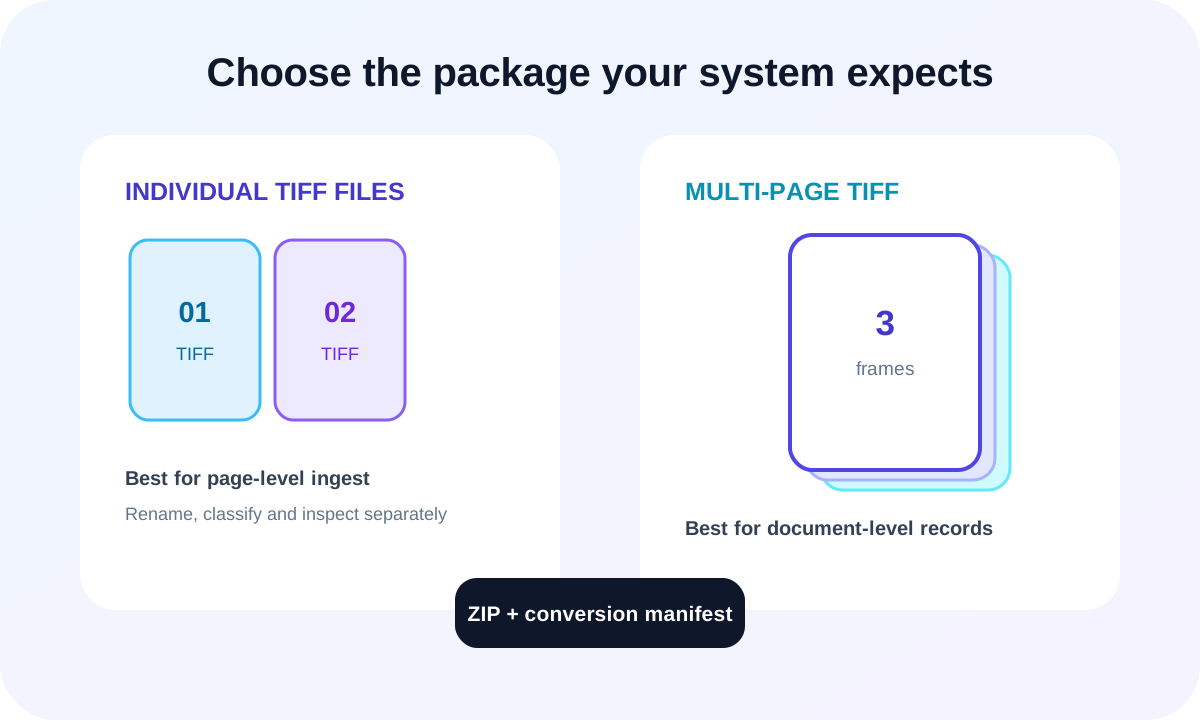
Separate TIFF files are easier to rename, classify, inspect or send to systems that ingest one page at a time. Original PDF page numbers in filenames preserve order.
Use one TIFF for a document-level record
A multi-page TIFF keeps selected pages in one ordered container. It is useful when the downstream viewer or records platform explicitly supports multi-frame TIFF.
Keep the package self-describing
The ZIP prevents a large page set from scattering during download. The included manifest records pages, DPI, color, compression and packaging.
- Confirm the target system supports multi-page TIFF.
- Keep filenames predictable for page-level imports.
- Verify frame count after multi-page export.
- Retain the manifest with the output.
Put the workflow into practice
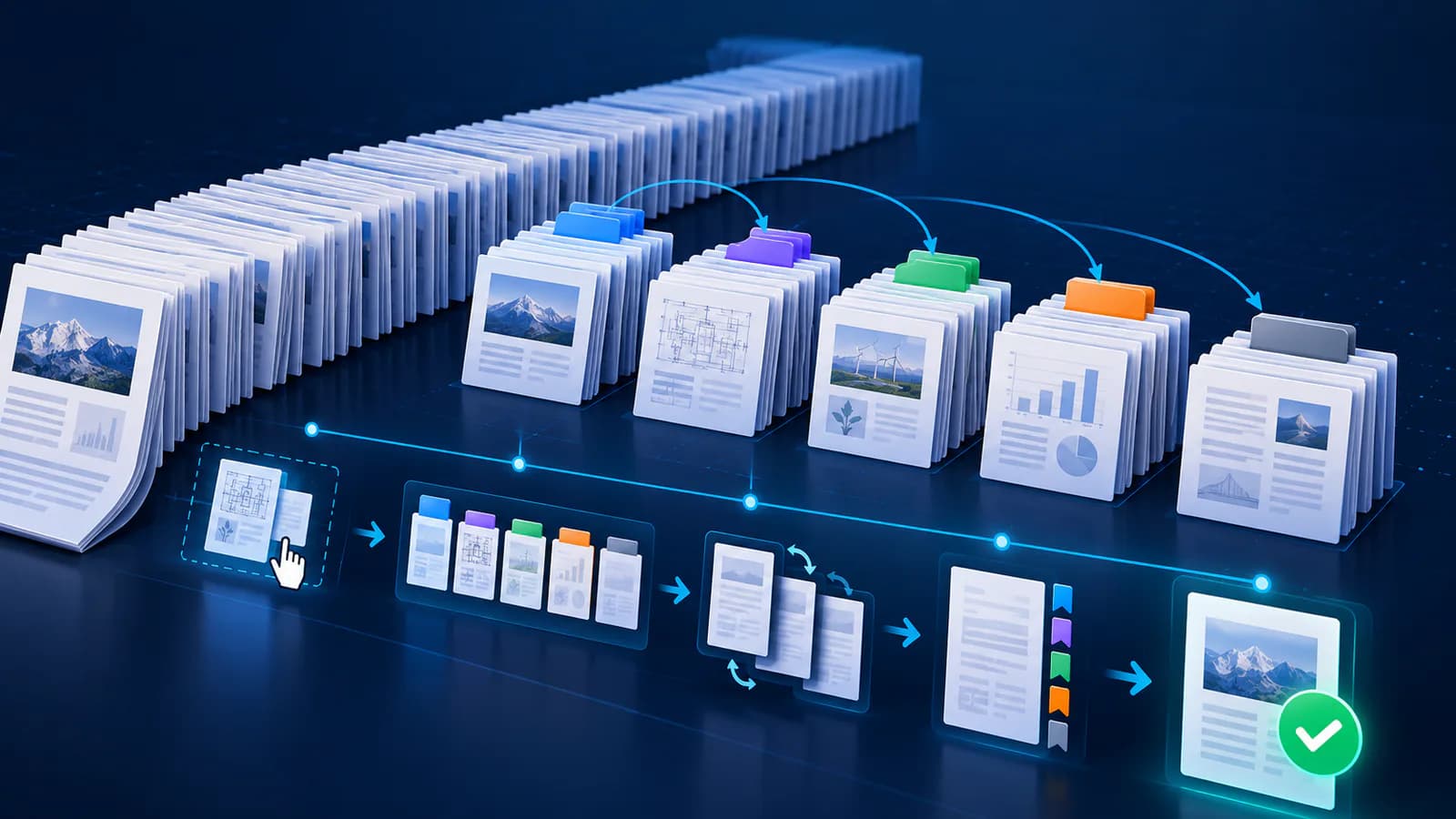
Arrange source documents, select the pages you need, and create one PDF locally in your browser. Review the result before choosing any optional next step.
Try Merge PDFFrequently asked questions
Clear answers before you merge
Does multi-page TIFF preserve order?
Yes. Selected pages are written in their ascending source order.
Why package one TIFF inside a ZIP?
The ZIP provides a consistent download format and includes the conversion manifest.
Which mode works for OCR systems?
It depends on the system. Some ingest individual pages, while others accept multi-page TIFF.