On this page
What does PDF to Excel actually do?
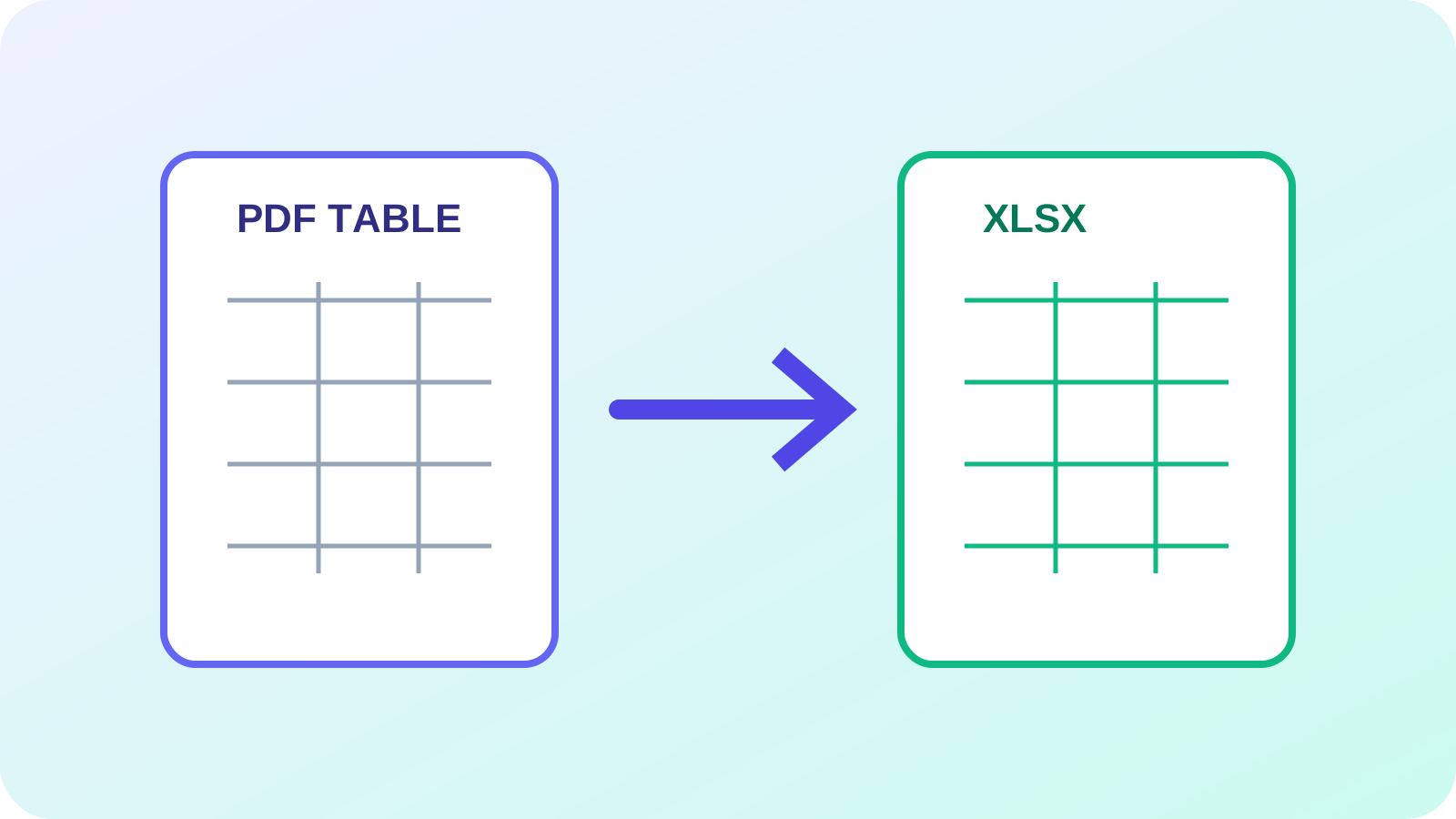
PDF pages normally store text at coordinates, not spreadsheet cells, formulas or data types. Conversion detects aligned text, ruling lines and spacing, then reconstructs a workbook from that evidence. Nexynto can use bordered-table, spacing-based or automatic detection and reports the tables and sheets produced.
The result is editable data, not a recovered original workbook. Formulas usually become displayed values, and a visually merged heading may have several reasonable spreadsheet representations.
Digital and scanned PDFs need different workflows
Selectable text usually supports native extraction. A scan contains page images, so OCR must recognize characters and estimate their positions first. OCR PDF to Excel is the appropriate route for scanned documents; Image to Excel handles a photograph or screenshot.
OCR mistakes matter greatly in tables: 0 and O, 1 and l, minus signs, dates and decimal separators can silently change meaning. Check recognized values against the page image.
| Source | Route | Main review risk |
|---|---|---|
| Selectable PDF table | PDF to Excel | Structure and merged headers |
| Scanned PDF | OCR PDF to Excel | Recognition and alignment |
| Image | Image to Excel | Perspective and OCR |
| Need candidates first | Extract Tables | Region selection |
Merged cells and multi-page tables
Spanning headings may become merged cells, repeated labels or values in the first column. Choose the structure that supports the next task rather than expecting an exact visual clone. Multi-page tables can repeat headers, split rows or carry subtotals across boundaries.
Separate worksheets preserve detected boundaries. Consolidation should happen only after repeated headers, page transitions and record counts have been reviewed.
Verify before analysis
Compare row counts, first and last records, totals, dates and decimal precision. Inspect every page transition and columns after blank cells. Keep the source PDF with the reviewed workbook so extraction corrections remain traceable.
In Nexynto, select only relevant pages, start with automatic detection, and try a more specific method if borders fragment or columns drift. An empty native result from a scan is a reason to use OCR, not proof that no table exists.
- Reconcile totals and row counts
- Check merged headings and blank cells
- Inspect page boundaries
- Confirm dates, signs and decimals
- Record manual corrections
Put the workflow into practice
Arrange source documents, select the pages you need, and create one PDF locally in your browser. Review the result before choosing any optional next step.
Try PDF to ExcelFrequently asked questions
Clear answers before you merge
Can scanned PDFs be converted to Excel?
Yes, but scanned pages require OCR and the recognition and structure must be checked against the images.
Will formulas return as Excel formulas?
Usually no. PDFs normally contain displayed values, not source workbook formulas.
Why do merged cells change?
Cell boundaries are inferred from visual evidence, so spanning headers can have multiple valid representations.
Should every table be a separate sheet?
Not always. Separate sheets clarify boundaries; related tables can be consolidated after review.