
Page-aware output
Clear page markers make long extractions easier to inspect.
PDF text workspace
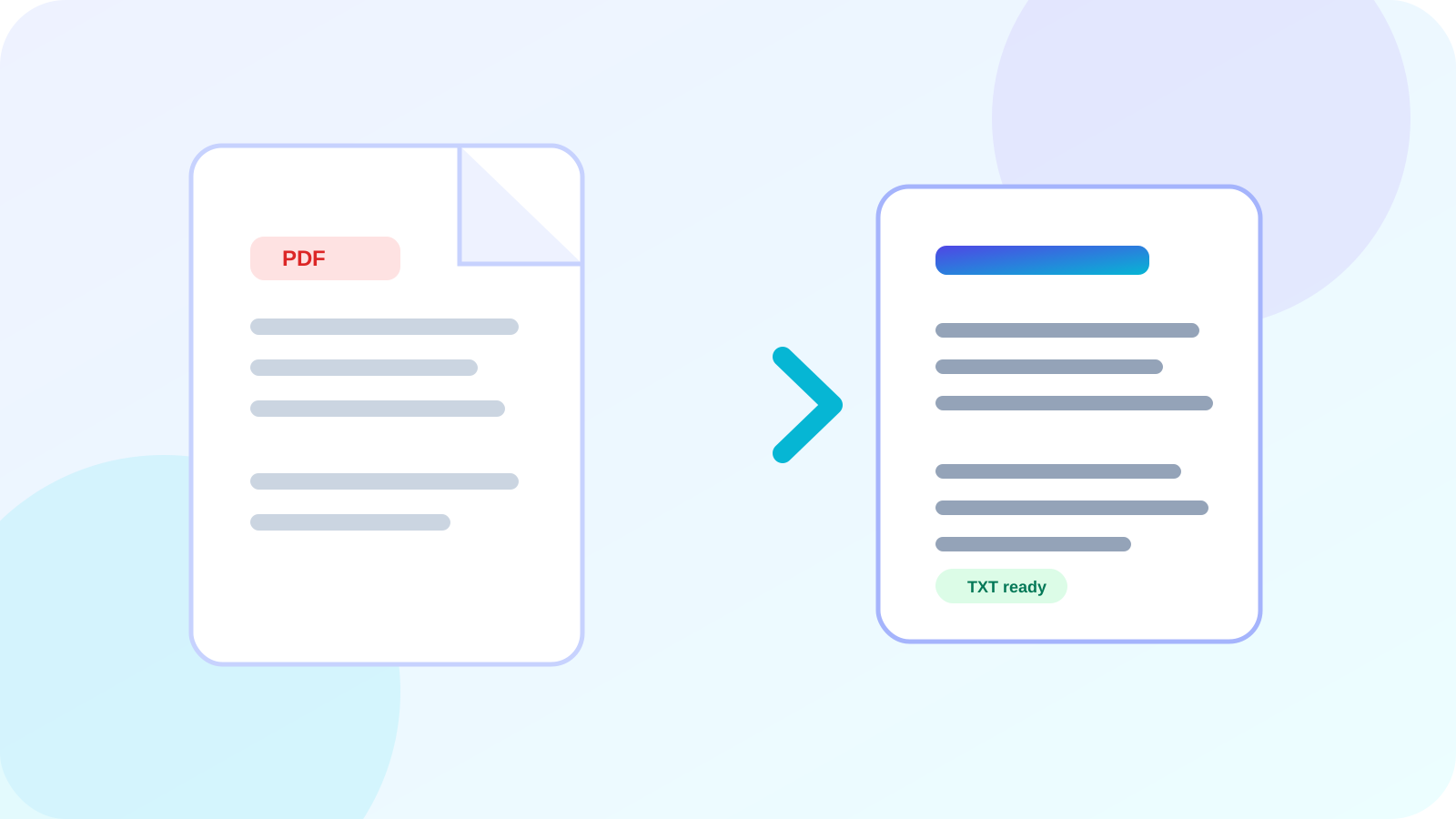
Recover selectable text from a PDF, review page boundaries, then copy the result or download a clean TXT file.
Upload workspace
Temporary processing. The backend removes its temporary input after extraction.
Text layer only. Use OCR PDF for image-only scans.
Simple, reviewed workflow
The extractor reads the PDF text layer and keeps each page clearly separated. Image-only scans may return little text and should be routed to OCR instead.
Add a text-based PDF from your device.
Nexynto reads the document and separates output by page.
Check reading order, names, numbers, and page boundaries.
Copy the complete result or save it as a TXT file.
Clear page markers make long extractions easier to inspect.
Direct extraction is not presented as OCR for image-only pages.
Inspect the extracted content before copying or downloading it.
The selected PDF is never overwritten by the extraction workflow.
Practical guides
PDF Text · 8 min read
Extract selectable PDF text, review page boundaries, and choose OCR only when the document has no usable text layer.
Read guideOCR Guidance · 7 min read
Compare direct PDF text extraction with optical character recognition for scans, screenshots, and mixed documents.
Read guideFrequently asked questions
It works with PDFs that contain a usable text layer. Scanned or image-only pages usually require OCR.
PDF text is positioned by page coordinates rather than stored as normal flowing paragraphs. Columns and tables may need cleanup.
Yes. Review the complete result, then download it as a plain TXT file or copy it to the clipboard.
No. Extraction creates a separate text result and leaves the source file unchanged.
This tool temporarily sends the PDF to the Nexynto extraction service. The temporary input file is removed after processing.
Use OCR PDF when pages are photographs or scans without selectable text.
Use PDF To Word to export or reuse content from PDF files.
Use PDF To Excel to export or reuse content from PDF files.
Use PDF To Image to export or reuse content from PDF files.
Use Extract Tables from PDF to export or reuse content from PDF files.
Tool-specific guidance
The basic extractor works best with PDFs that already contain a text layer. For scanned pages, use OCR PDF or Make PDF Searchable before extracting text.
Text is returned in the order exposed by the PDF. Multi-column layouts, positioned labels and decorative text can require manual reordering.
No. The output is plain text intended for reuse and review; fonts, page geometry, images and most visual formatting are not retained.
A PDF can use custom character maps, outlined letters or embedded images instead of ordinary text. OCR is the appropriate fallback when no reliable text layer exists.
The current extraction workspace reads the selected PDF in the browser. Check the processing disclosure shown on the tool before handling sensitive documents.