
01
Add a completed form
Inspect pages, fields, values and required states.
Turn completed interactive fields into fixed page content after a visual review—then verify that no editable AcroForm controls remain.
Controlled conversion
Inspect pages, fields, values and required states.
Check every value against the real PDF page before fixing it.
Acknowledge that editable controls will be removed from the output.
Reopen the PDF and confirm that zero editable fields remain.
Tool profile
Inspect the current values first, understand what will become permanent, and preserve an editable source before generating the fixed PDF.
See filled, empty and required fields before flattening.
Field locations and status appear over the source pages.
The original completed form is never overwritten.
The output is reopened and checked for zero form fields.
About flattening PDF forms
Flattening removes interactive form controls after their visible appearances are written into the PDF page. Recipients can normally view and print the responses without editing those fields.
This is different from password protection and does not stop every kind of PDF editing. It is primarily a compatibility and workflow-finalization step.
Flatten only a completed, reviewed copy. Empty fields become fixed as empty, and the normal form controls cannot be restored from the flattened result. Preserve the editable source separately.
Frequently asked questions
It converts supported form field appearances into fixed page content and removes normal field editing.
Yes. Confirm all values before flattening because the resulting fields are intended to be fixed.
No. The current implementation targets supported AcroForm fields, not XFA forms.
No. Flattening fixes form fields; Protect PDF adds an open password.
Selected files are processed in your browser and do not need to be uploaded to Nexynto Tools servers.
Practical form guides
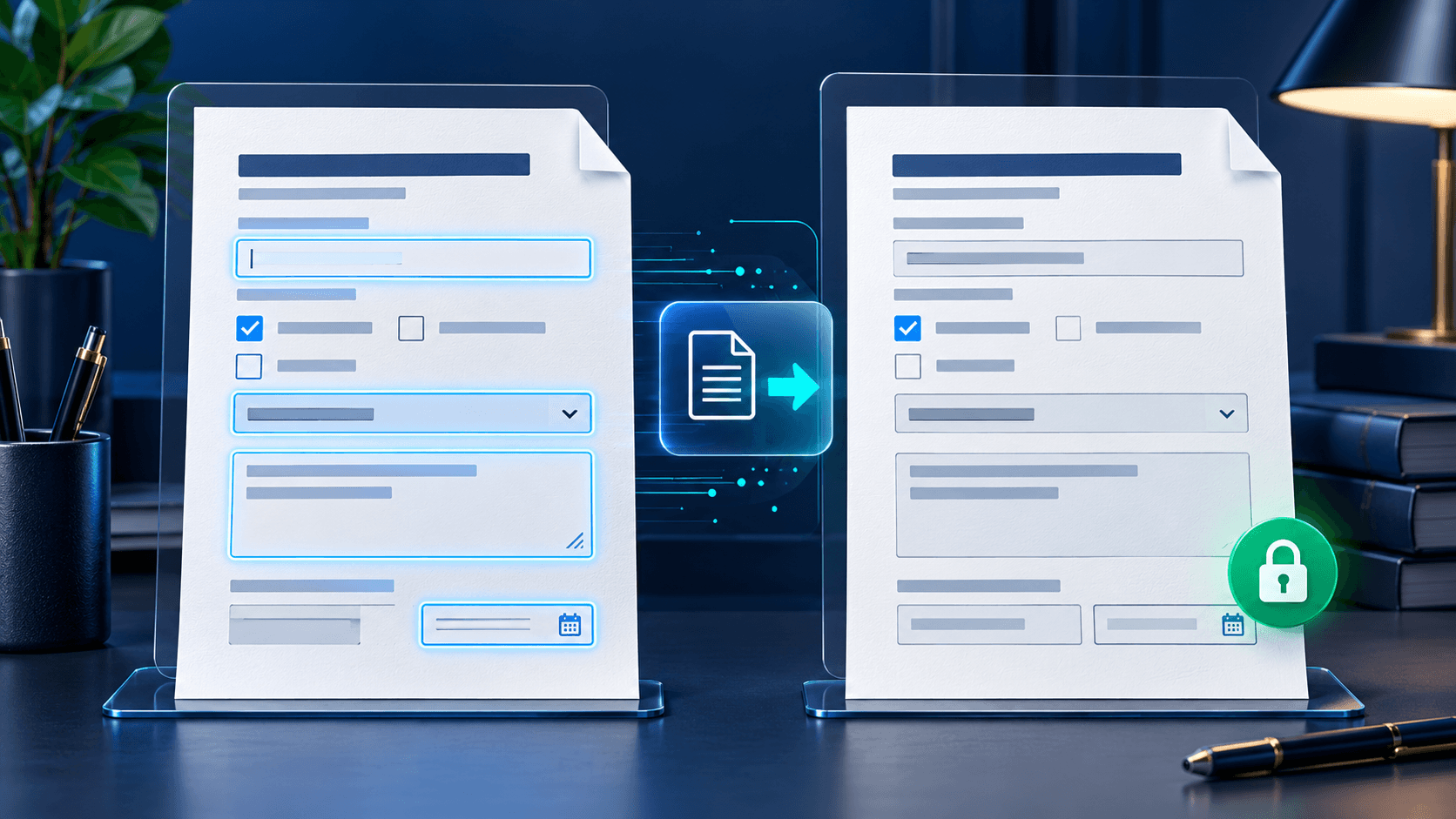
Flatten safely
Review the completed form, preserve the editable source and verify the fixed output.
Read more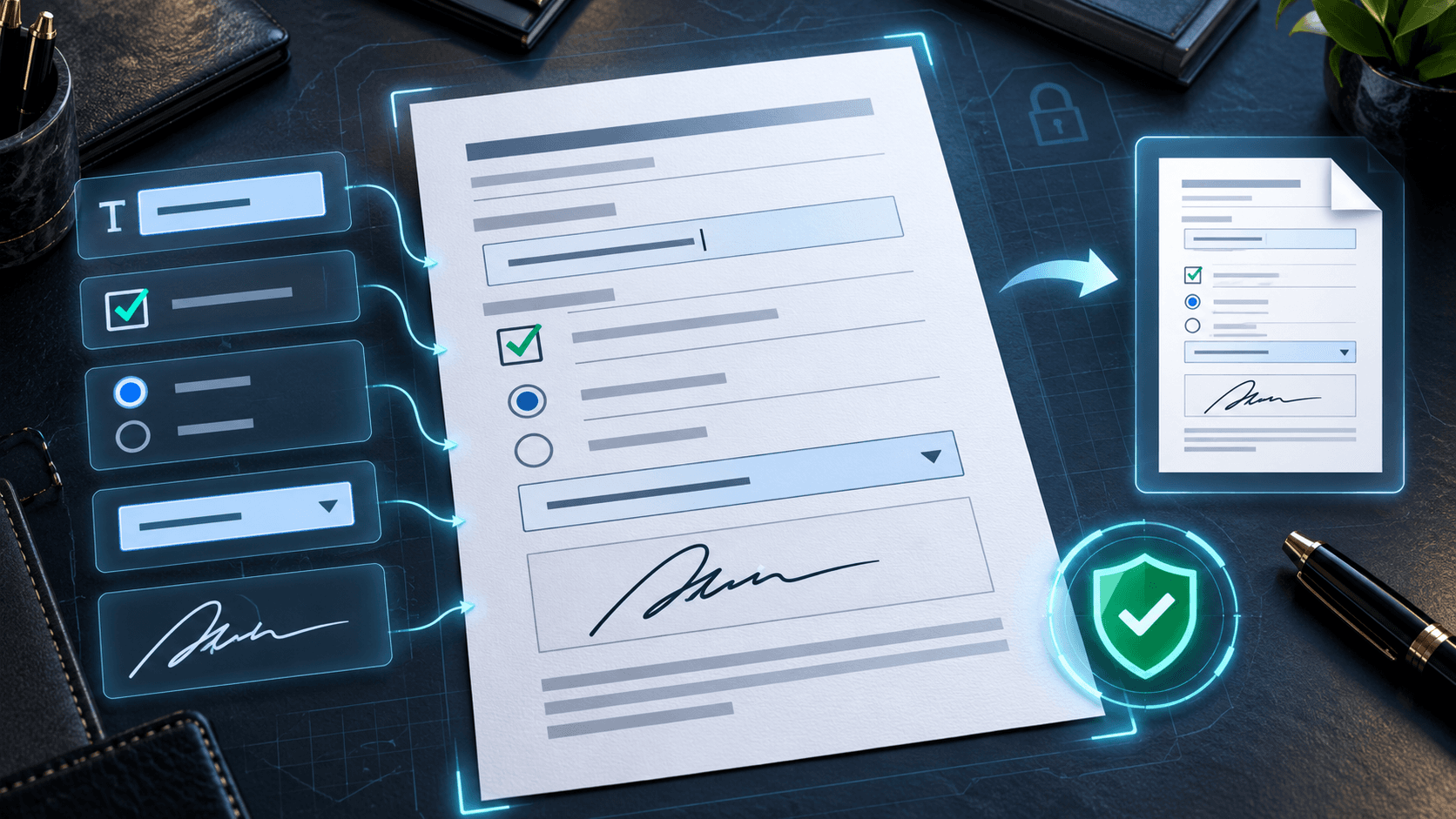
Visual fidelity
Understand field appearances, viewer differences and the checks that matter before delivery.
Read more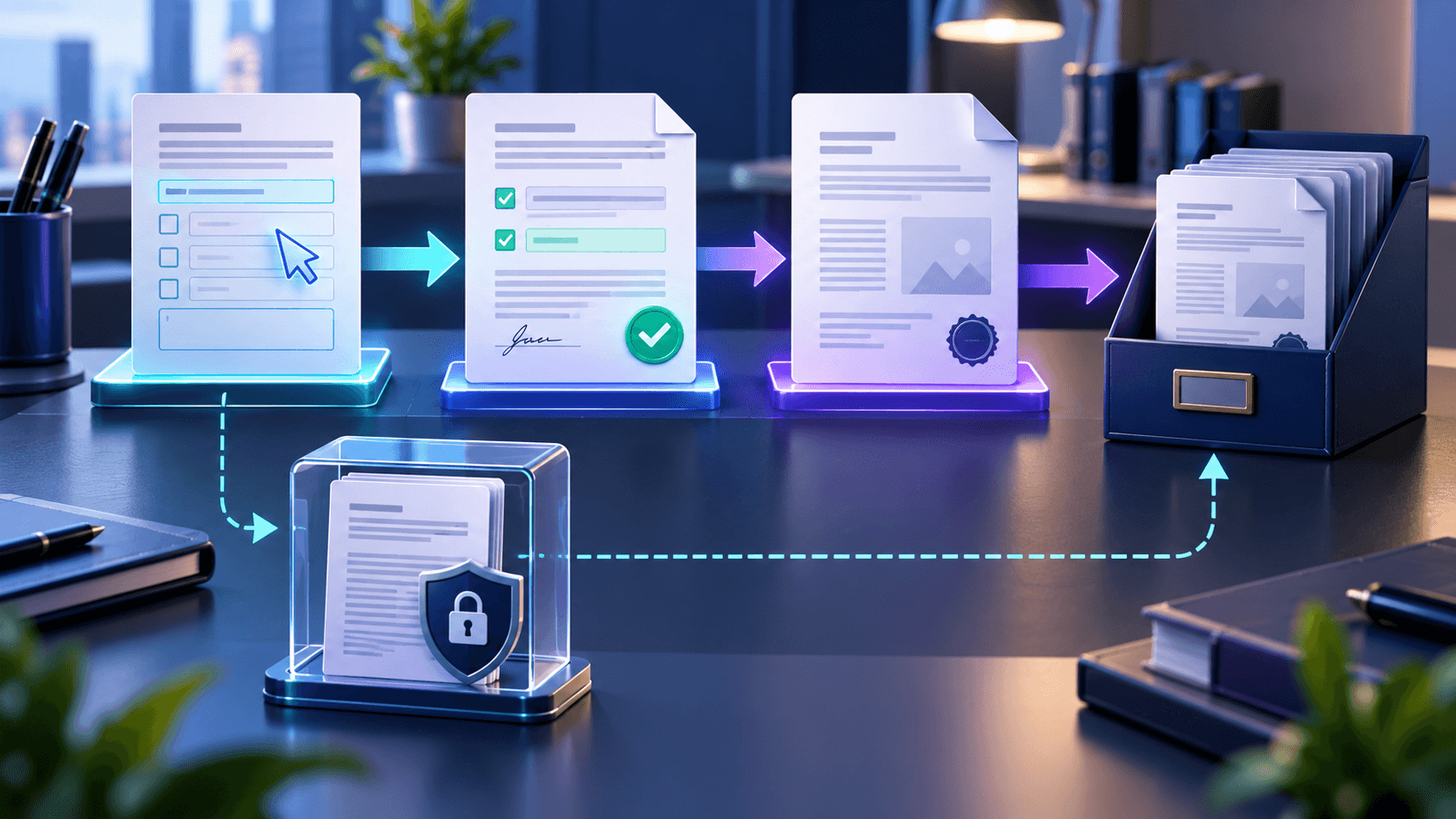
Choose the right copy
Keep a reusable source while creating fixed copies for submission, records and distribution.
Read moreUse Edit PDF to make focused changes while keeping the document workflow clear.
Use Watermark PDF to make focused changes while keeping the document workflow clear.
Use Sign PDF for a focused PDF privacy, access, or document-trust task.
Use Fill PDF Form to make focused changes while keeping the document workflow clear.
Add the editable copy, review every field, then create a verified fixed PDF.