On this page
Match the format to the page
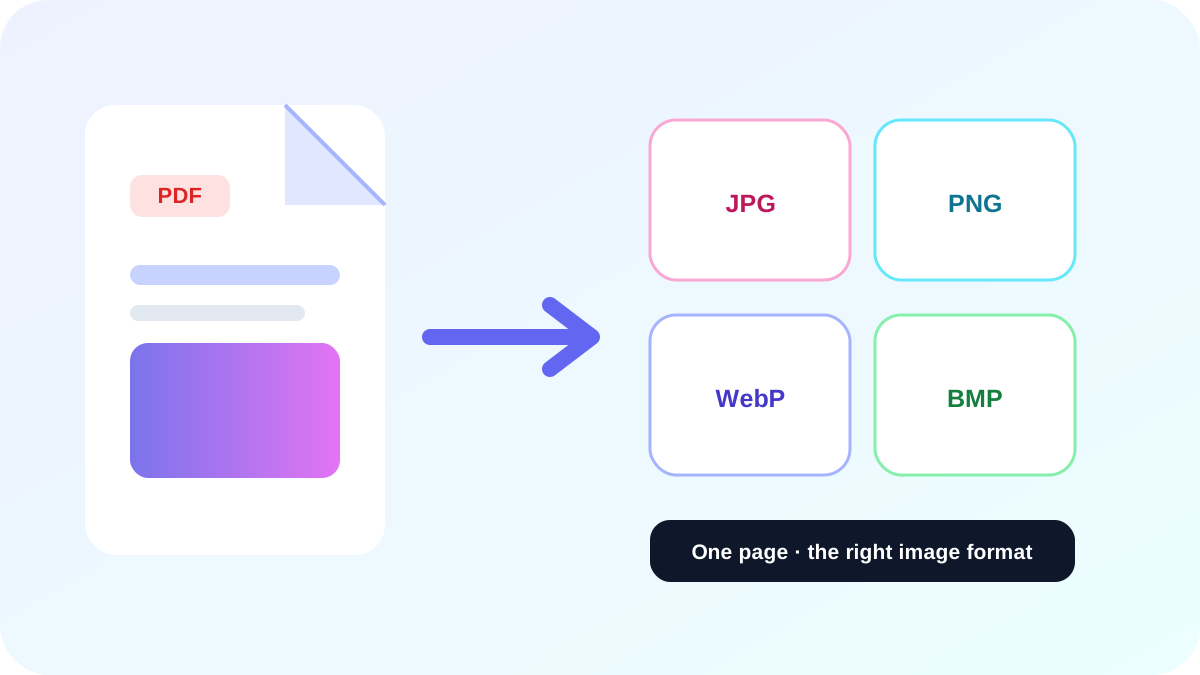
JPG is broadly compatible and compact for photographic pages. PNG is lossless and usually clearer for small text, diagrams and interface captures. WebP is efficient for modern web delivery. BMP is useful for software and legacy workflows that require uncompressed bitmap data.
| Format | Best fit | Main trade-off |
|---|---|---|
| JPG / JPEG | Photos, sharing and email | Lossy compression |
| PNG | Text, diagrams and screenshots | Usually larger |
| WebP | Modern websites | Older software compatibility |
| BMP | Legacy bitmap workflows | Very large files |
Export only the pages you need
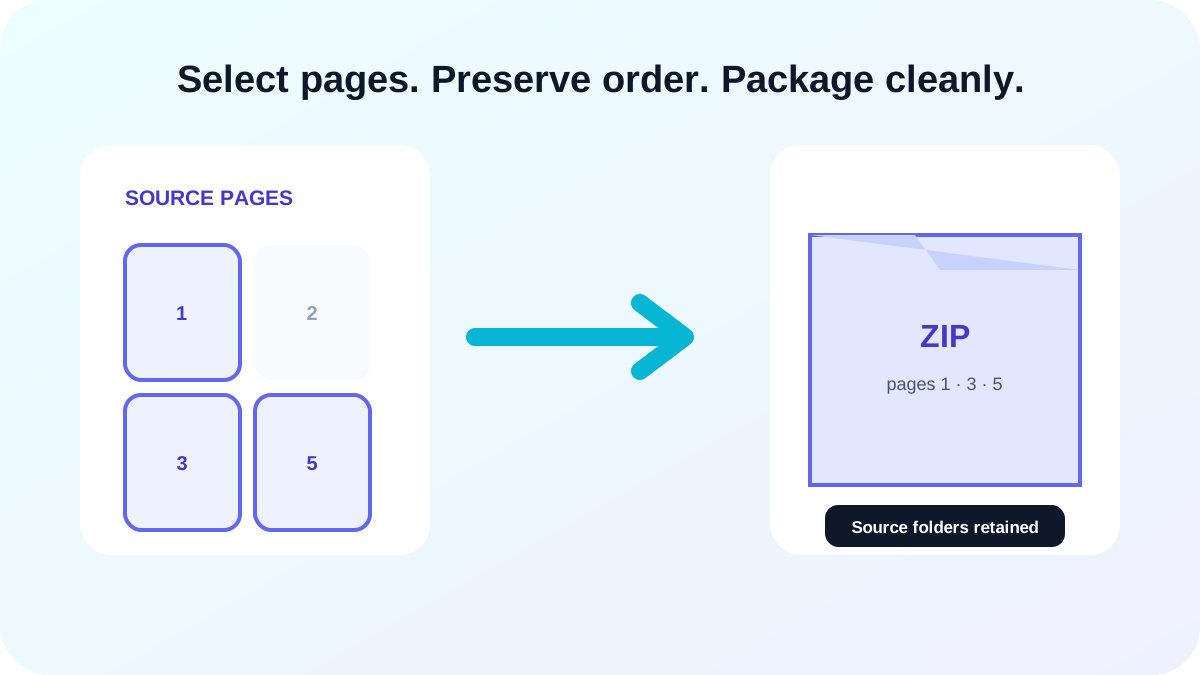
For a complete visual copy, export all pages. For a focused package, use a page range, odd or even pages, or manual page selection. Keeping the original PDF page number in each filename makes the output easier to audit.
Verify before publishing
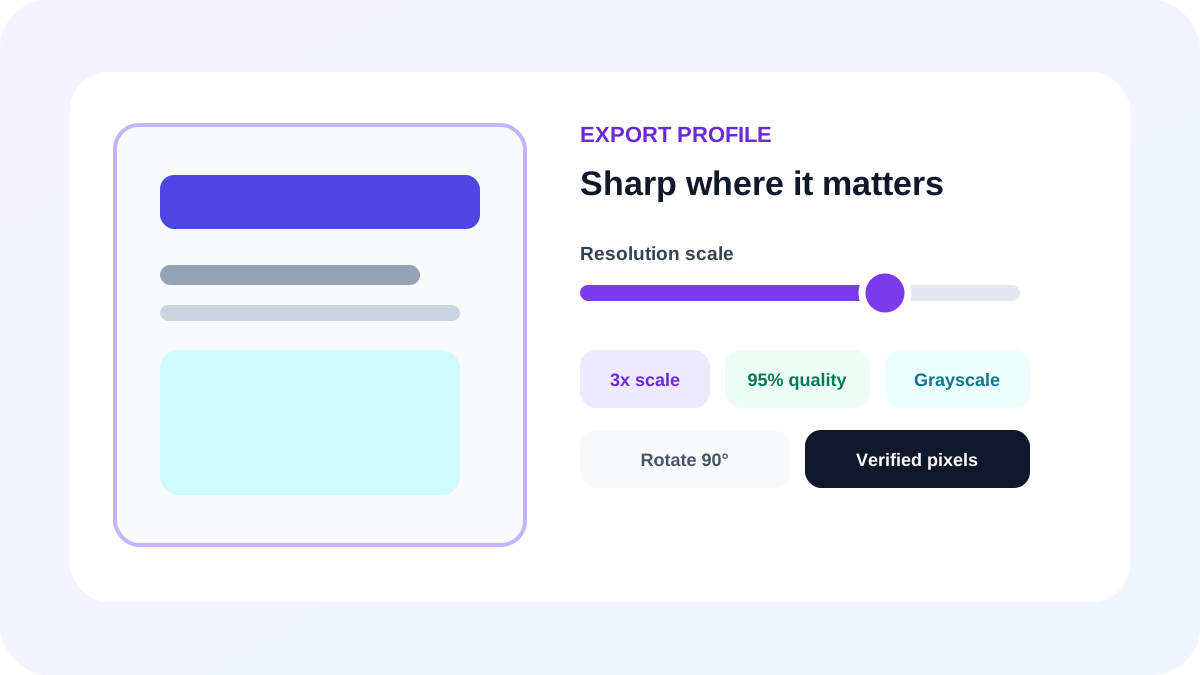
Open a representative image and confirm its pixel dimensions, orientation, smallest text and color treatment. Remember that the result is raster content: selectable text, links and forms no longer remain interactive.
- Inspect the first and last selected page.
- Zoom into small text and thin rules.
- Confirm source-page order in ZIP output.
- Keep the PDF as the editable source record.
Put the workflow into practice
Arrange source documents, select the pages you need, and create one PDF locally in your browser. Review the result before choosing any optional next step.
Try PDF to ImageFrequently asked questions
Clear answers before you merge
Does conversion extract embedded pictures?
No. It renders each complete page exactly as a page image.
Is JPEG different from JPG?
They use the same image encoding; only the usual filename extension differs.
Can I create BMP files?
Yes. The converter produces real BMP output for each selected page.