
On this page
Review the source layout
Confirm page size, margins and orientation in every Word section. Mixed portrait and landscape sections are valid and should remain source-driven rather than being normalized to A4.
Update fields and inspect manual page breaks before conversion. The PDF renderer works with the document view and structure supplied by the source file.
- Check section breaks.
- Inspect headers and footers.
- Confirm image anchoring.
- Review table widths.
- Update the table of contents and page numbers.
Resolve font availability early
Word pagination depends on font metrics. If the conversion host does not have a declared font, substitution can change line wrapping, table height and page count.
Use the workspace font report as a review signal. It does not block conversion, but any possible substitution deserves comparison in the completed PDF.
Verify the fixed-layout result
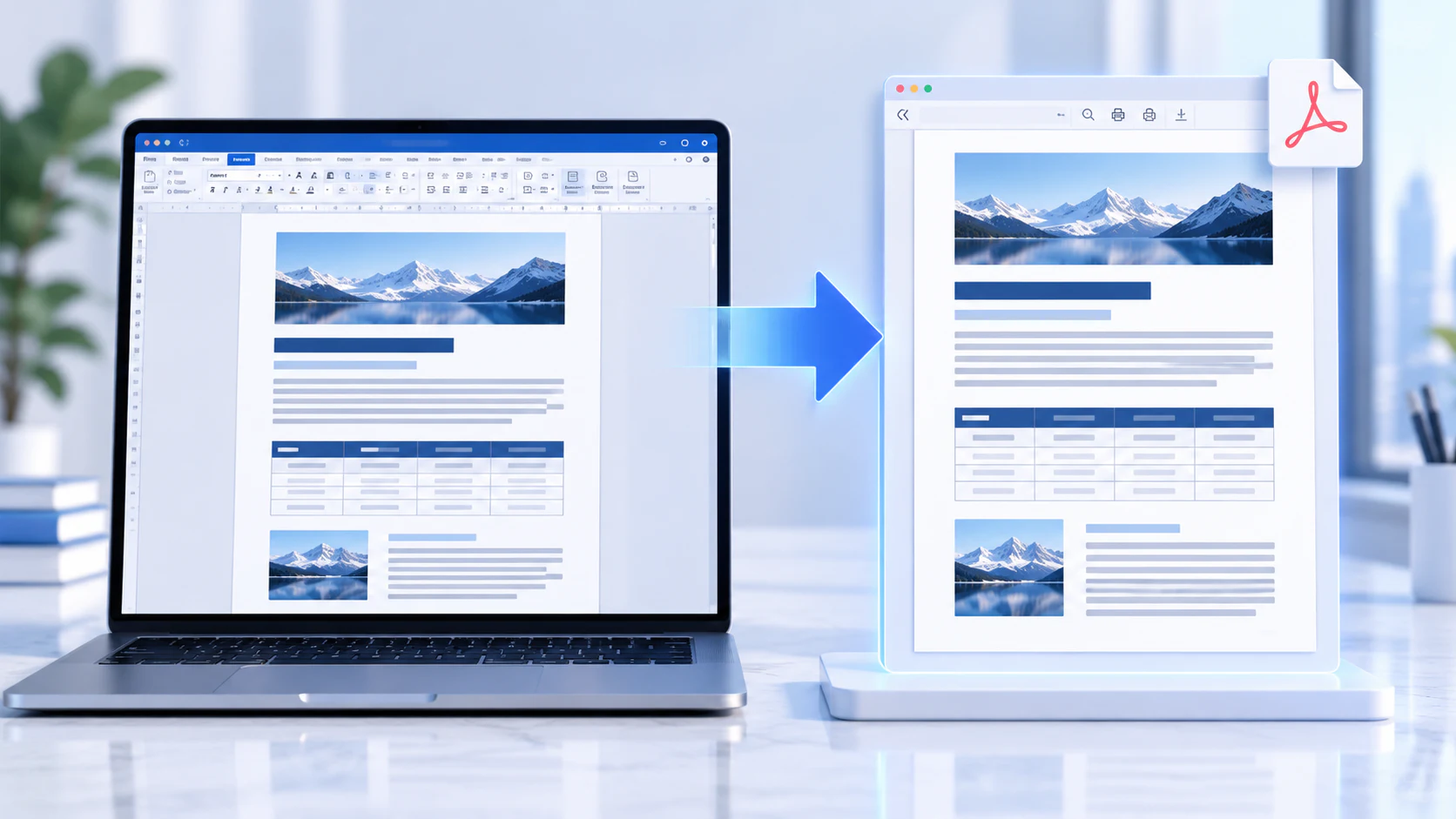
Compare the PDF with the source at section transitions, dense tables, captions, hyperlinks and repeated headers. A PDF is a rendered output, so macros and interactive Word controls do not remain active.
Download the reviewed PDF under a clear name and keep the editable source when future changes are expected.
Put the workflow into practice
Arrange source documents, select the pages you need, and create one PDF locally in your browser. Review the result before choosing any optional next step.
Try Word to PDFFrequently asked questions
Clear answers before you merge
Can every Word document render identically?
No. Missing fonts, embedded objects and renderer differences can change layout.
Should I force every page to A4?
No. Preserve source page sizes unless a deliberate reflow is required.
Are macros executed?
No. Conversion treats the file as document content and never executes macros.