
Add one or more supported Word files, review the document analysis and fidelity settings, then convert and download each PDF or a completed batch ZIP.
Capability check required
Word to PDF
Convert Word documents to PDF while preserving page layout, fonts, images, tables, headers and document structure as closely as possible.
DOCXBatch conversionLayout preservationFont awarenessTables & imagesReview before download
WORD → PDF
Nexynto Tools
Converted Document.pdf
Formats: DOC and DOCX when supported by the active converterLimit: 50.0 MB per fileBatch: up to 1000 files
Layout
Preserve page structure
Fonts
Flag substitutions
Tables
Keep rows aligned
Images
Retain visual assets
Headers & Footers
Maintain page regions
1
Add Word files
Choose DOCX documents.
2
Review analysis/settings
Confirm layout and conversion readiness.
3
Convert, review and download PDFs
Review results, then download PDF or ZIP.
Supported formats
Related conversion paths
Use a dedicated format page when you already know the source type.
Why Nexynto Tools?
A focused workflow for individual files and larger batches, with no software installation required.
Batch conversion
Convert one document or a full set of Word files in the same workspace.
Common formatting preserved
Text, images, tables, and page structure are carried into the PDF where the source file allows.
Individual or ZIP downloads
Download each successful PDF or use the batch ZIP action when multiple files finish.
Temporary handling
Uploaded and converted files are handled according to the current retention policy and cleanup process.
What Word to PDF preserves
- Page size
- Orientation
- Margins
- Tables
- Images
- Fonts where available
- Headers and footers
- Supported hyperlinks
- Section and page structure
What can affect fidelity
- Unavailable fonts may be substituted.
- Embedded Office objects may render differently.
- Macros are never executed.
- Tracked-change markup follows the saved document view.
- Unsupported legacy formats require a compatible converter.
Transparent processing
Privacy & Security
Word to PDF requires uploading your document for temporary conversion. Files are sent over HTTPS and handled according to Nexynto Tools's current retention policy; deletion depends on the service cleanup process.
HTTPS uploadTemporary processingAutomatic cleanup
Word conversion guide
Word to PDF FAQ
Direct answers about formats, batch downloads, fidelity, file limits, and temporary handling.
DOCX is available when the active Office engine supports it. Legacy DOC is accepted only when the capability response confirms a legacy-capable converter such as LibreOffice.
The converter asks the Office engine to preserve source page size, orientation, margins, sections and document structure. Exact rendering can still vary when fonts or Office-specific features are unavailable.
Document analysis compares declared font families with the conversion host inventory. A missing font is flagged as a possible substitution so the completed PDF can be reviewed carefully.
Images and tables are rendered through the Office conversion engine. They are detected before conversion where the DOCX package exposes them, but complex floating objects can still render differently.
The Office engine renders source headers and footers as part of the document layout. DOCX analysis reports whether header or footer parts are present.
Yes. The bounded workspace supports large batches, keeps display rendering virtualized, and produces an individual PDF for each conversion-ready file.
Unavailable font metrics, embedded objects, tracked-change markup, legacy document features and differences between Word-compatible renderers can change pagination or spacing.
Yes. Word documents are temporarily uploaded to Nexynto’s document conversion service and handled under the active job retention and cleanup policy.
Yes. Supported mobile browsers can upload files, search and sort the bounded file list, inspect warnings, open the settings drawer and start conversion.
Editorial guides
Get better Word-to-PDF results
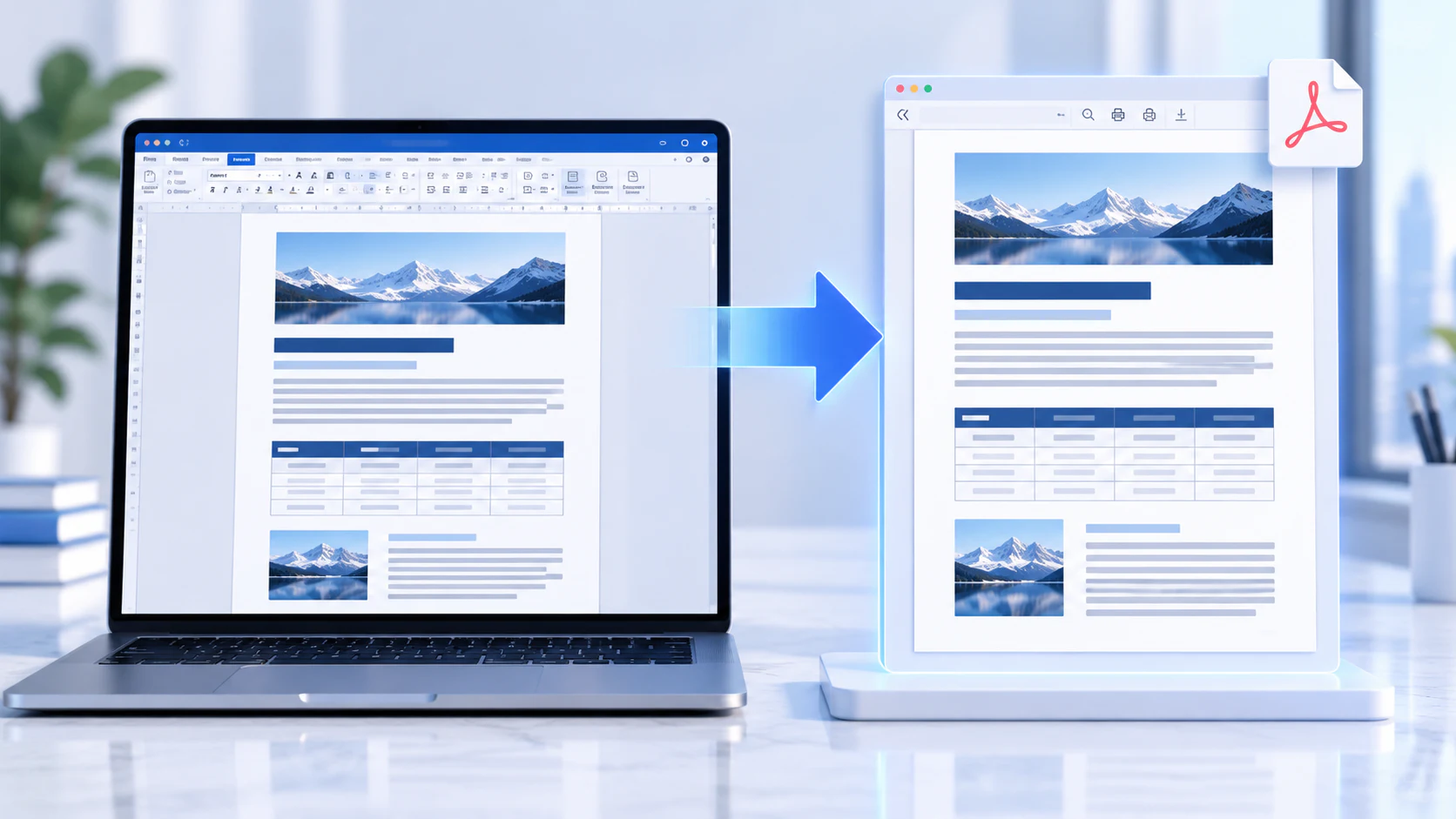
WORD FORMATTING · 6 MIN READ
How to Convert Word to PDF Without Changing Formatting
Learn why fonts, spacing and page geometry can change, and how to preserve the source layout.
Read guideLAYOUT FIDELITY · 5 MIN READ
Why Does Word to PDF Layout Sometimes Change?
See how fonts, print settings and renderer differences can move content between pages.
Read guideDOCUMENT QUALITY · 7 MIN READ
How to Preserve Fonts, Images and Tables When Converting Word to PDF
Prepare document assets so typography, images and structured tables arrive intact.
Read guideNext steps
Related tools
Keep working with editable output and compact PDF workflows.