On this page
Inspect before replacing values
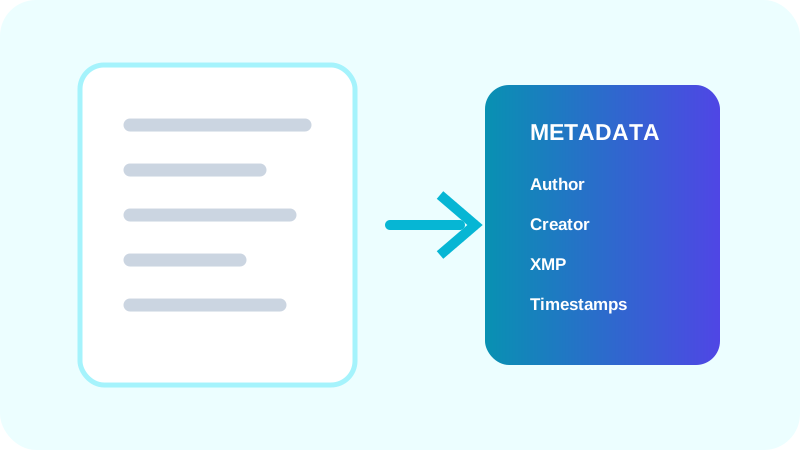
Read the existing title, author, subject, keywords, creator, producer and dates before making changes. Existing values may support cataloging or records workflows.
Use the visible document preview to confirm that the correct source file is active, especially in a batch.
Change only the intended fields
Title describes the document, author identifies responsibility, subject provides a concise description and keywords support discovery. Creator and producer normally identify software stages rather than people.
Preserve creation and modification dates unless the workflow explicitly requires a new value.
Reopen and compare the result
A robust workflow reopens the generated bytes and compares every requested common field. It also confirms that page count did not change.
Keep the source until the output has been reviewed in the intended document system.
Put the workflow into practice
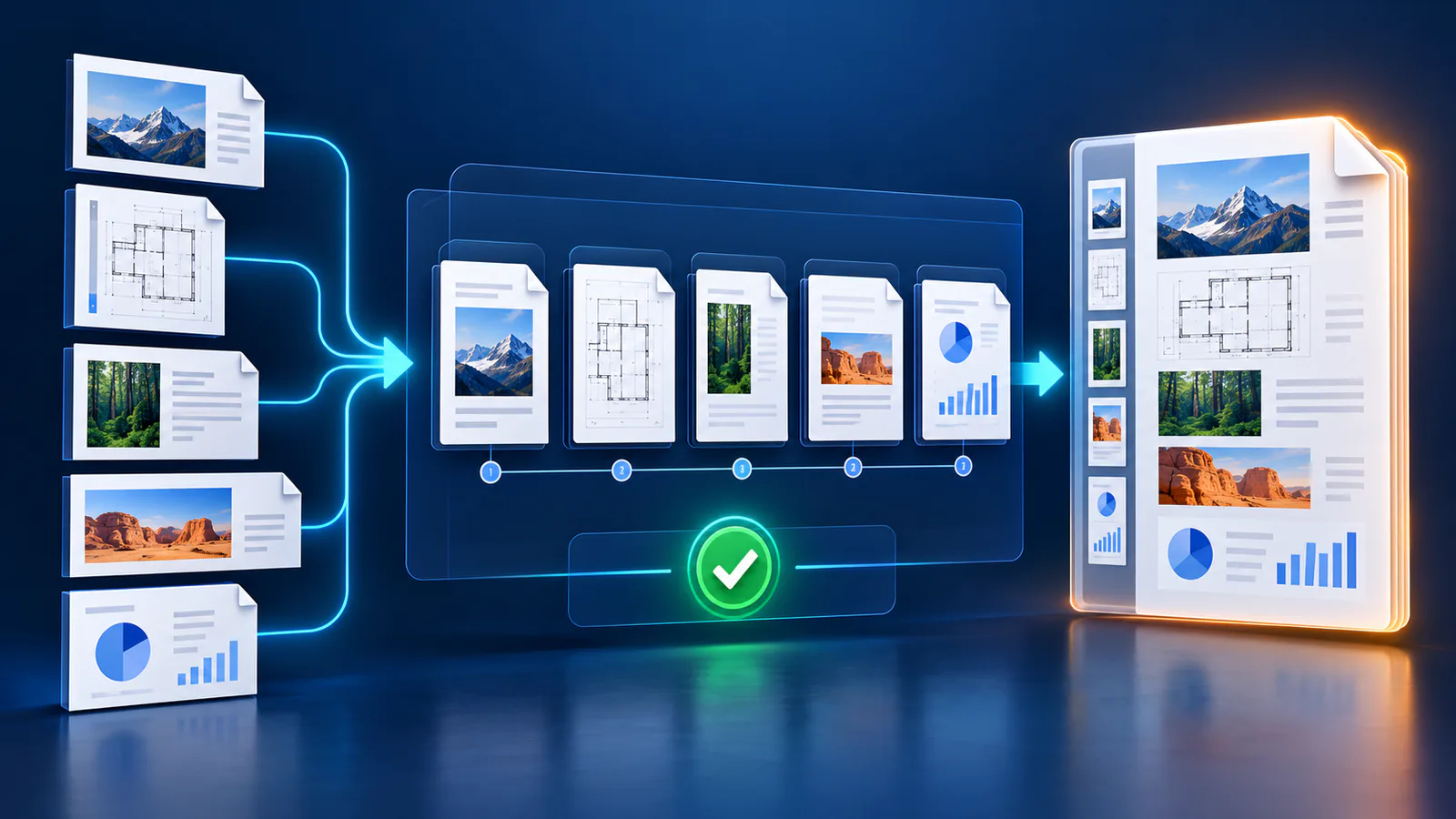
Arrange source documents, select the pages you need, and create one PDF locally in your browser. Review the result before choosing any optional next step.
Try Merge PDFFrequently asked questions
Clear answers before you merge
Will metadata editing change the page?
It should not; the output page count and visible content should be reviewed separately.
Can I restore the original values?
Yes, before export the studio can restore the fields read from the source.
Should dates be replaced automatically?
No. Preserve them unless an intentional records workflow requires a change.
Are common fields the complete metadata?
No. XMP and custom metadata can exist separately.