On this page
Start with the real publication range
Remove accidental distant formatting and define a print area around the data recipients actually need. Hidden helper columns and raw import sheets should be reviewed before they become part of a fixed PDF.
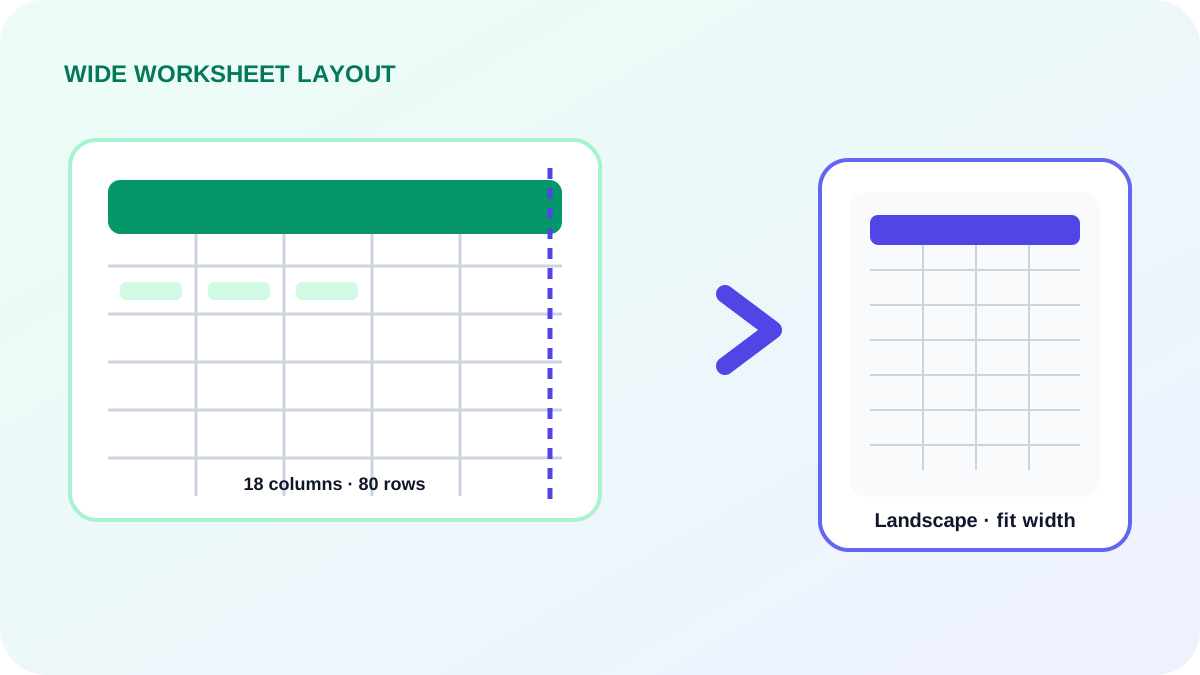
Fit width before fitting the whole sheet
One page wide with additional pages vertically usually protects readability better than shrinking every row and column onto one sheet. Use landscape for broad tables and keep portrait for narrow summaries.
| Workbook shape | Recommended starting point | Review |
|---|---|---|
| Wide table | Landscape + fit columns | Smallest labels |
| Long narrow report | Portrait + multiple pages | Repeated headings |
| Compact dashboard | Fit one sheet | Chart labels and legends |
Review page breaks and repeated context
Repeat header rows where supported so later pages remain understandable. Check that totals, signatures and grouped records are not split at confusing boundaries.
- Preview the first and last page of each sheet.
- Check the smallest text at normal zoom.
- Confirm repeating rows and columns.
- Keep the source workbook as the editable record.
Put the workflow into practice
Arrange source documents, select the pages you need, and create one PDF locally in your browser. Review the result before choosing any optional next step.
Try Merge PDFFrequently asked questions
Clear answers before you merge
Should I fit the complete sheet to one page?
Only when it remains readable. Fit-width with multiple pages tall is safer for many reports.
Why do blank pages appear?
A distant formatted cell, print area or manual page break may extend the printable range.
Can different sheets use different orientations?
Yes. Per-workbook and per-sheet review is important because worksheet shapes differ.