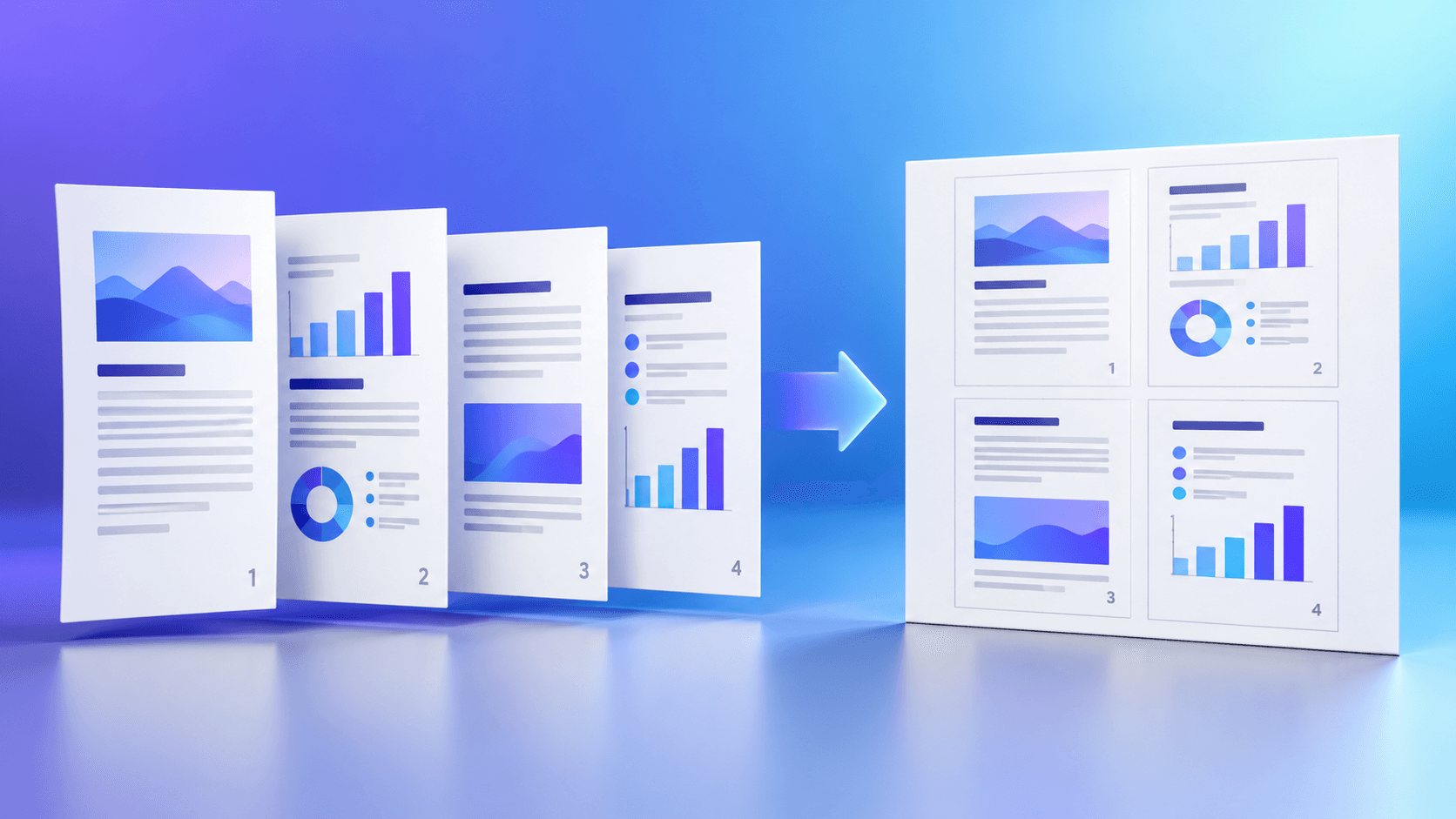
On this page
Protect the outer sheet edges
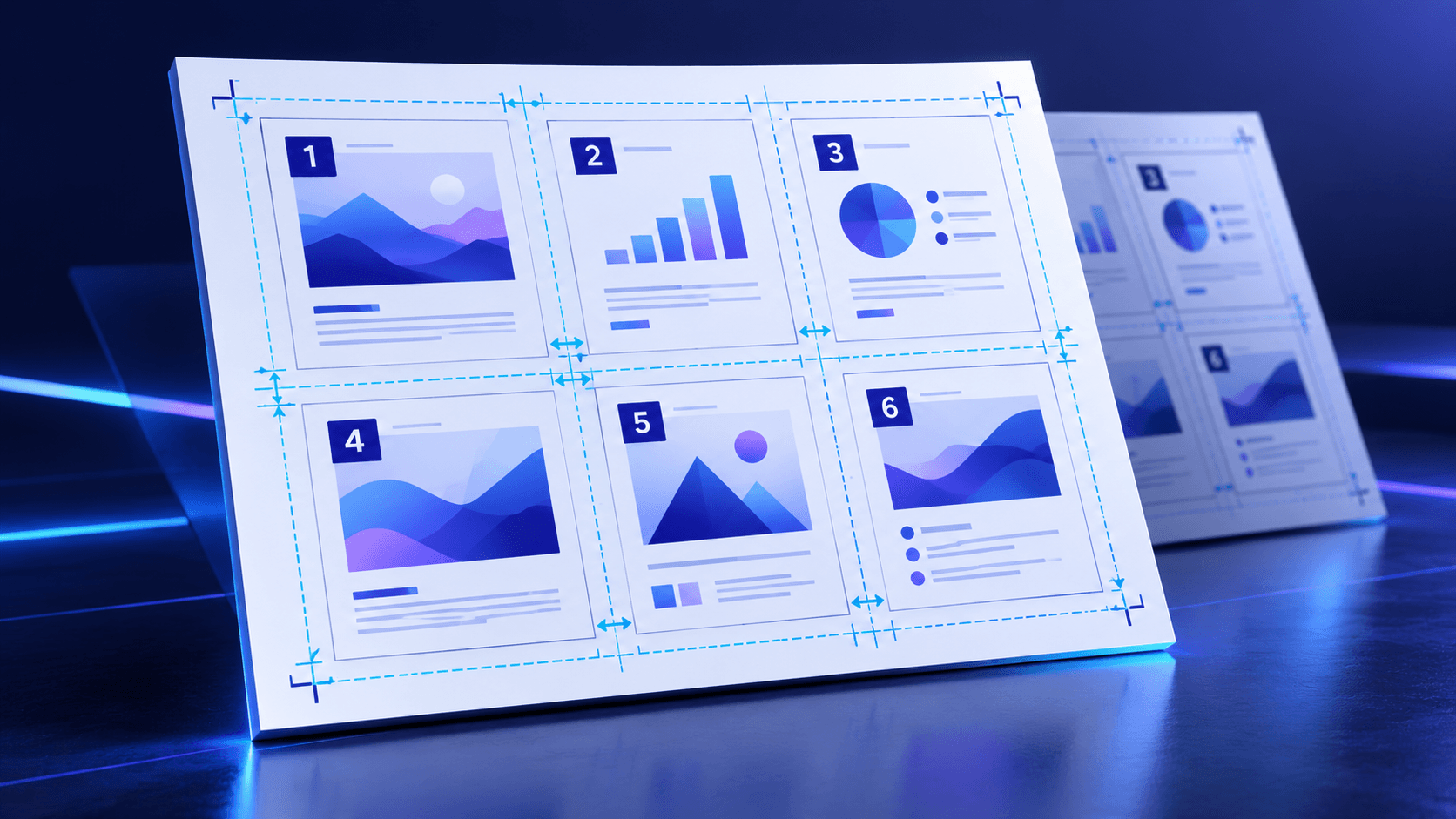
Desktop printers commonly have non-printable edge regions. An outer margin keeps source pages away from those boundaries.
Printer requirements vary, so use the intended device or print provider specification for consequential work.
Separate neighboring pages
Horizontal and vertical gutters create breathing room between cells. Independent controls help when the grid has very different row and column density.
Cell padding adds space inside each boundary, while the gutter controls the space between boundaries.
Use borders and labels for review
Thin borders clarify where each source page ends. Source-page labels make dense review sheets easier to cross-reference.
Disable labels for final presentation output when the original page design must remain visually clean.
Create a controlled print handoff
Record the selected paper, orientation, grid, margins and ordering when another person will print the result.
Keep the source PDF alongside the generated N-up file because the layout copy is not intended to replace the original document.
Put the workflow into practice
Choose the output paper and grid, set page order, margins and gutters, then create and verify the N-up PDF before printing.
Try Pages Per SheetFrequently asked questions
Clear answers before you arrange pages
What is the difference between padding and gutters?
Padding creates space inside a cell; gutters create space between adjacent cells.
Do borders print?
Yes, when enabled they are drawn into the output PDF.
Can source page numbers be shown?
Yes. Enable source page labels in the visual finish controls.
Does this create printer crop marks?
No. It creates N-up spacing and borders, not professional imposition crop marks.