On this page
Reconcile the page count
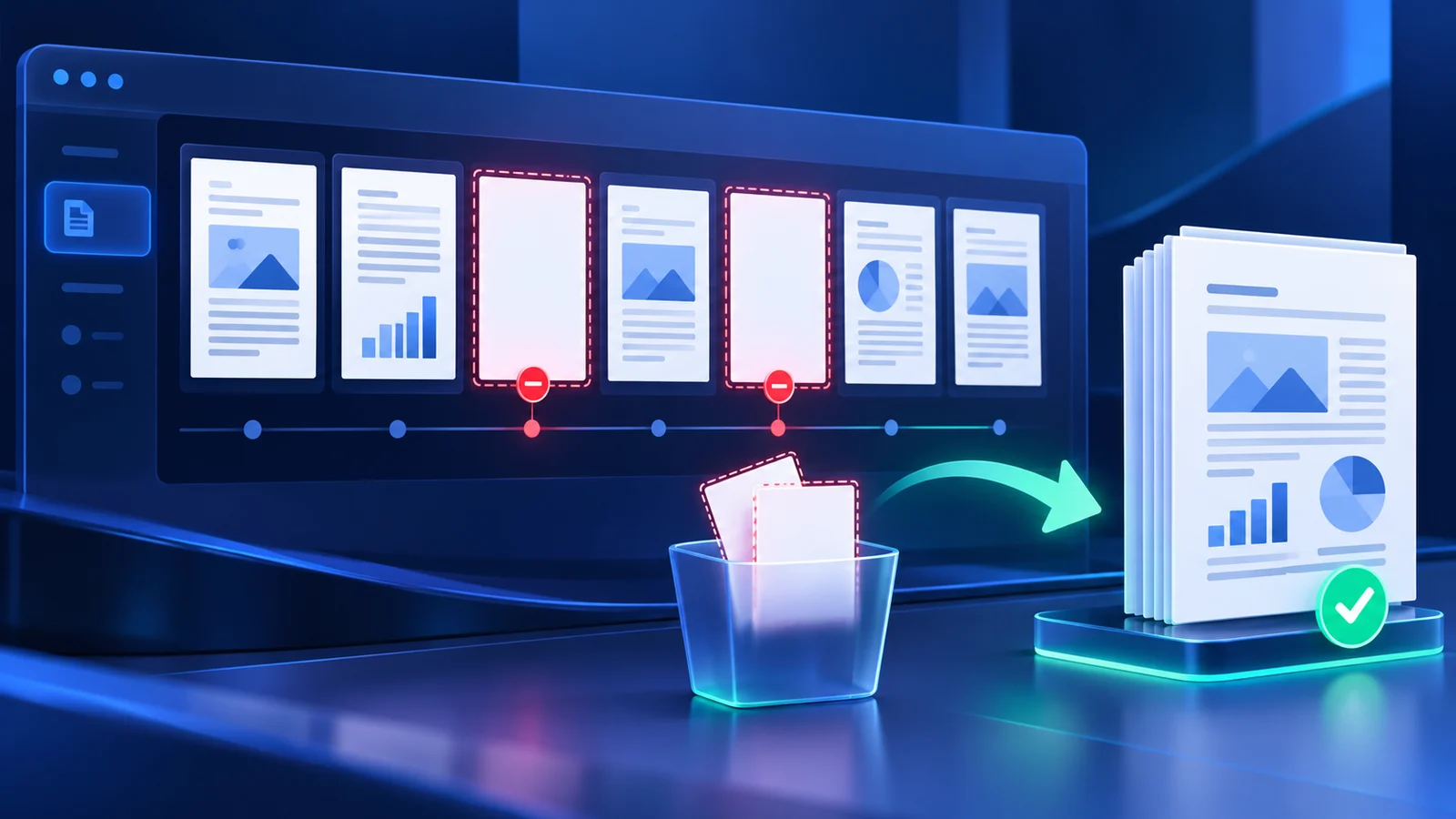
Record the source page count and the number of reviewed removals. The expected result is source pages minus removed pages.
If the count differs, keep the source and repeat the review rather than relying on an unexplained output.
Check retained page order and boundaries
Inspect pages immediately before and after every removal. Confirm that chapters, attachments, duplex scans and numbered sections still flow correctly.
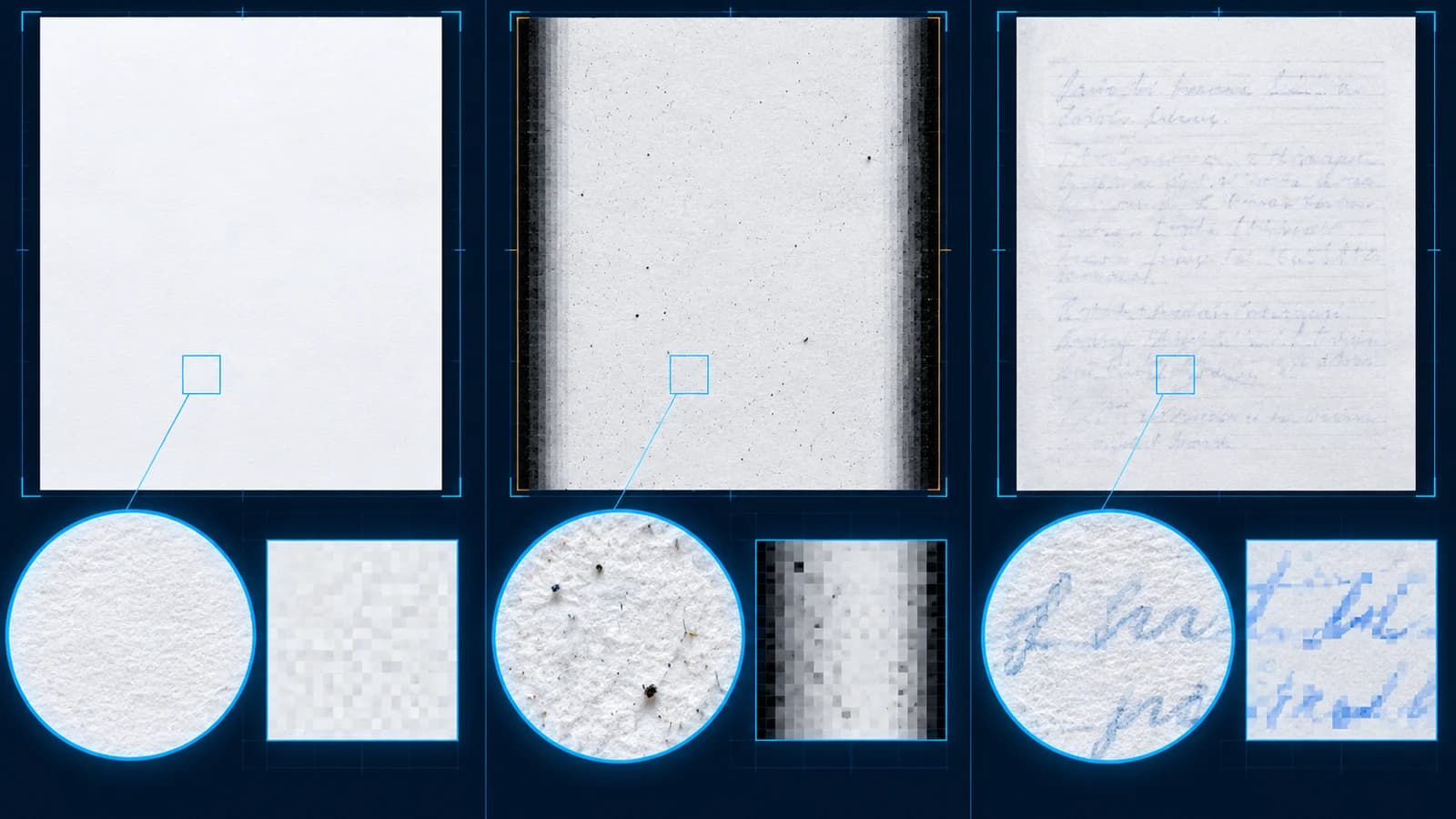
Blank separator pages can carry layout meaning even without visible text, so verify the intended reading experience as well as content.
Understand signature consequences
Rebuilding a PDF changes its bytes and can invalidate existing digital signatures. Preserve signed originals as authoritative records and clearly name the cleaned copy.
A signature-field warning is a reason for deliberate review, not evidence that the document cannot be cleaned.
Preserve the source until acceptance
Open the downloaded result in another viewer, inspect representative pages and confirm search, links or forms that matter to the workflow.
Keep the original until the cleaned file is approved, delivered or placed under the organization’s records policy.
Put the workflow into practice
Analyze the full PDF, compare every suggested blank page with its measured ink evidence, confirm the removal set, then create and verify a separate cleaned copy.
Try Remove Blank PagesFrequently asked questions
Clear answers before you remove blank pages
How is the cleaned PDF verified?
The tool reopens the output, confirms its page count and renders the first retained page before offering download.
Should I delete the original immediately?
No. Keep the source until the cleaned copy is reviewed and accepted.
Will digital signatures stay valid?
Usually not. Rebuilding pages changes the document, so preserve signed originals separately.
What pages should I inspect after cleanup?
Inspect every removal boundary plus representative first, middle and last pages.