
Upload
Choose one or more PDFs.
Visually select pages or apply precise bulk rules across multiple PDFs. Review every removal before creating a clean, verified result.
Open the visual removal studio immediately after selection.
Single or multiple PDFs · Up to 100 MB each
Choose one or more PDFs.
Select visually or apply bulk rules.
Confirm changes and download verified PDFs.
A clear three-step workflow
The tool stays focused: add the right source, make an informed choice, then inspect the output before using it.
Open the source and identify pages by both thumbnail and page number.
Mark pages for removal, then verify the remaining sequence.
Export a new copy and keep the original until the result is accepted.
Tool profile
Remove PDF Pages creates a new PDF from the pages you keep. Visual selection and page ranges make omissions explicit before a new copy is exported.
Practical example: Remove an outdated cover and duplicate appendix from a proposal while retaining the signed source unchanged.
Know before processing: Removing a page is different from removing content within a page. Use Crop for margins, Redact for sensitive content, or Remove Blank Pages for automated candidates.
Select pages from thumbnails
Use ranges for long documents
Review kept and removed page counts
Continue with the cleaned PDF
Core tasks
Specific needs
Detailed questions
Frequently asked questions
The tool creates a new output. Keep the source until page count, order and continuity are verified.
Remove keeps everything except selected pages. Extract keeps only the pages you select.
Yes, but inspect the resolved thumbnail selection before processing.
No. Sparse separator, signature and form pages can appear blank and require review.
Connected workflow
Expert guides
Detailed, tool-specific guidance with practical limits and verification steps—not generic conversion copy.
PDF organization
Use thumbnails and ranges while preserving and verifying the source.
Read article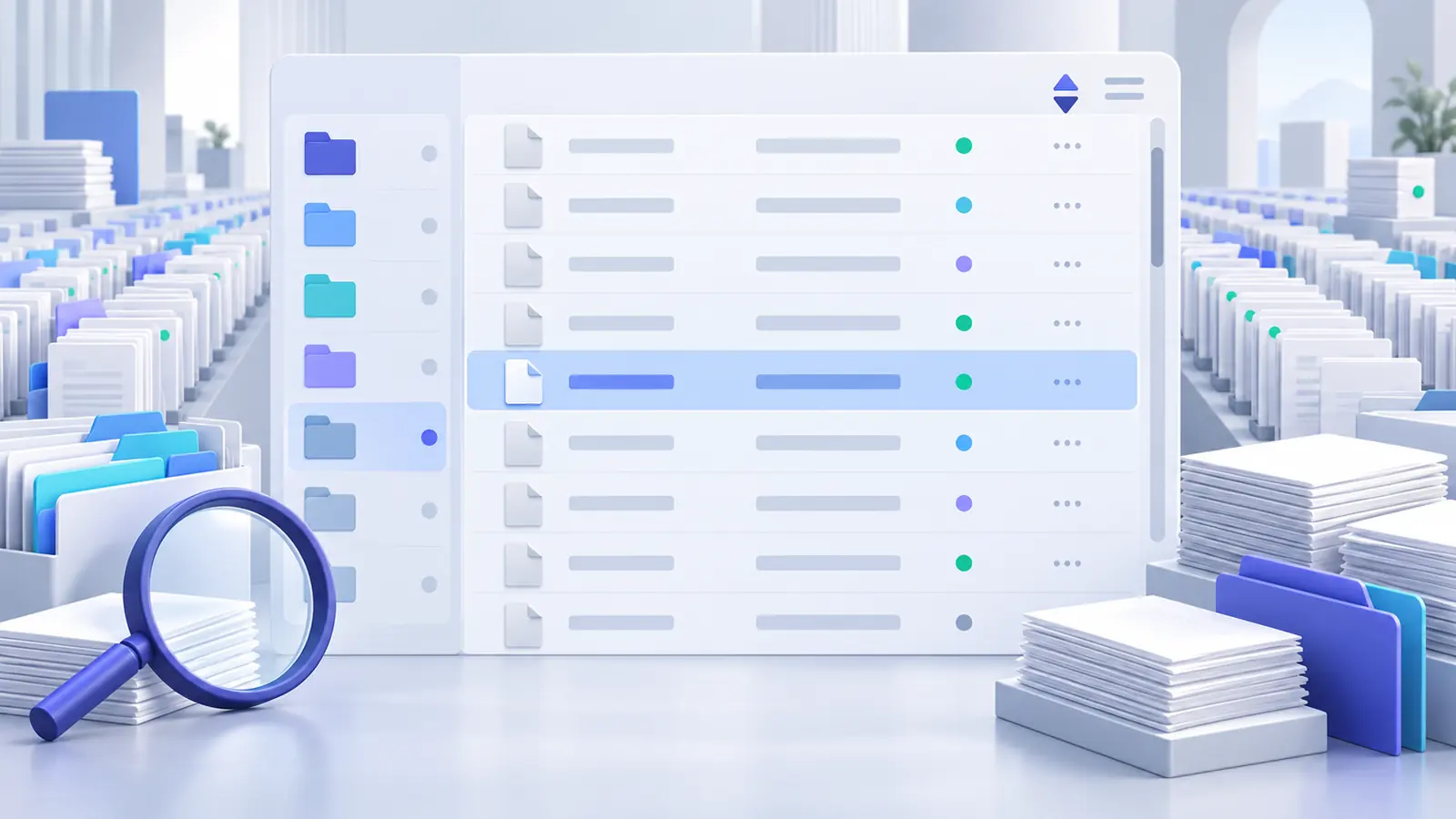
Page workflow
Build a deliberate page sequence before distributing a PDF.
Read article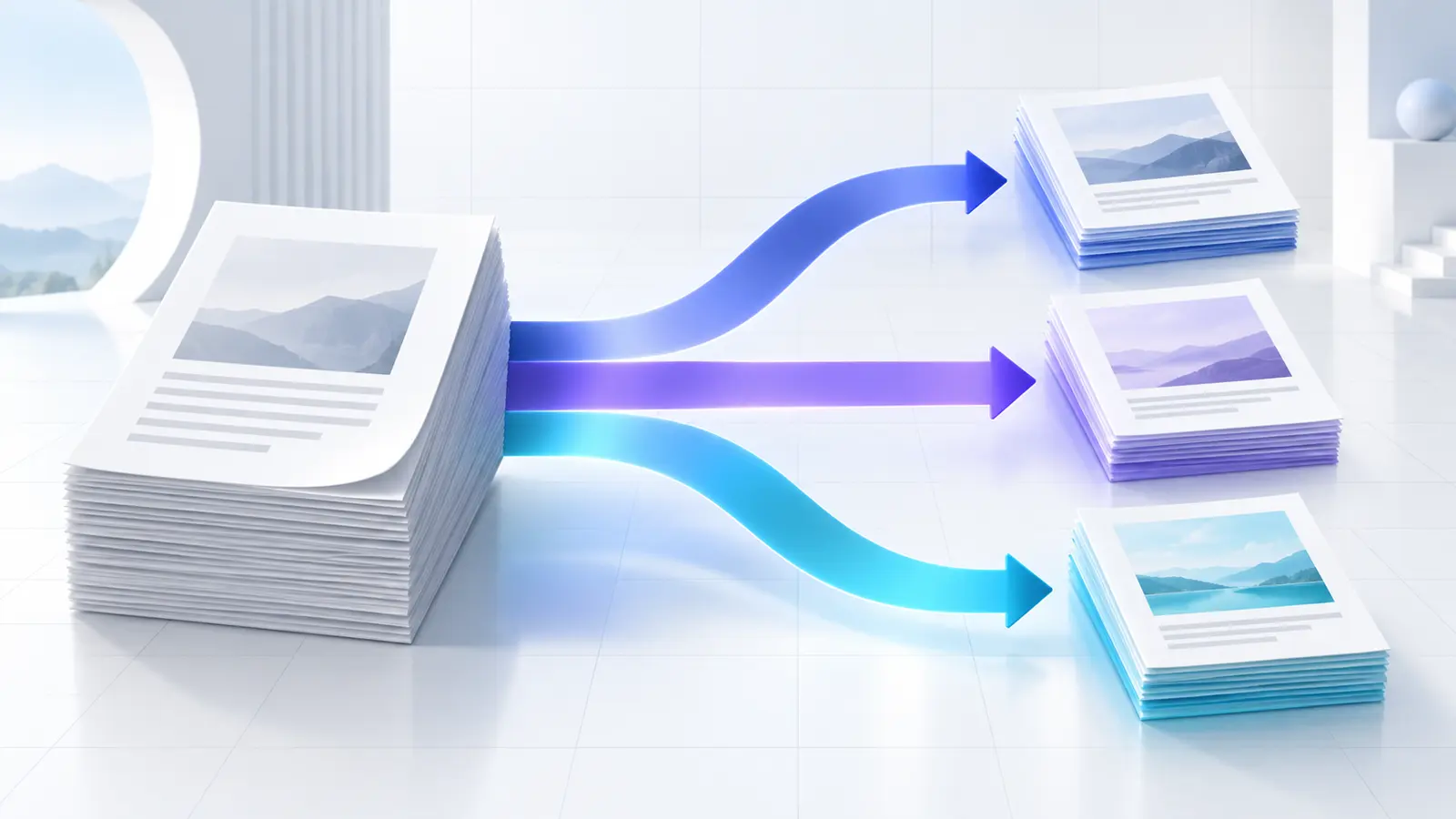
Split PDF
Create separate outputs when removal is not the right operation.
Read article