On this page
Confirm every intended worksheet
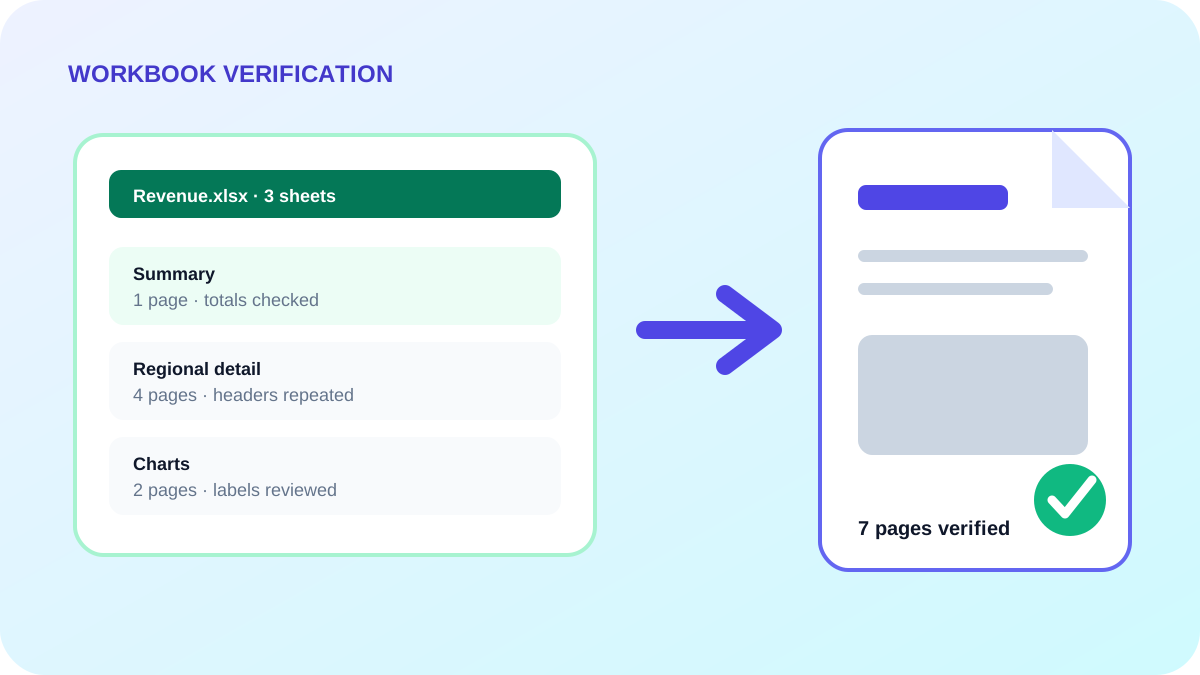
Compare the selected worksheet list with the PDF page sequence. Verify that visible summary and detail sheets appear, while confidential hidden sheets and helper ranges stay excluded unless deliberately selected.
Check calculated values and critical objects
PDF preserves displayed results rather than spreadsheet formulas. Check totals, dates, percentages, currency formatting, conditional formatting, charts, images and merged headings against the workbook.
Inspect pagination and delivery quality
Open the generated PDF, review the first and last page of every worksheet and inspect transitions around page breaks. A verified page count is useful, but visual review remains necessary.
- Check clipped columns and rows.
- Confirm chart labels and legends.
- Review headers, footers and page numbers.
- Look for renderer warnings or substituted fonts.
- Test the final file in the recipient’s PDF viewer.
Put the workflow into practice
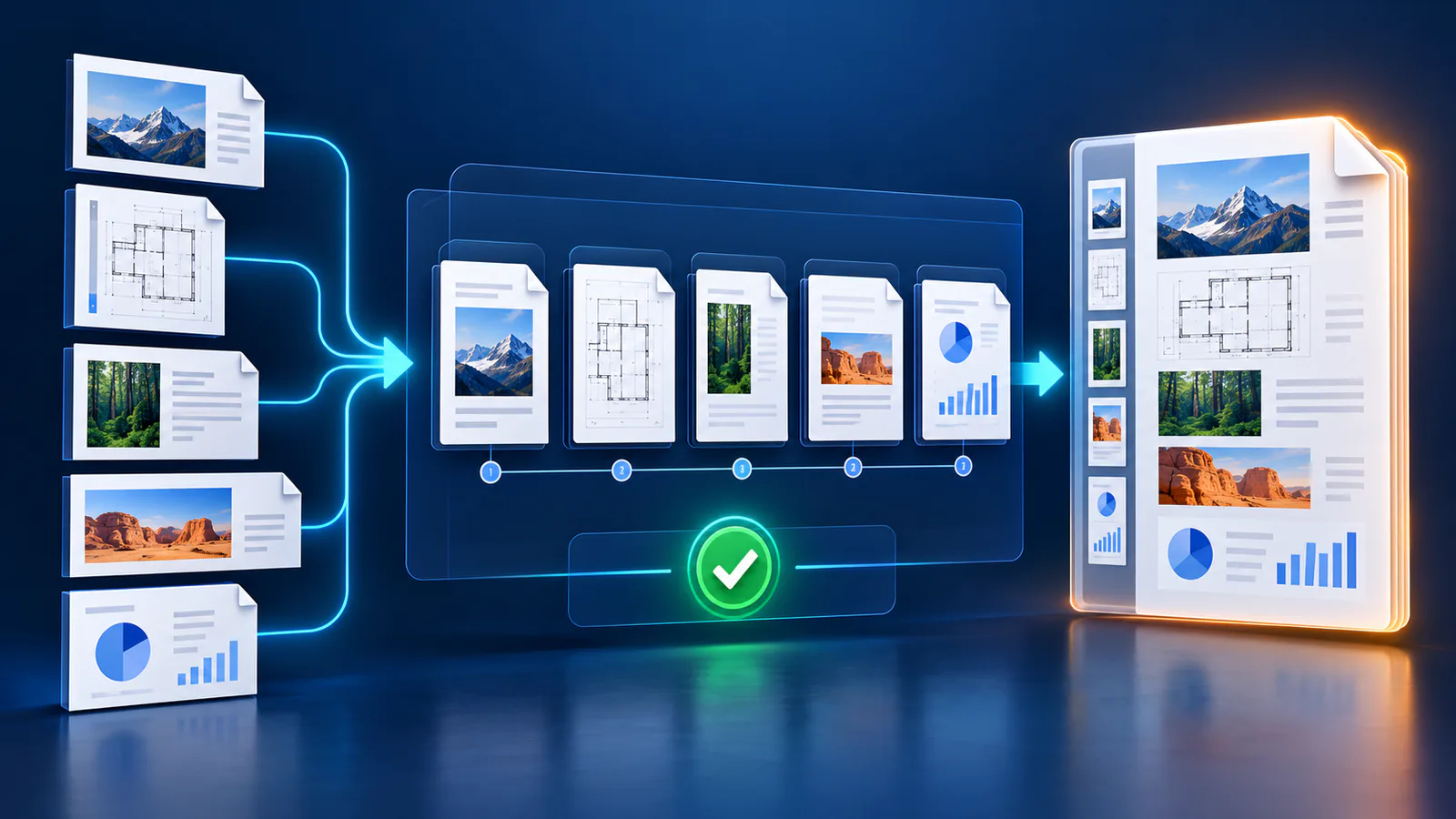
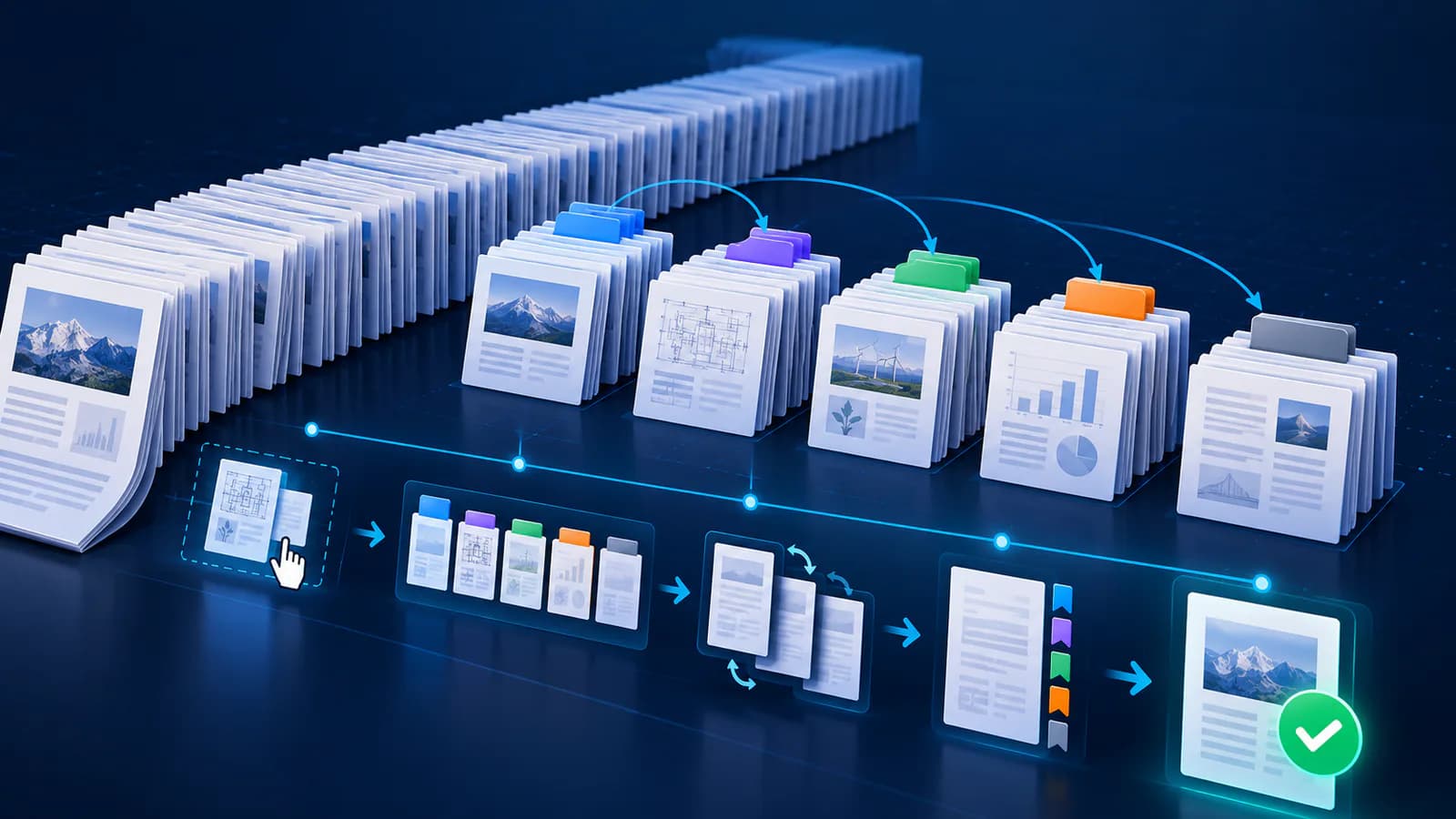
Arrange source documents, select the pages you need, and create one PDF locally in your browser. Review the result before choosing any optional next step.
Try Merge PDFFrequently asked questions
Clear answers before you merge
Are formulas included in the PDF?
The PDF shows their calculated values and appearance, not editable formulas.
Can hidden worksheets be exposed?
They can be included if an all-sheets workflow is selected, so review sheet selection before conversion.
What should I verify first?
Start with worksheet coverage, totals, first and last pages, page breaks and the smallest important text.