

PDF organization
Rotate PDF Pages Correctly
Saved orientation, viewing rotation, Auto Rotate and Deskew explained.
Read articlePreview every page, rotate the pages you choose, and download the corrected PDF. Processing happens in your browser.
PDF format onlyMax 100MB per fileClient-side processing
A clear three-step workflow
The tool stays focused: add the right source, make an informed choice, then inspect the output before using it.
Review thumbnails and select only pages with the wrong orientation.
Choose clockwise, counter-clockwise or 180° rotation.
Export and reopen the PDF to confirm the saved orientation.
Tool profile
Rotate PDF applies a deliberate 90°, 180° or 270° page rotation to a new copy. It is useful for mixed-orientation documents and scans that open sideways.
Practical example: Correct landscape tables inside a portrait report without rotating the cover or text pages.
Know before processing: Manual rotation does not detect text direction and does not straighten skewed scans. Auto Rotate and Deskew solve different problems.
Rotate all pages or a reviewed selection
Mix portrait and landscape orientations
Preview page direction before saving
Preserve the original PDF as a separate file
Core tasks
Specific needs
Detailed questions
Frequently asked questions
Not always. Export and reopen the PDF to confirm the intended orientation was saved.
Auto Rotate infers likely text orientation; Rotate PDF follows your explicit page selection.
No. Use Deskew PDF for small-angle tilt inside a scanned page.
Yes. This is important for documents mixing portrait text and landscape tables.
Connected workflow
Expert guides
Detailed, tool-specific guidance with practical limits and verification steps—not generic conversion copy.
PDF organization
Saved orientation, viewing rotation, Auto Rotate and Deskew explained.
Read article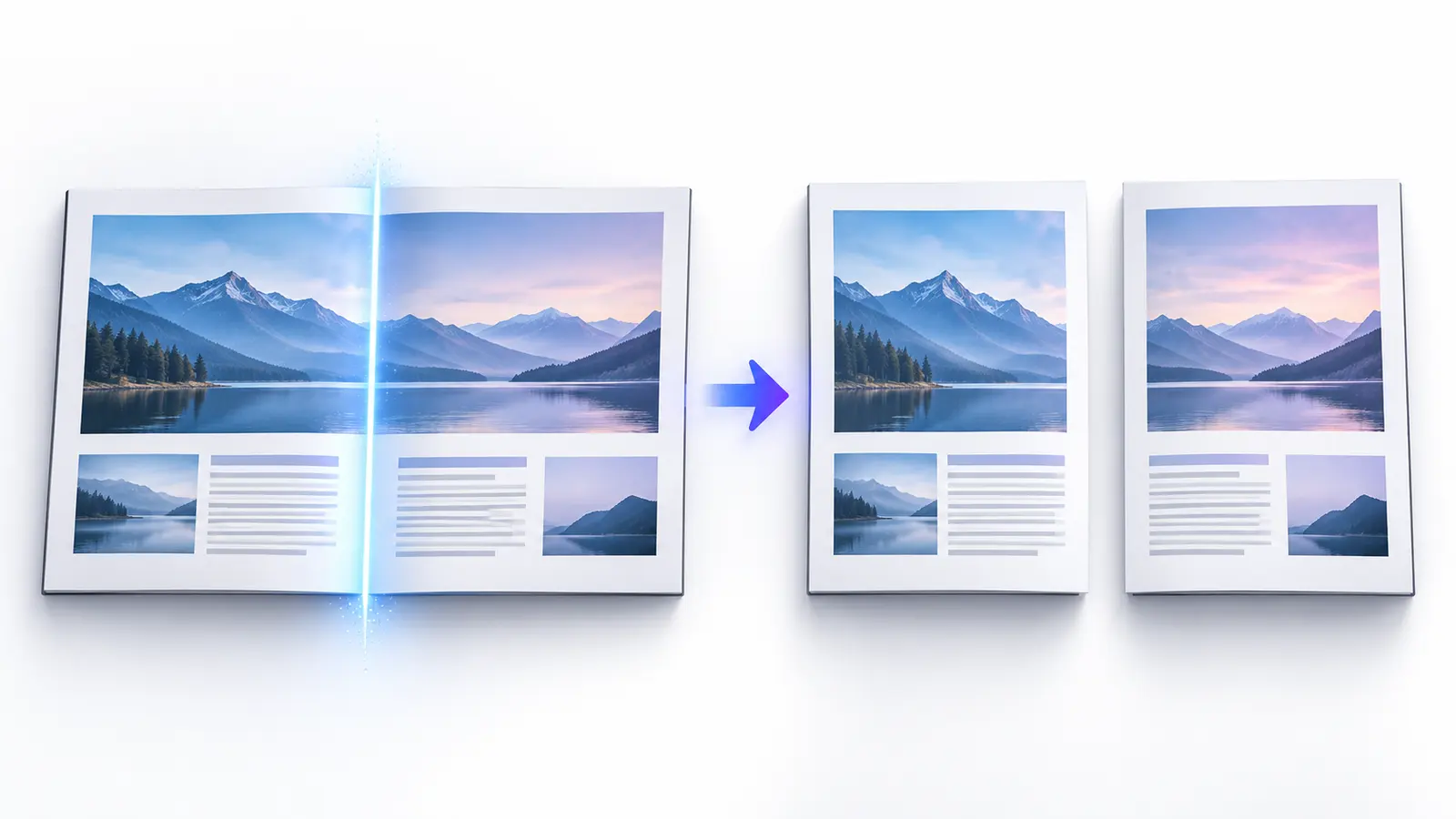
OCR
Prepare orientation, alignment and image quality before recognition.
Read article
Page workflow
Check sequence, orientation and exclusions as one review workflow.
Read article