On this page
Choose the page operation that matches the problem
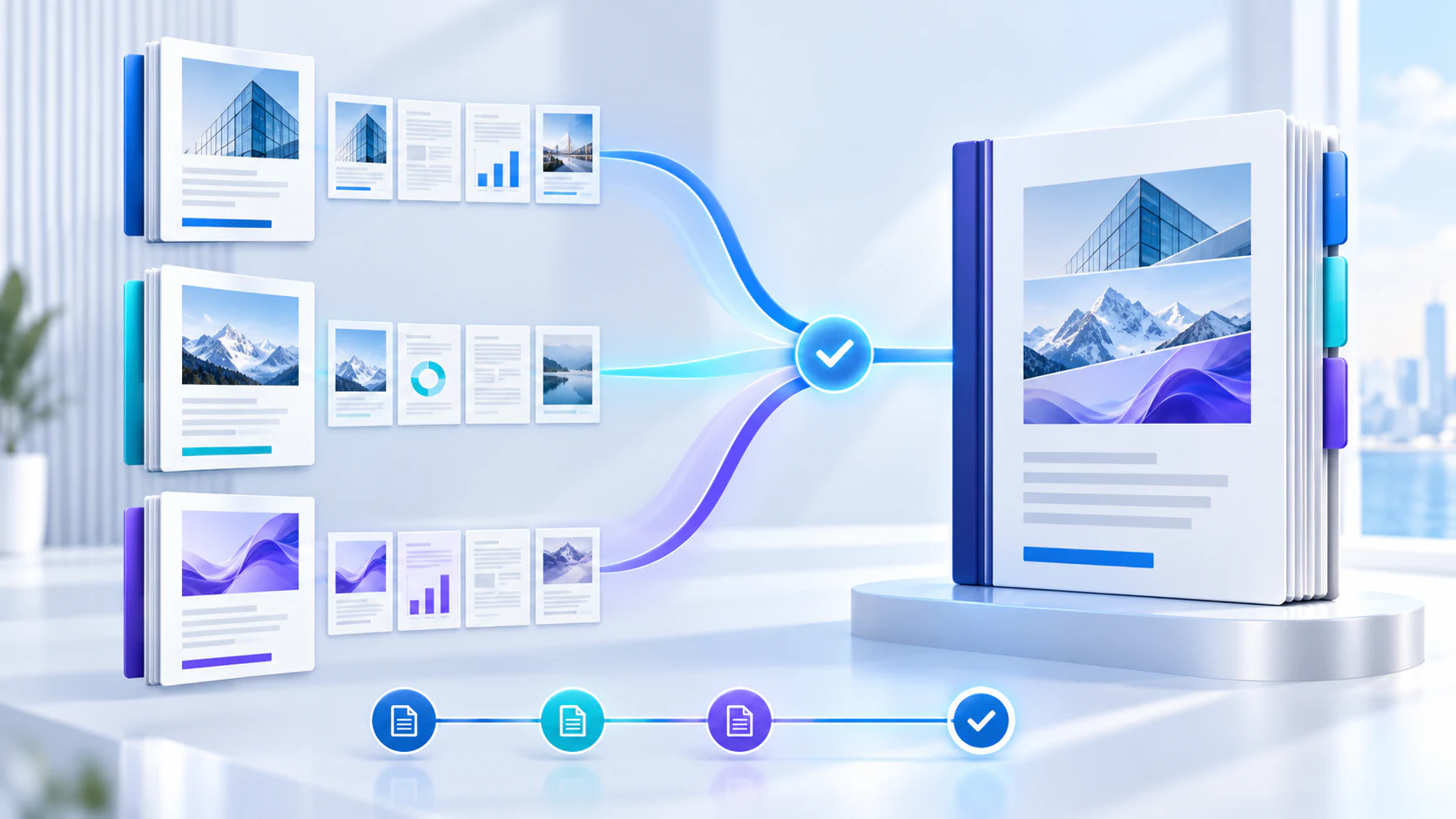
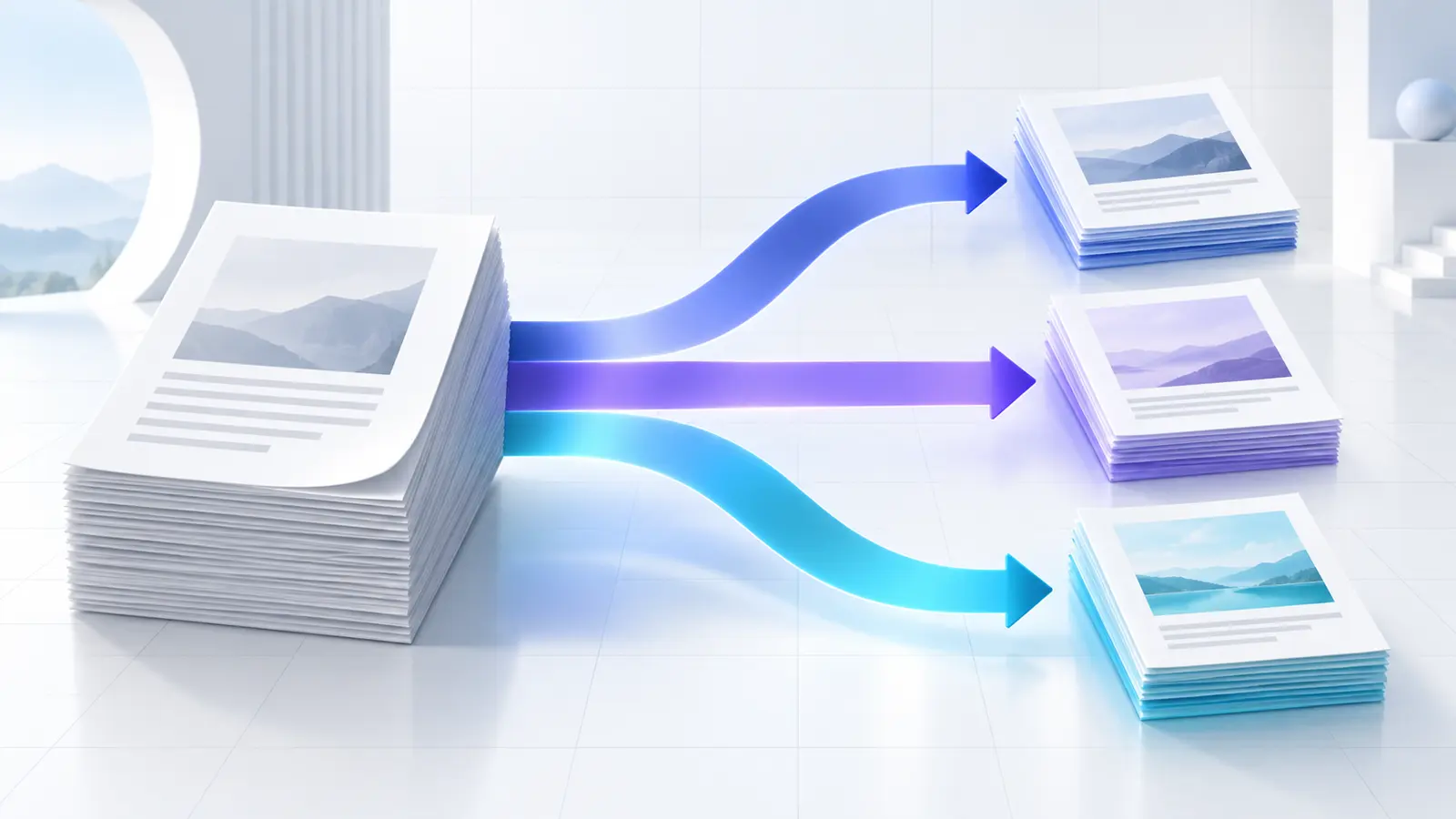
Merge PDF combines complete documents or selected ranges. Split PDF creates separate outputs. Rearrange PDF changes order, while Remove Pages excludes material from a new copy. Keeping these operations separate makes the result easier to verify.
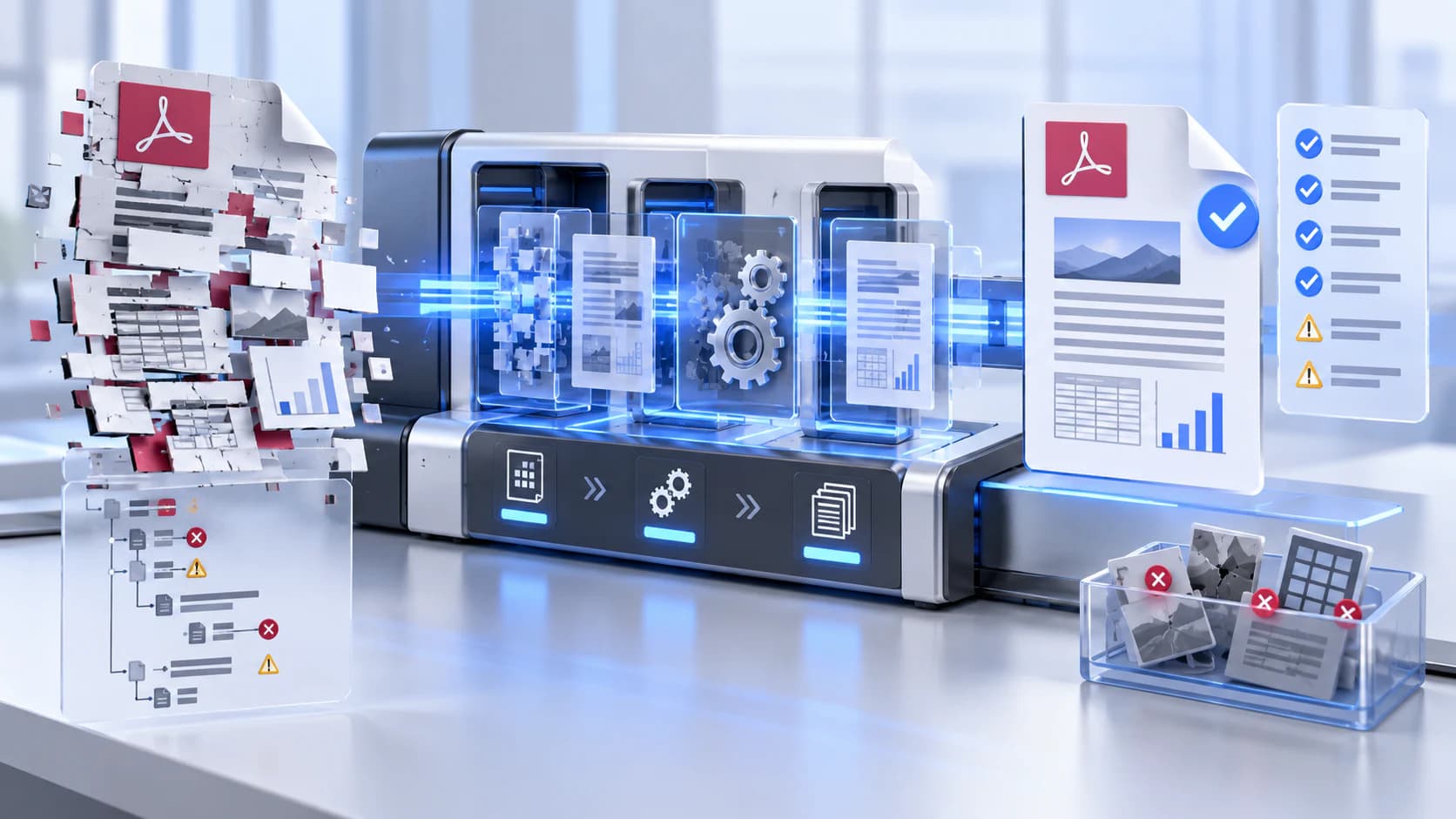
Start with copies of the source files. Page operations can change bookmarks, links, forms or signatures even when the visible page looks unchanged.
| Need | Use | Review |
|---|---|---|
| One package | Merge PDF | Source order and page ranges |
| Separate outputs | Split PDF | Boundaries and filenames |
| New sequence | Rearrange PDF | Thumbnail and final order |
| Exclude pages | Remove PDF Pages | Remaining page identity |
A practical page-management workflow
First remove confidential or irrelevant pages from working copies. Next arrange pages and merge related files. Reopen the result, confirm page count and identity, then compress only if file size prevents delivery.
Use descriptive filenames before sending. A recipient should understand whether a file is final, a draft, or one part of a larger package without opening every document.
- Keep originals outside the working batch.
- Check rotated and mixed-size pages visually.
- Do not treat a page-count match as proof that page order is correct.
Put the workflow into practice
Arrange source documents, select the pages you need, and create one PDF locally in your browser. Review the result before choosing any optional next step.
Try Rearrange PDFFrequently asked questions
Clear answers before you merge
Should I compress before rearranging pages?
Usually organize first and compress the final delivery copy so you evaluate one completed document.
Does removing a page erase the original?
The tools create a new output. Keep the original source until the result is reviewed.
Can page changes invalidate a signature?
Yes. Modifying a signed PDF can invalidate its cryptographic signature.
What should I verify after merging?
Verify page identity, order, orientation, links and any forms—not only the total page count.