On this page
Frame a representative page first
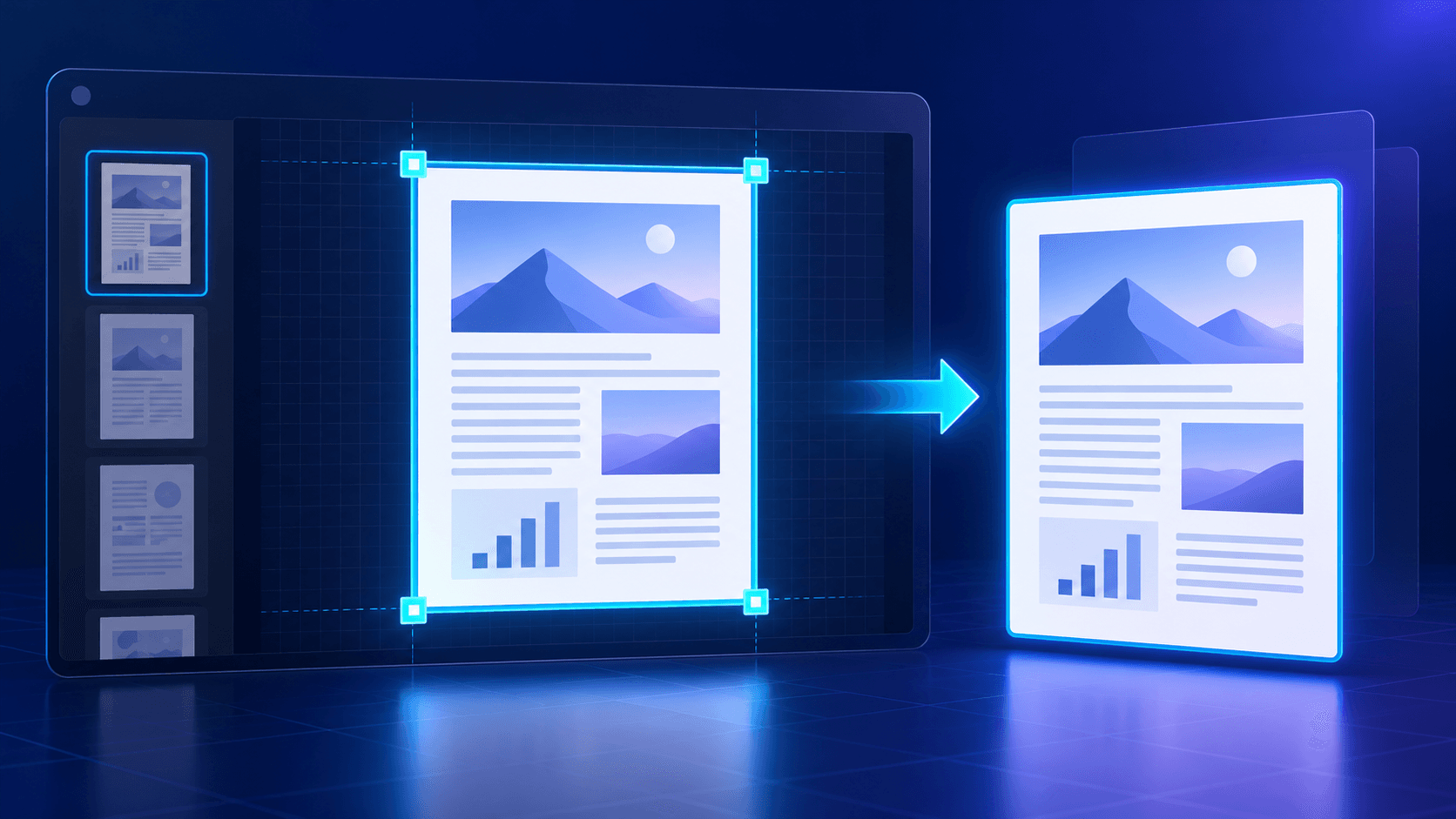
Choose a page whose layout matches the rest of the range. Leave a small safety margin around content that may shift between pages.
The crop uses percentages rather than fixed screen pixels, so preview size does not affect the batch frame.
Define the page range deliberately
Use ranges such as 1-12, individual pages such as 18, or a combination such as 1-5, 9, 12-16. Review the selected count before capture.
Watch for mixed page sizes and orientation
A proportional region occupies the same relative position, not the same physical dimensions. Portrait, landscape and differently sized pages may frame different content.
Split incompatible page groups into separate captures when necessary.
Use deterministic filenames and verify the ZIP
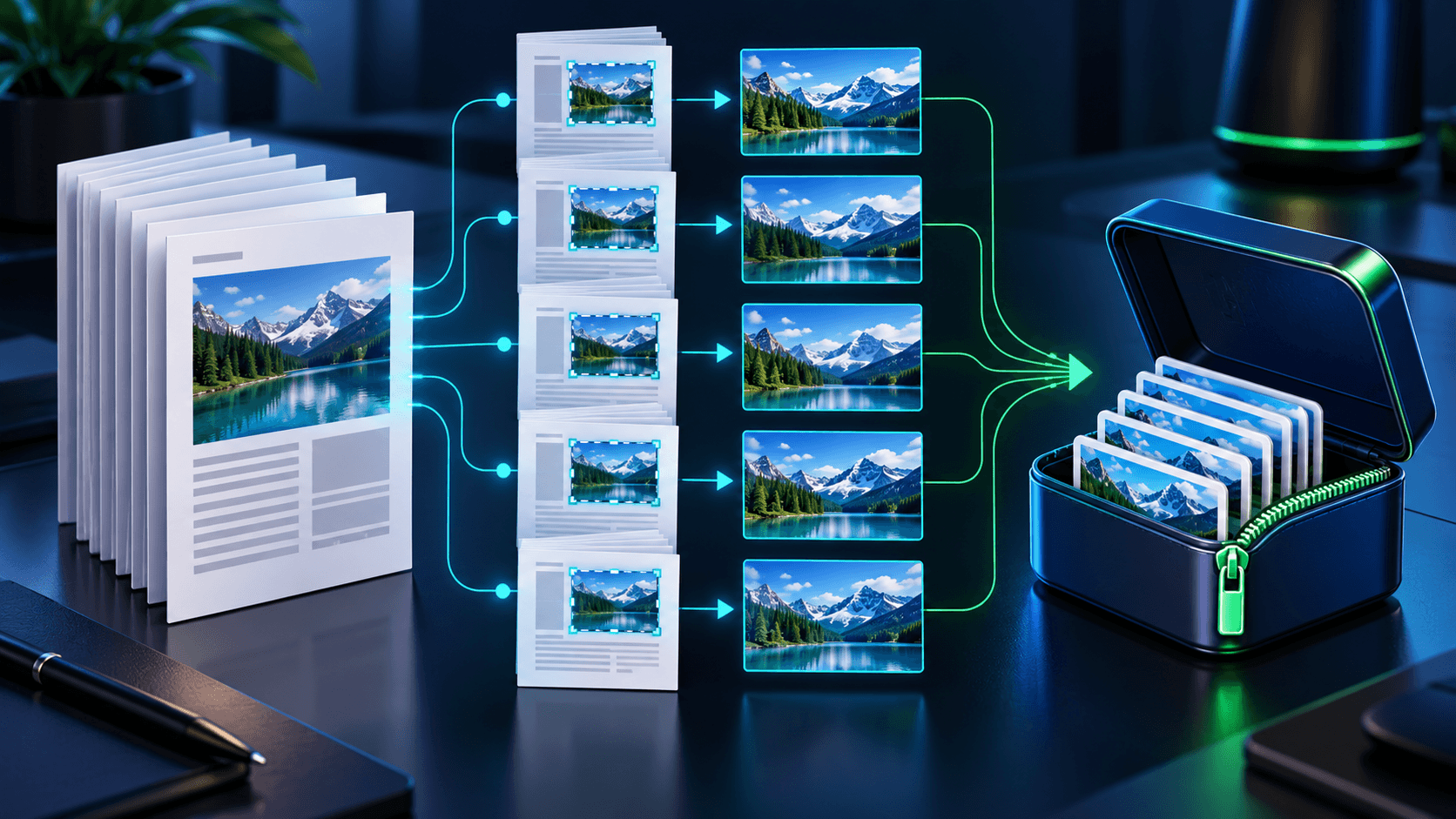
Page-number suffixes keep files in source order. Open representative images from the ZIP and confirm that the expected region, format and resolution were used.
Put the workflow into practice
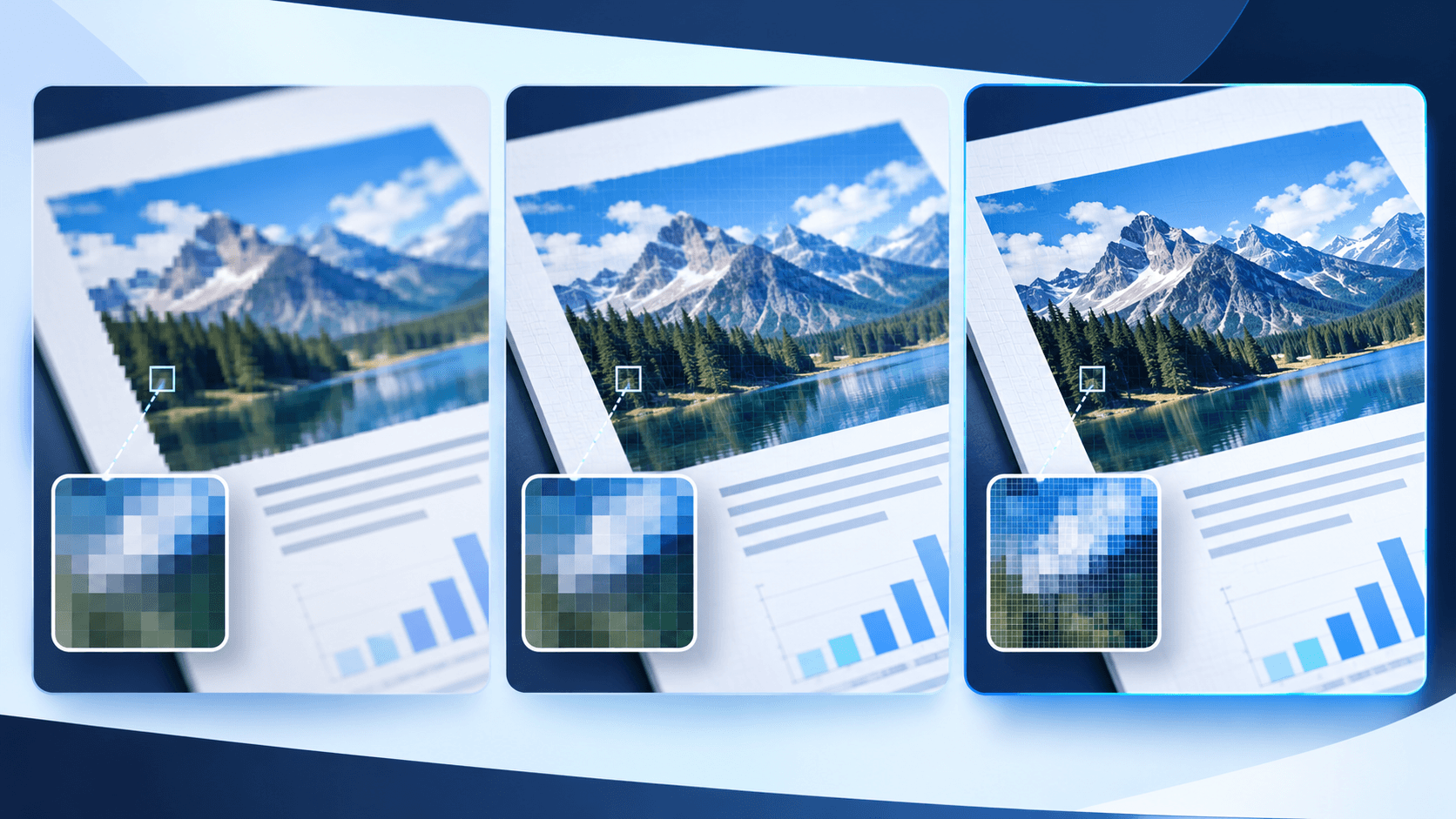
Choose a PDF page, frame the complete page or an exact region, select the scope and resolution, then decode and verify the generated image before download.
Try PDF ScreenshotFrequently asked questions
Clear answers before you capture
Can I capture only selected pages?
Yes. Use the custom range field to combine page ranges and individual pages.
How are batch images named?
The chosen prefix is followed by a zero-padded source page number.
Why can crops differ on mixed pages?
The same proportional coordinates behave differently when page dimensions or orientations change.
How are multiple images downloaded?
They are packaged into a ZIP in source page order.