
Fit
Whole image visible
Image resizing
Resize, crop, fit or pad multiple images with live preview, aspect-ratio controls, presets and batch processing.
DIMENSIONS
Exact width & height
FIT
Keep whole image visible
CROP
Fill target dimensions
PAD
Add space around image
ASPECT RATIO
Lock proportions
BATCH
Resize many images
Resize modes
Whole image visible
Fill the target frame
Image plus background
Force exact dimensions
Scale proportionally
Keep source dimensions
How it works
Choose one image or a practical batch.
Pick dimensions, proportions and resize behavior.
Compare real output dimensions, appearance and Blob size.
A locked ratio links width and height. Fit, Crop, Pad and Percentage preserve proportions; Stretch is available only as an intentional choice and displays a warning.
Privacy
Decoding, preview, resizing and ordinary export use browser APIs. Canvas re-encoding may remove embedded metadata.
Guides
Resize basics · 7 min read
Preserve proportions and choose a resize mode that matches the destination.
Read guide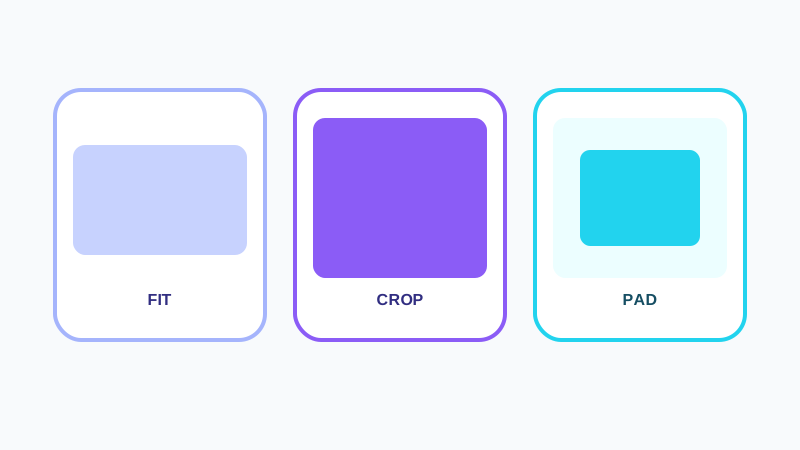
Resize modes · 8 min read
Understand what happens at image edges before choosing exact dimensions.
Read guide
Social media · 6 min read
Use named presets while remembering that platform recommendations can change.
Read guide
Batch workflow · 7 min read
Build one consistent resize profile for a searchable batch.
Read guideFrequently asked questions
Add an image, enter target dimensions, choose Fit, Crop, Pad or Stretch, then inspect the live preview before resizing.
Add a practical batch and apply one shared resize profile. The bounded file workspace remains searchable and sortable.
Keep aspect-ratio lock on or choose Fit, Crop, Pad, or Percentage. Stretch intentionally allows distortion.
Fit keeps the complete image visible inside the target box. Crop fills the exact frame and removes overflow.
Aspect-ratio lock is enabled by default. Changing width updates height and changing height updates width.
Yes. Crop, Pad and Stretch create exact target dimensions. Fit creates the largest proportional image inside the box.
Yes. Named social presets are centrally configured. Platform recommendations can change, so confirm critical publishing requirements.
Downscaling removes pixels and lossy formats re-encode detail. High-quality canvas smoothing and a real preview help you review the result.
No. Ordinary resizing, preview and export run locally in your browser.
Yes. The mobile studio places the selected image and live preview before the detailed controls and uses a sticky resize action.
Related tools