On this page
Check document information and XMP
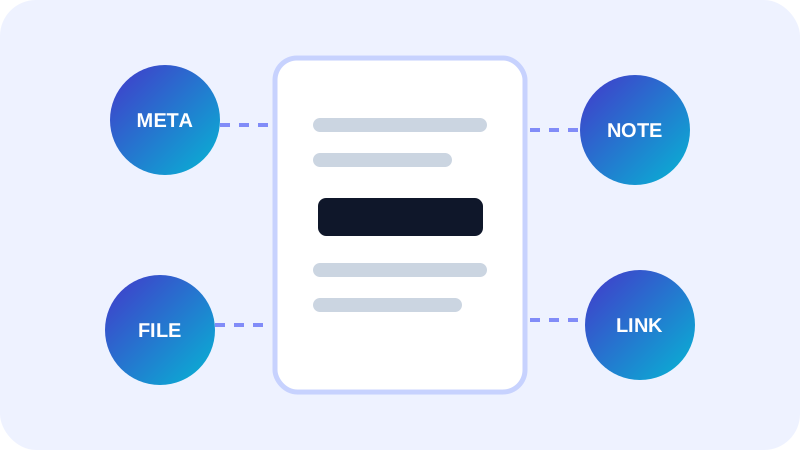
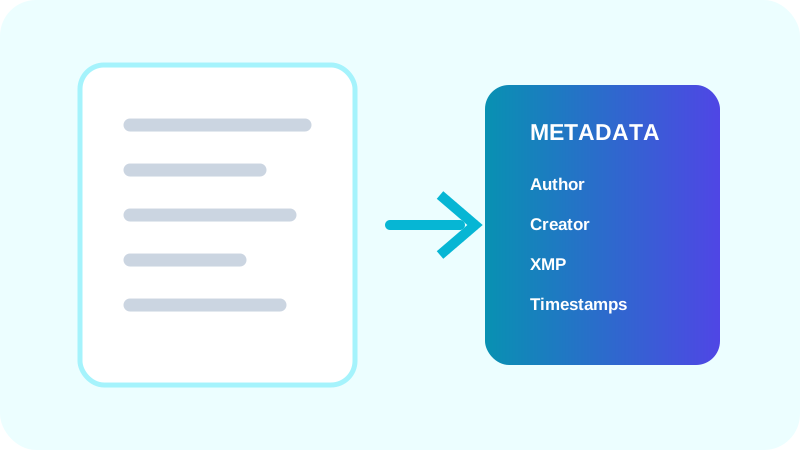
PDFs commonly expose title, author, subject, keywords, creator, producer and timestamps through a document-information dictionary. XMP is a separate XML-based metadata layer that can repeat or extend those values.
Review both layers. Clearing one familiar field does not prove that every custom or embedded metadata value has disappeared.
Interpret fields before removing them
Author or organization values can identify a person or employer. Creator and producer fields usually identify software. Timestamps can reveal workflow timing. Treat each as evidence to review, not automatic proof of harm.
Verify the cleaned output
Metadata removal should be deliberate because some managed workflows depend on classification or archival fields.
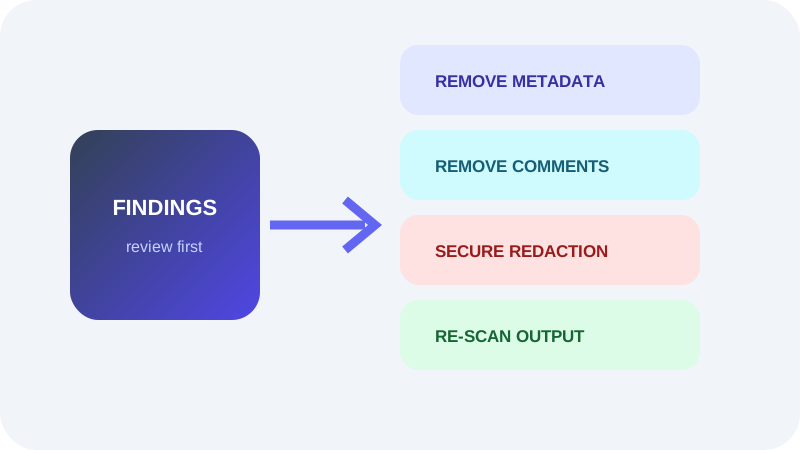
- Remove unnecessary common metadata.
- Re-open the exported PDF.
- Run the privacy check again.
- Confirm required accessibility and archival metadata remains.
Put the workflow into practice
Arrange source documents, select the pages you need, and create one PDF locally in your browser. Review the result before choosing any optional next step.
Try PDF Privacy CheckerFrequently asked questions
Clear answers before you merge
What is XMP?
XMP is an extensible metadata packet that can store identity, rights, software and date information.
Does changing the filename remove metadata?
No. The filename and internal metadata are separate.
Should every field be removed?
Not always. Retain metadata that your workflow legitimately requires.