On this page
An overlay is not content removal
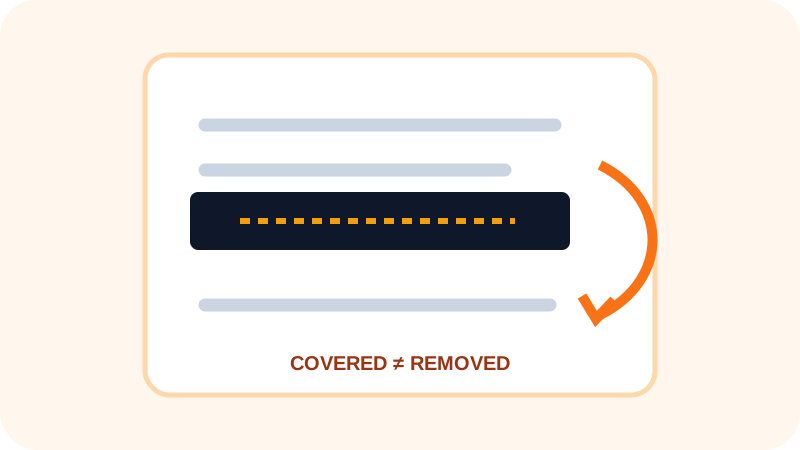
PDF page content is drawn in sequence. Text can be painted first and a dark shape painted later. The final view looks covered, but text extraction, searching or editing may still reach the earlier object.
Test more than appearance
Automated overlap detection is useful on controlled patterns but cannot recognize every clipping, transparency or image-based concealment technique.
- Try text selection around the covered area.
- Search for words expected beneath the mark.
- Extract text using an independent viewer.
- Inspect page objects for filled rectangles overlapping text.
Use a dedicated redaction workflow
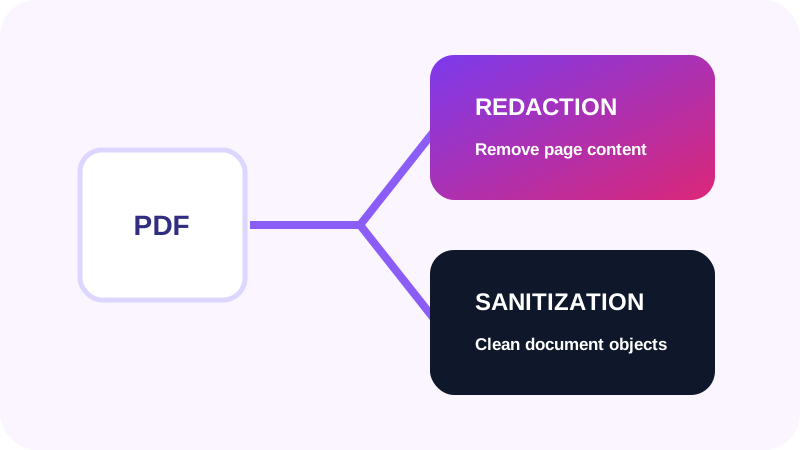
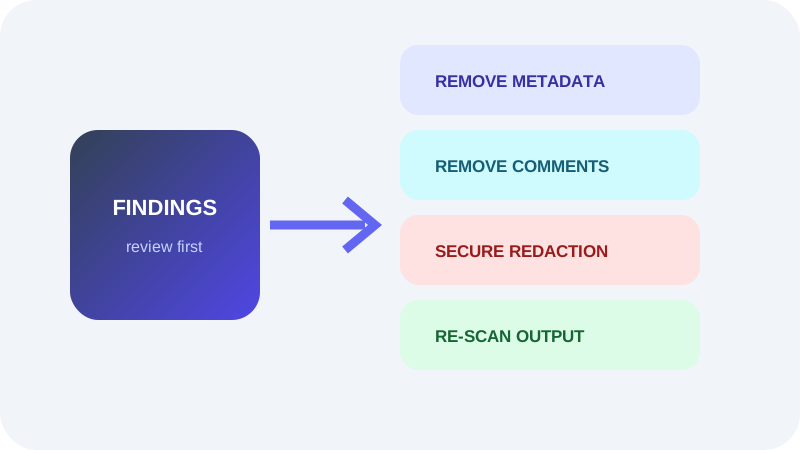
A redaction tool should remove or flatten the selected source content, not simply draw over it. Always inspect the exported copy and preserve the original in a controlled location.
Put the workflow into practice
Arrange source documents, select the pages you need, and create one PDF locally in your browser. Review the result before choosing any optional next step.
Try PDF Privacy CheckerFrequently asked questions
Clear answers before you merge
Is a black rectangle a redaction?
Only if the underlying sensitive content was actually removed.
Can covered text remain searchable?
Yes. Visual coverage alone may leave text extractable.
Can detection be perfect?
No. Complex rendering and unusual PDF structures require careful verification.