On this page
Understand what changes from ODG to PDF
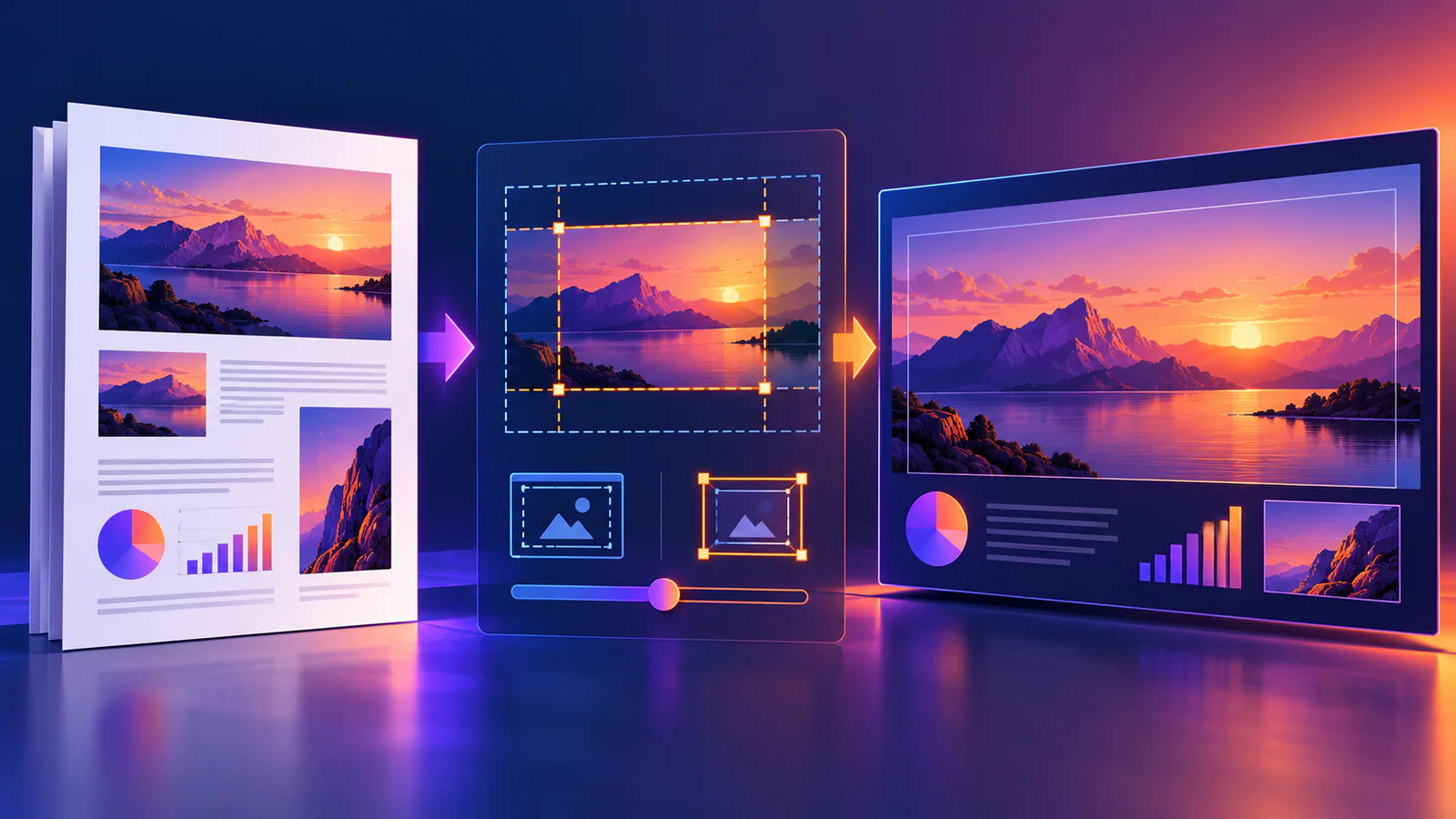
Original pages
Text, vectors and images
Copy pages
Keep source objects intact
Merged PDF
New order, same page detail
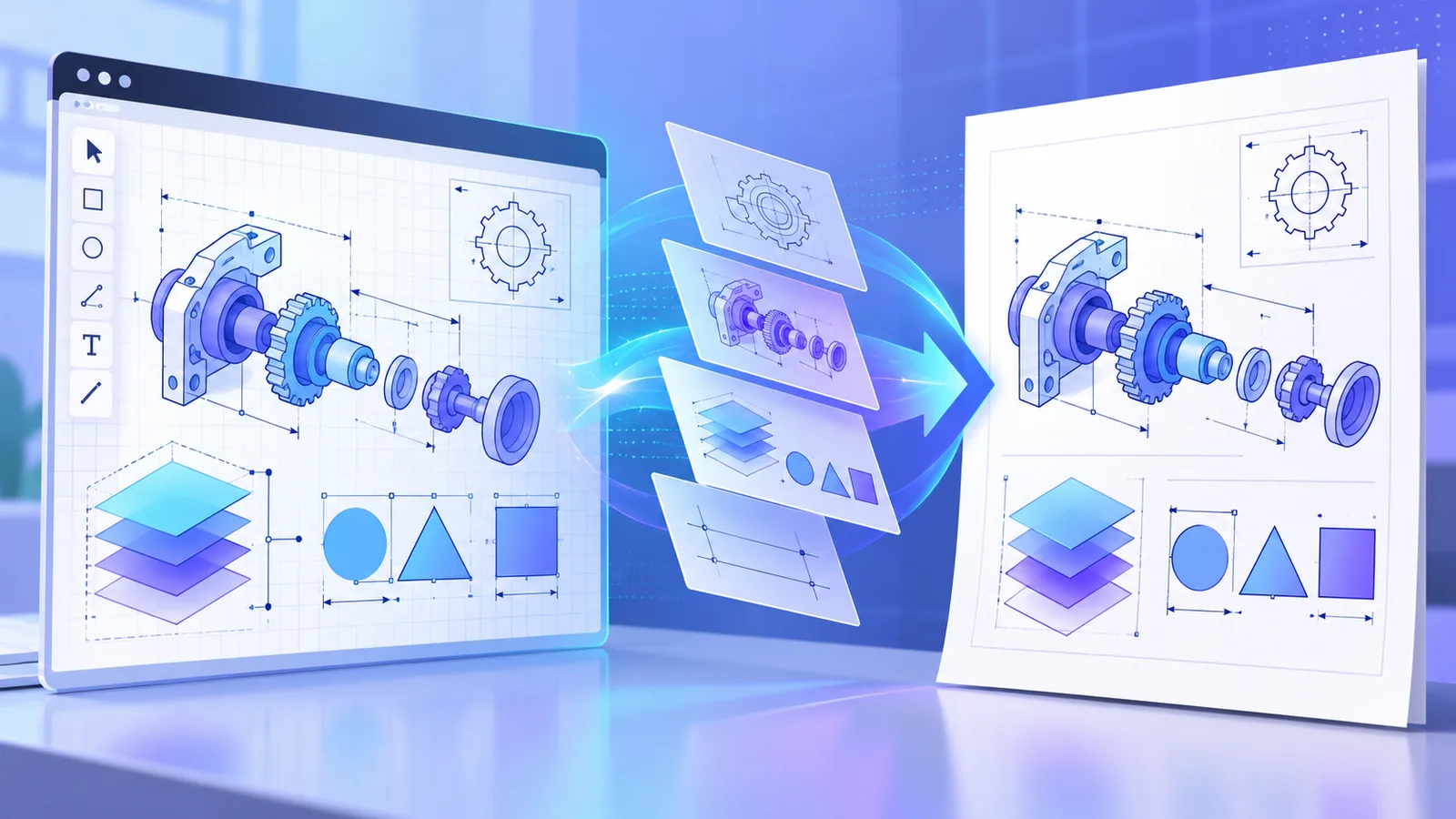
LibreOffice Draw stores editable objects, text boxes, connectors, layers and page settings. PDF records a fixed presentation for viewing and printing. Supported vector shapes and linework can remain sharp, but the PDF is not intended to preserve the original editing model.
Keep the ODG source as the master file. Use the PDF as the reviewed distribution copy.
Prepare the drawing before conversion
Open the source in LibreOffice Draw and confirm page size, orientation, fonts, linked images and the visible state of every object. Embed important resources where possible and remove pages that should not be distributed.
If a font is unavailable on the conversion service, substitution can change text width and wrapping. Convert critical display text to curves only when editability is no longer needed and the licensing and accessibility consequences are understood.
- Confirm every page boundary.
- Resolve missing images and broken links.
- Check transparency and clipping.
- Keep a source copy before final export.
Review the generated PDF like a proof
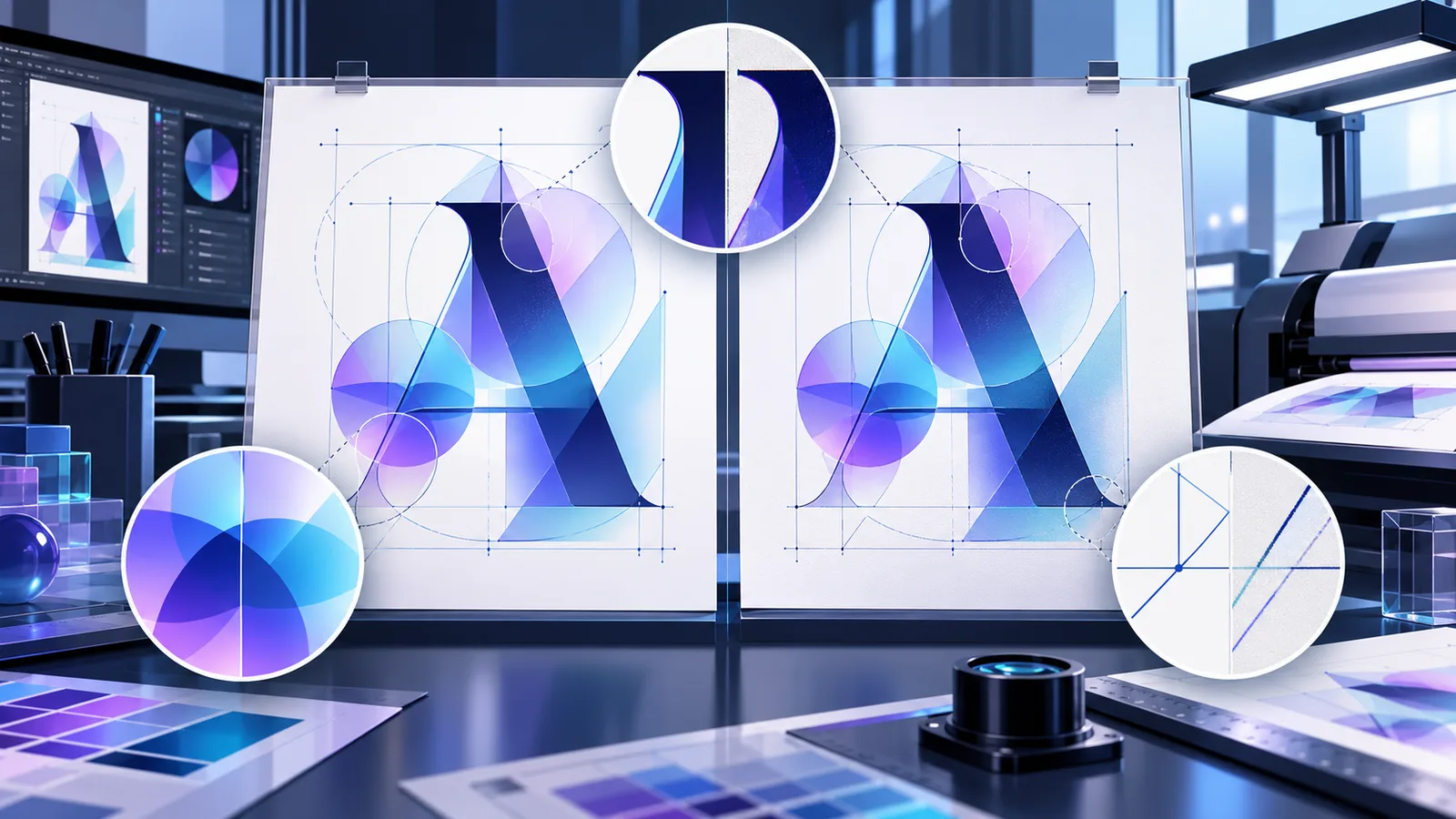
Preview the completed PDF and compare representative pages with the ODG source. Inspect small labels, connector endpoints, gradients, transparency, line weights and image detail at useful zoom levels.
For print delivery, also confirm physical page dimensions and output on the intended printer. A visually correct browser preview does not prove that every print workflow will behave identically.
Put the workflow into practice
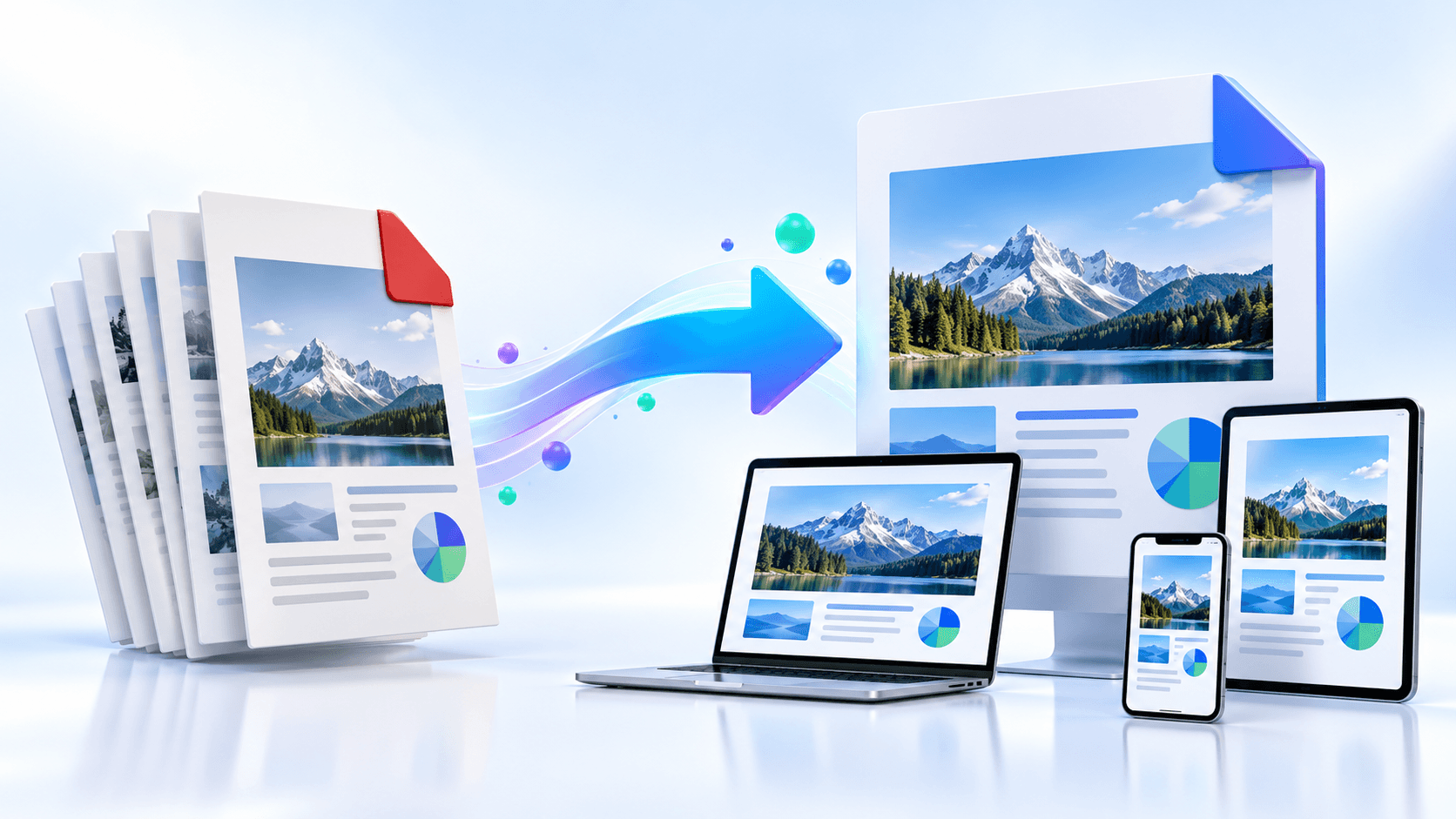
Arrange source documents, select the pages you need, and create one PDF locally in your browser. Review the result before choosing any optional next step.
Try ODG to PDFFrequently asked questions
Clear answers before you merge
Does ODG to PDF keep vector shapes?
Supported Draw shapes and linework are normally exported through the native PDF filter and can remain vector content.
Can the PDF be edited like the ODG?
No. PDF is the fixed delivery copy; keep the ODG file for continued object-level editing.
Why can text move after conversion?
A missing or substituted font can change character metrics, wrapping and alignment.
Are external images guaranteed to appear?
No. Embed important assets and review the result because unavailable linked resources can be missing.