On this page
Choose only the pages the destination needs
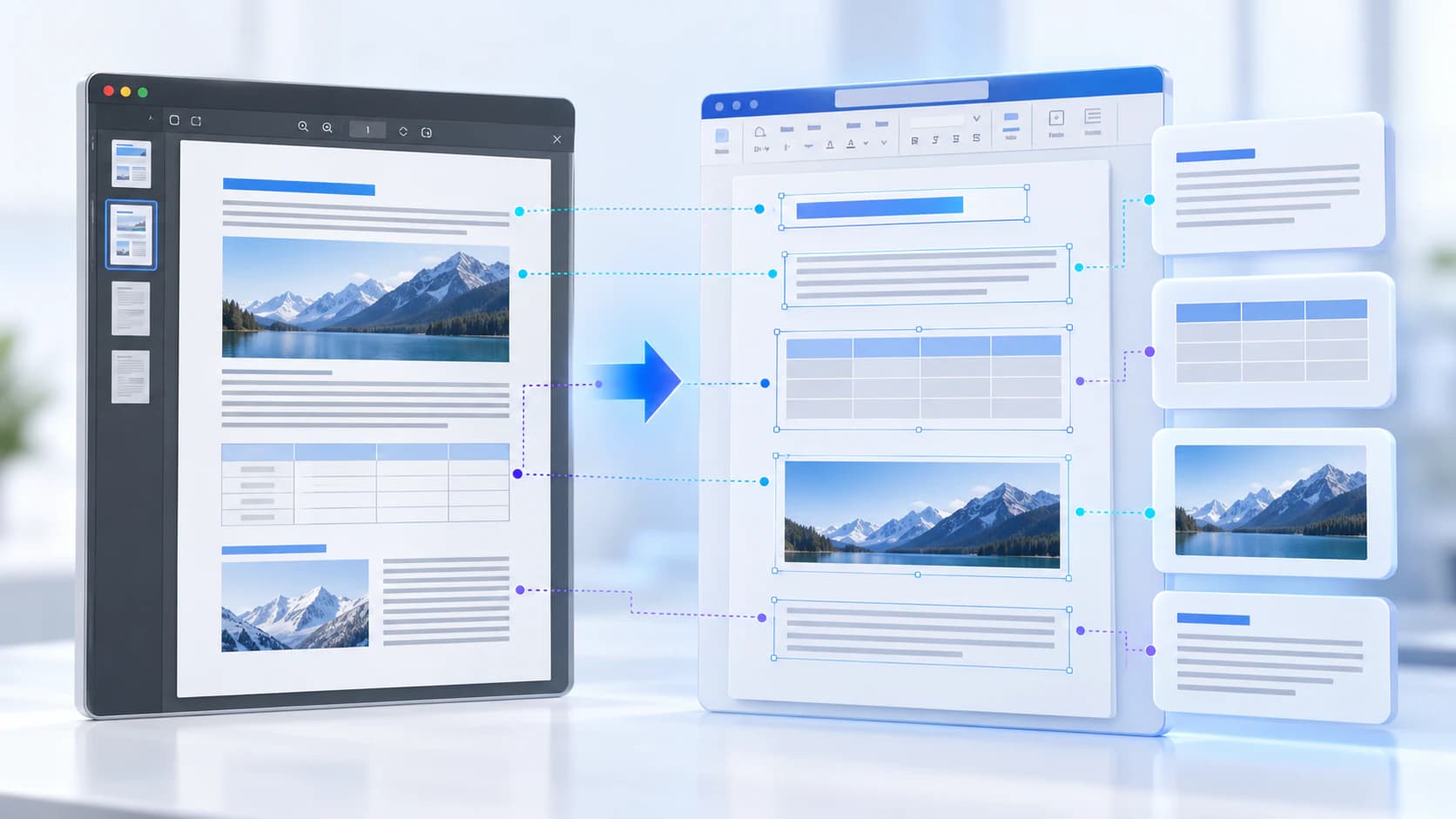
Use all pages or enter a range such as 1-3,5,8. Every selected page becomes an independent SVG, so a focused range avoids unnecessary rendering and a larger ZIP.
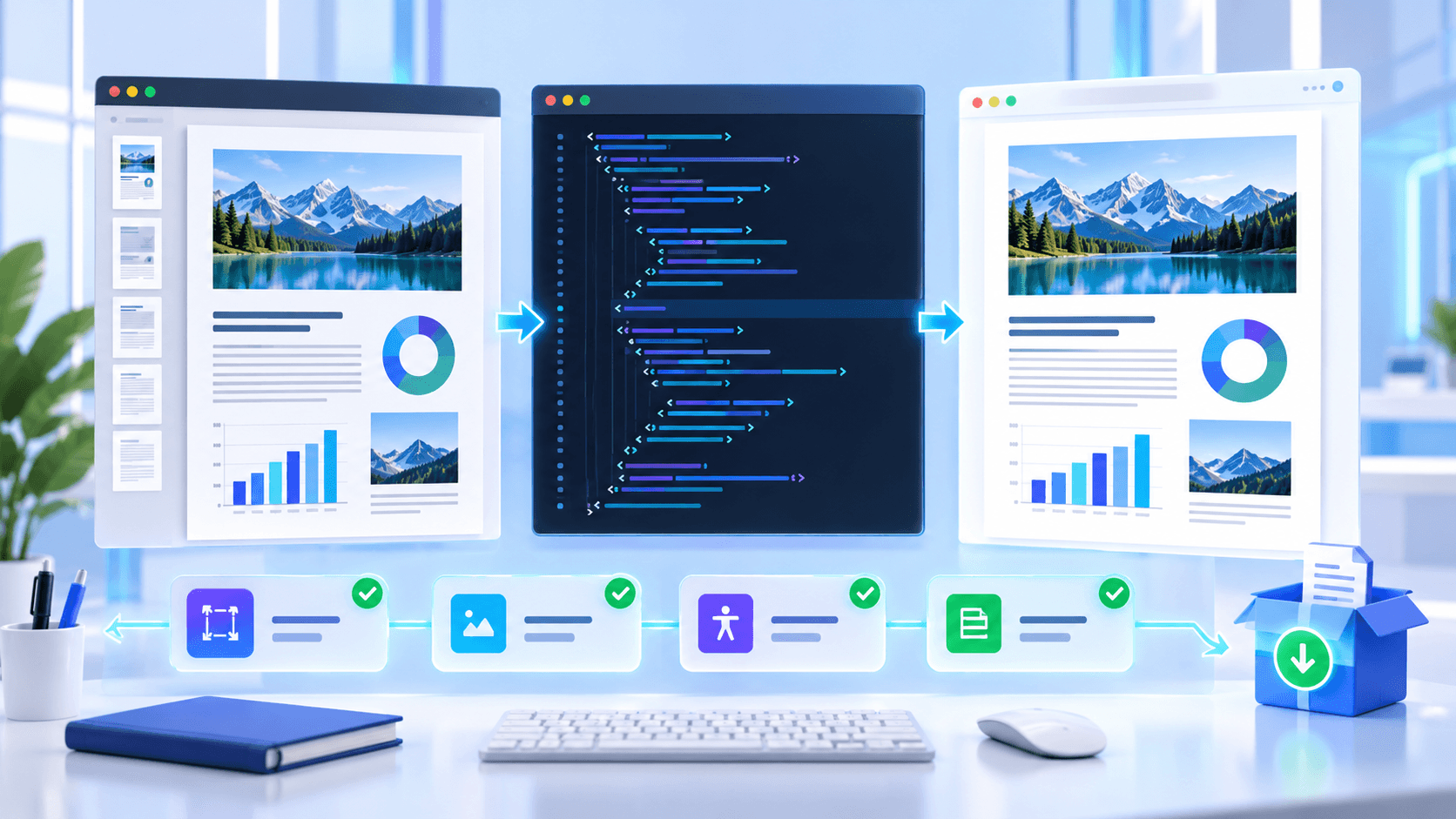
Uploading opens the studio but does not start conversion. Confirm page count, preview the active source and select Create SVG only after the settings are deliberate.
Match fidelity to the page content
Higher scale improves raster detail but increases memory and file size. JPEG can reduce size substantially, though fine text and sharp linework may show compression artifacts.
| Profile | Rendering | Best fit |
|---|---|---|
| Web | 2.5× lossless PNG | General web and document previews |
| Precision | 3.5× lossless PNG | Fine diagrams, small labels and detailed review |
| Compact | 1.5× JPEG | Image-heavy pages and smaller delivery files |
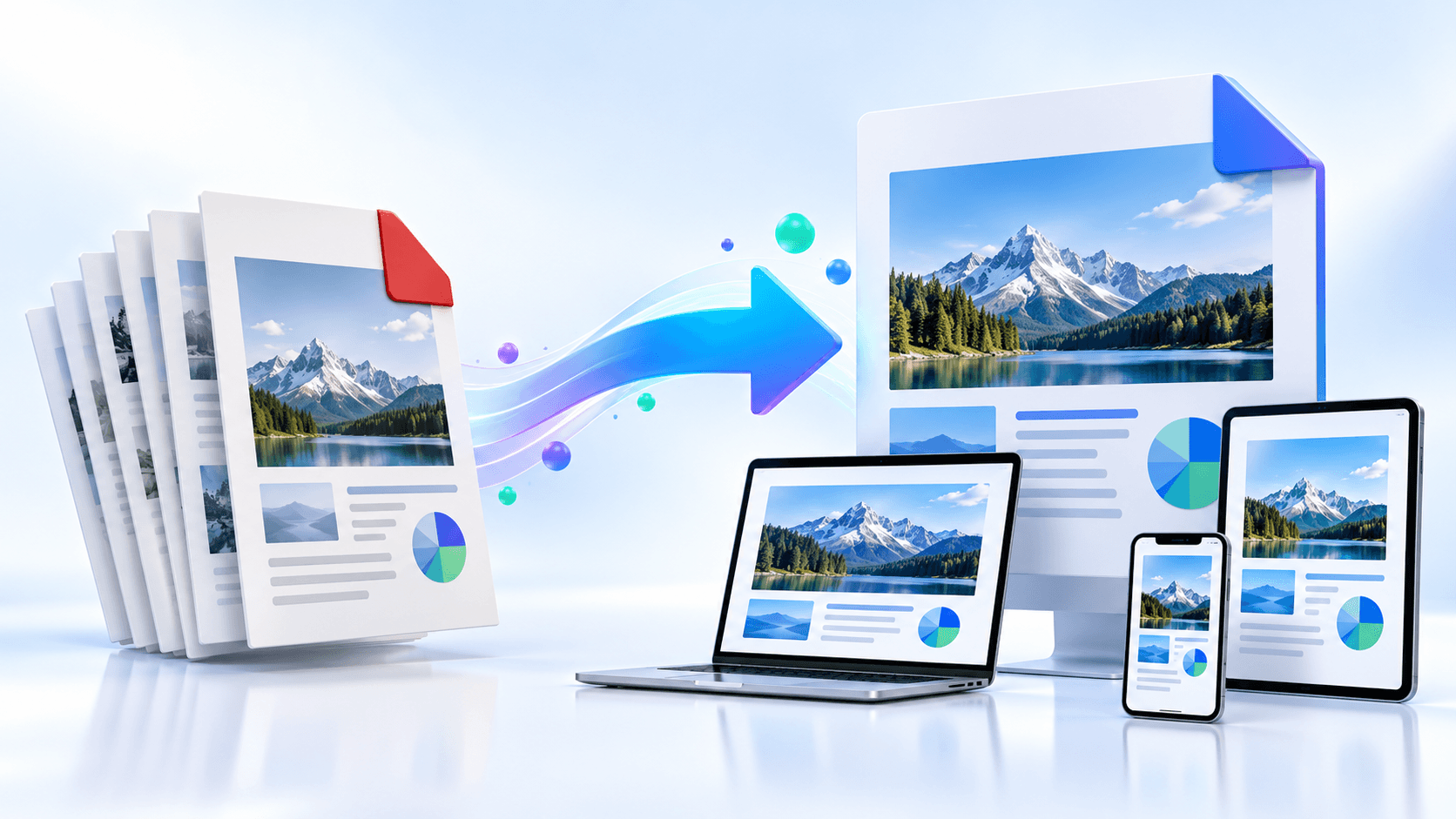
Use SVG as a responsive page container
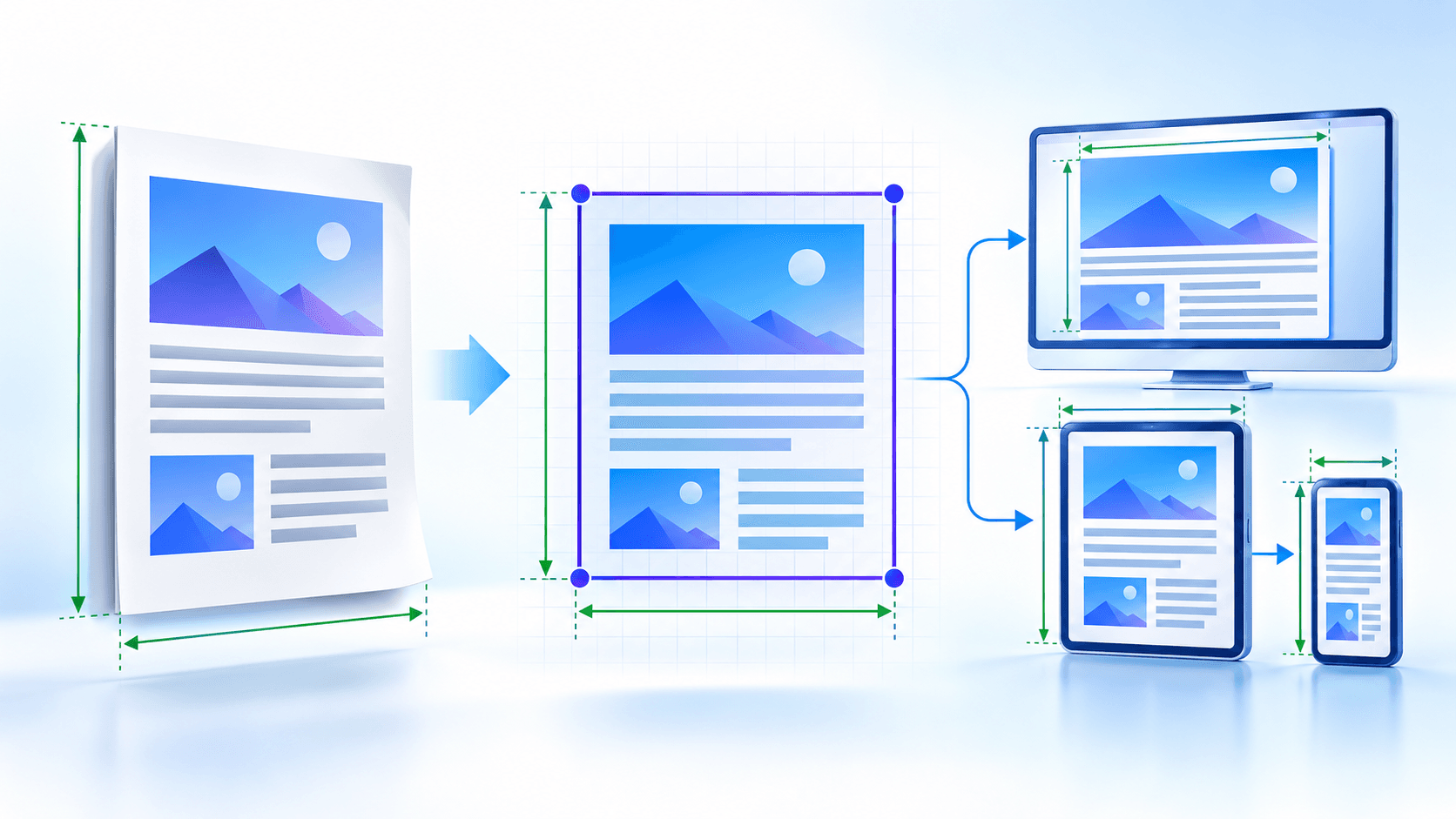
The viewBox retains the rendered page geometry while width and height can describe source points, intrinsic pixels or a responsive 100% container. Preserve aspect ratio for ordinary use.
Download one selected page directly or package multiple page SVG files into a ZIP with predictable source and page-based names.
Put the workflow into practice
Arrange source documents, select the pages you need, and create one PDF locally in your browser. Review the result before choosing any optional next step.
Try PDF to SVGFrequently asked questions
Clear answers before you merge
Does this create editable paths?
No. It embeds a high-fidelity page rendering inside valid SVG markup.
Can I select pages?
Yes. Use individual pages and ascending ranges.
Which profile is best for small text?
Precision uses the highest render scale and lossless PNG.
Can multiple pages be one SVG?
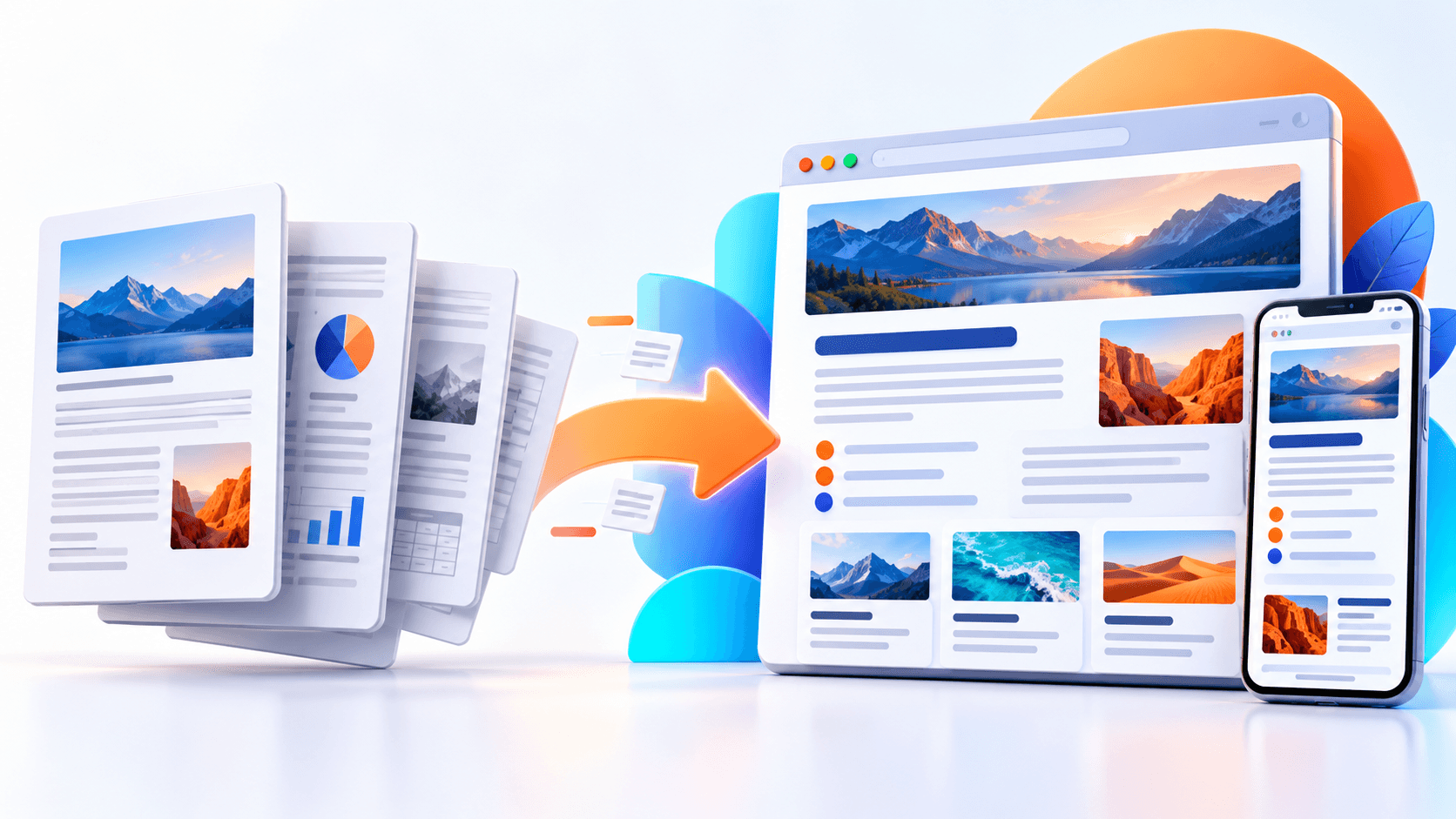
The tool creates one SVG per page and packages multiple results in a ZIP.