On this page
Select the pages and recognition language
Convert the complete document or enter a range such as 1-3,5. Page selection happens before the HTML is built, keeping appendices and unrelated pages out of the result.
Native PDF text is preferred. Image-only pages can use OCR with the selected language, but recognized names, dates and identifiers still require human review.
Choose standalone HTML or a reusable fragment
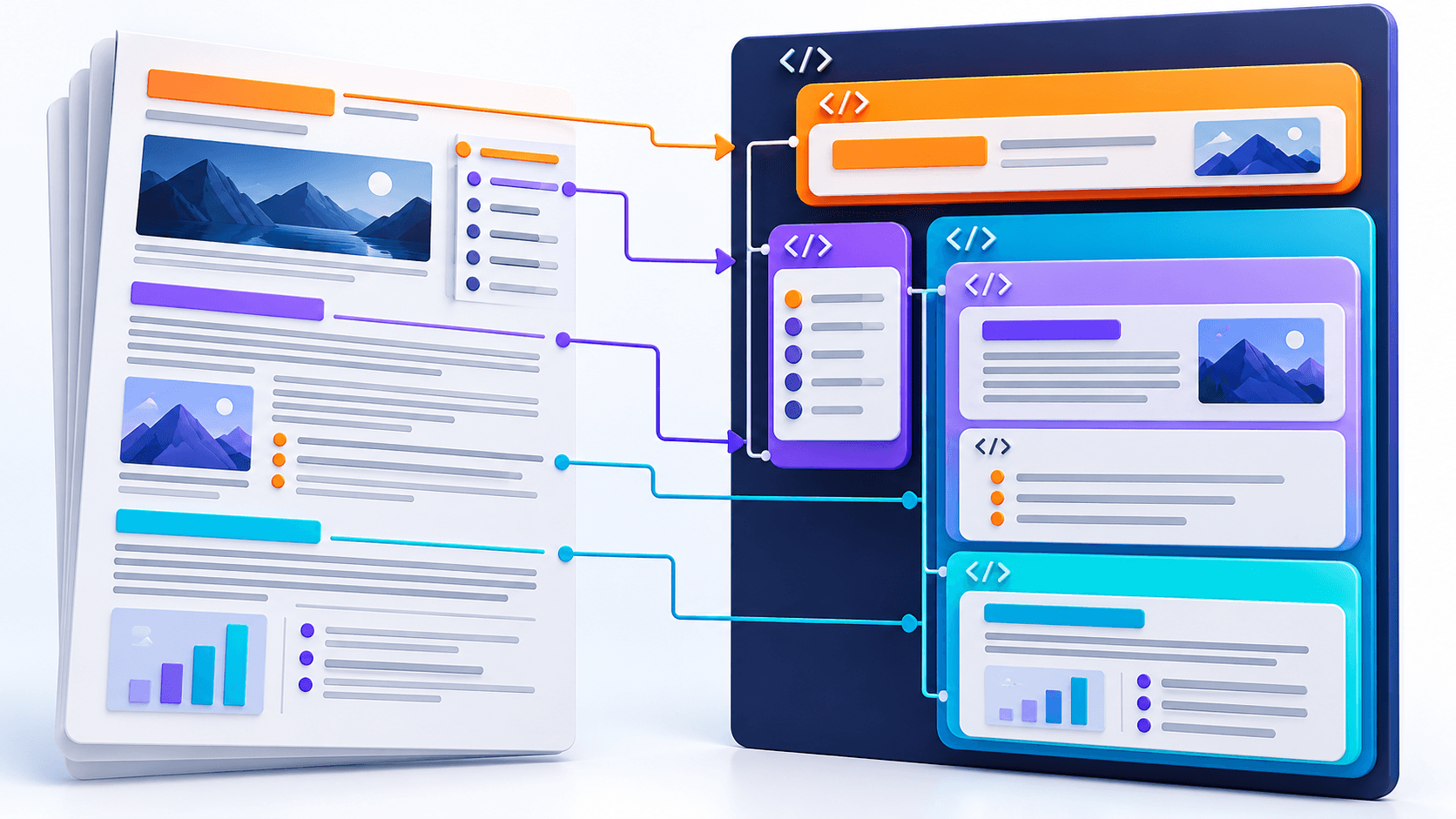
A standalone page is the safest review artifact because it contains its own styling. A fragment is easier to integrate, but the destination website controls typography and spacing.
| Output | Contains | Best fit |
|---|---|---|
| Standalone page | Document metadata, responsive CSS and complete HTML structure | Direct preview, download and independent hosting |
| HTML fragment | Semantic article markup without the document shell | CMS editors, templates and existing websites |
Tune the responsive reading experience
Set content width, type scale, line height, theme and accent color for the destination. Keep the default reader profile for ordinary reports, or retain stronger page separation when source-page comparison matters.
Print styles remove interface-only decoration and preserve sensible page breaks. Test both narrow mobile widths and the intended print workflow before publishing.
- Check headings and lists at phone width.
- Confirm long links and identifiers wrap safely.
- Compare the first, middle and last selected pages.
- Keep the source PDF as the fixed-layout reference.
Put the workflow into practice
Arrange source documents, select the pages you need, and create one PDF locally in your browser. Review the result before choosing any optional next step.
Try PDF to HTMLFrequently asked questions
Clear answers before you merge
Is the result pixel-identical to the PDF?
No. It prioritizes responsive, semantic reading rather than reproducing fixed page coordinates.
Can I select specific pages?
Yes. Individual pages and ascending ranges are supported.
Can scanned pages be converted?
Yes, through browser OCR, with manual review recommended.
What is an HTML fragment?
It is the semantic article markup without a full document shell or embedded stylesheet.