On this page
Select only the pages that belong in the deck
Use all pages for a complete handout, or enter a range such as 1-3,5,8 for a focused presentation. Selection occurs before page rendering so unrelated material does not enter the package.
Check the expected slide count against the resolved source pages. A page range should never silently reorder or invent pages.
Use page imagery when visual fidelity is the priority
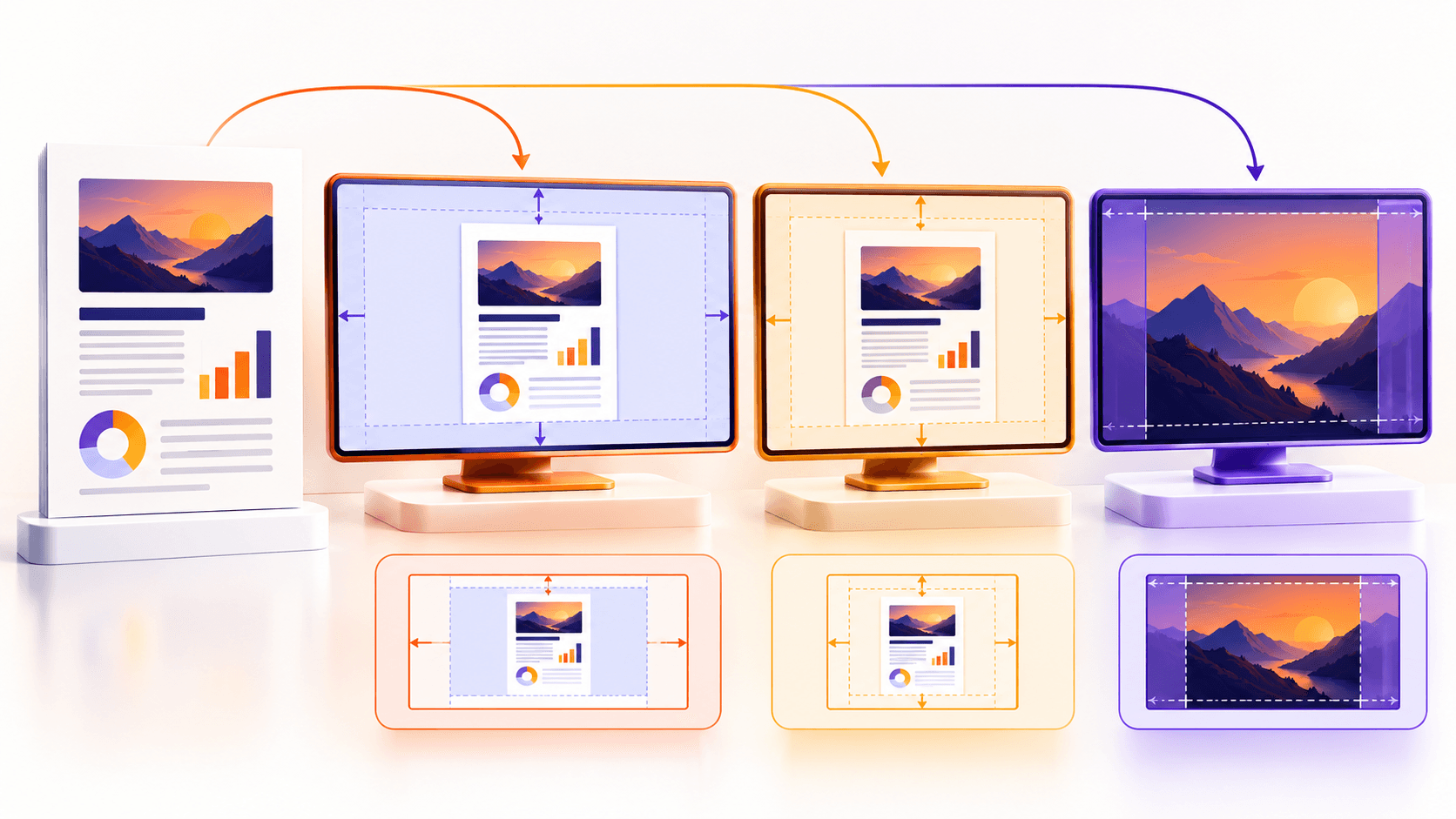
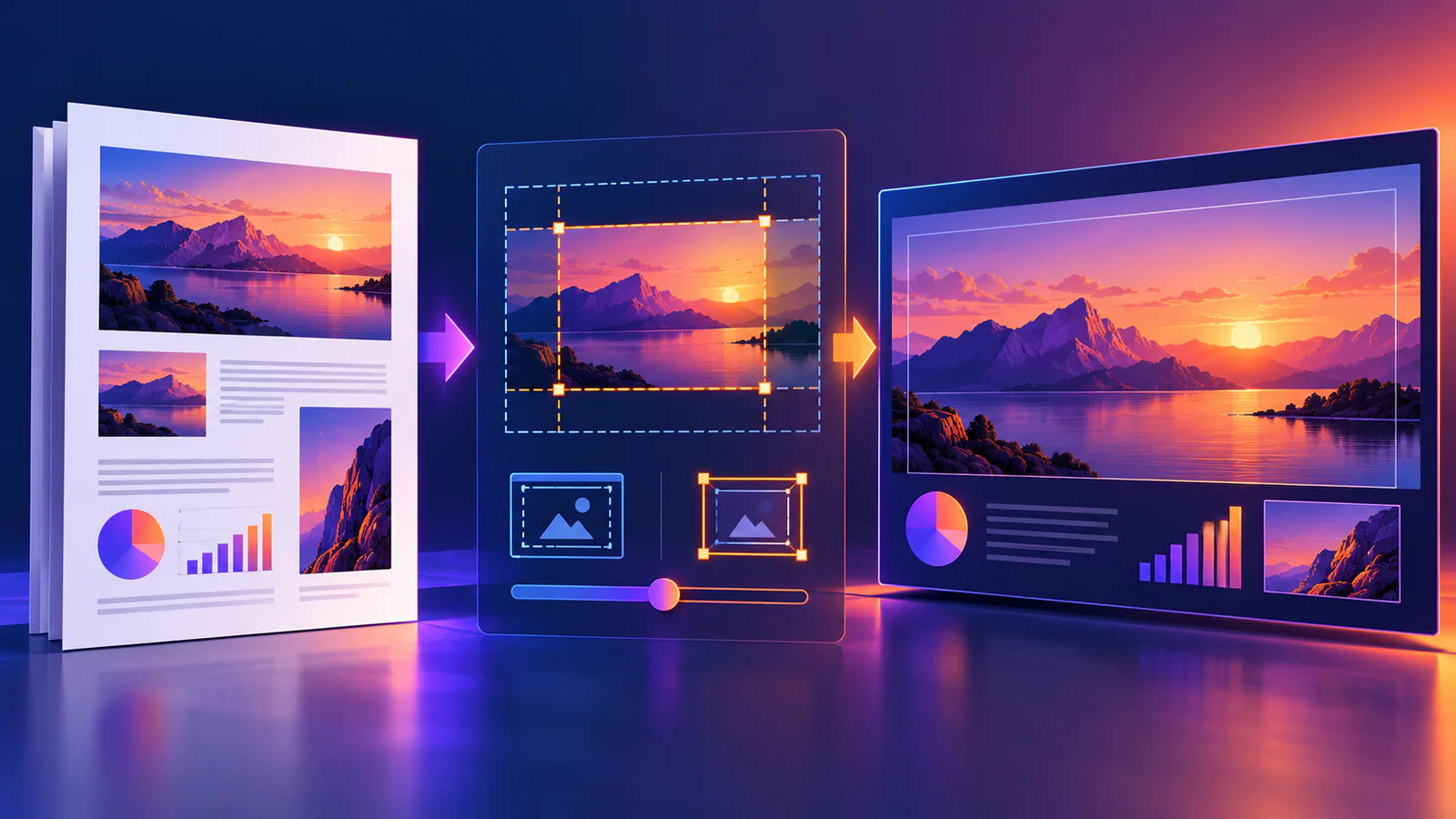
Rendering each page preserves visible fonts, vector artwork, form appearance and spatial relationships more consistently than attempting to infer presentation objects from a fixed PDF.
The tradeoff is explicit: slide content is not reconstructed as separate editable text boxes and shapes. Keep the source document when later content editing may be required.
Choose quality for the delivery context
Higher resolution increases package size and processing time. Test a representative page with fine text before converting a very large deck.
| Profile | Resolution | Use |
|---|---|---|
| Standard | 144 DPI | Screen review and smaller decks |
| High | 200 DPI | Most meetings and projectors |
| Maximum | 250 DPI | Fine diagrams and detailed archives |
Put the workflow into practice
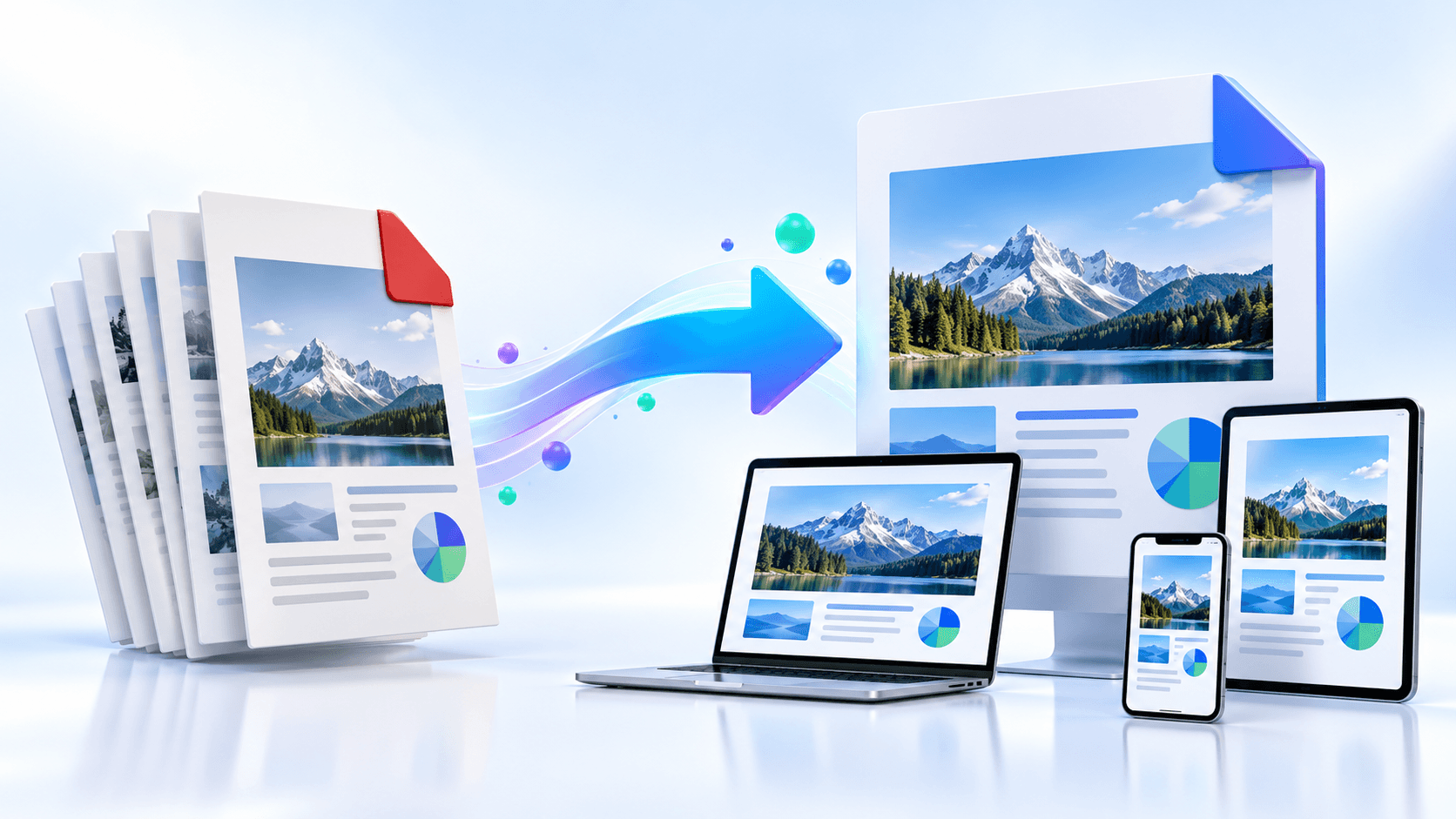
Arrange source documents, select the pages you need, and create one PDF locally in your browser. Review the result before choosing any optional next step.
Try PDF to ODPFrequently asked questions
Clear answers before you merge
Is the slide content editable?
The page is embedded as an image, so it is visually faithful but not rebuilt as separate editable objects.
Can I select pages?
Yes. Use individual pages and ranges such as 1-3,5.
Does page order stay the same?
Yes. Selected pages are written in ascending source order.
Which app opens ODP?
LibreOffice Impress and other OpenDocument-compatible presentation apps can open ODP files.