
On this page
Inspect the PDF before converting
Confirm whether text is selectable and whether pages are native, scanned or mixed. A native PDF exposes characters and coordinates; a scan exposes pixels and requires OCR before its words become editable.
Use a page range when only part of a long document is needed. Fewer irrelevant pages reduce cleanup and make the result easier to verify.
Preserve structure, not fixed coordinates
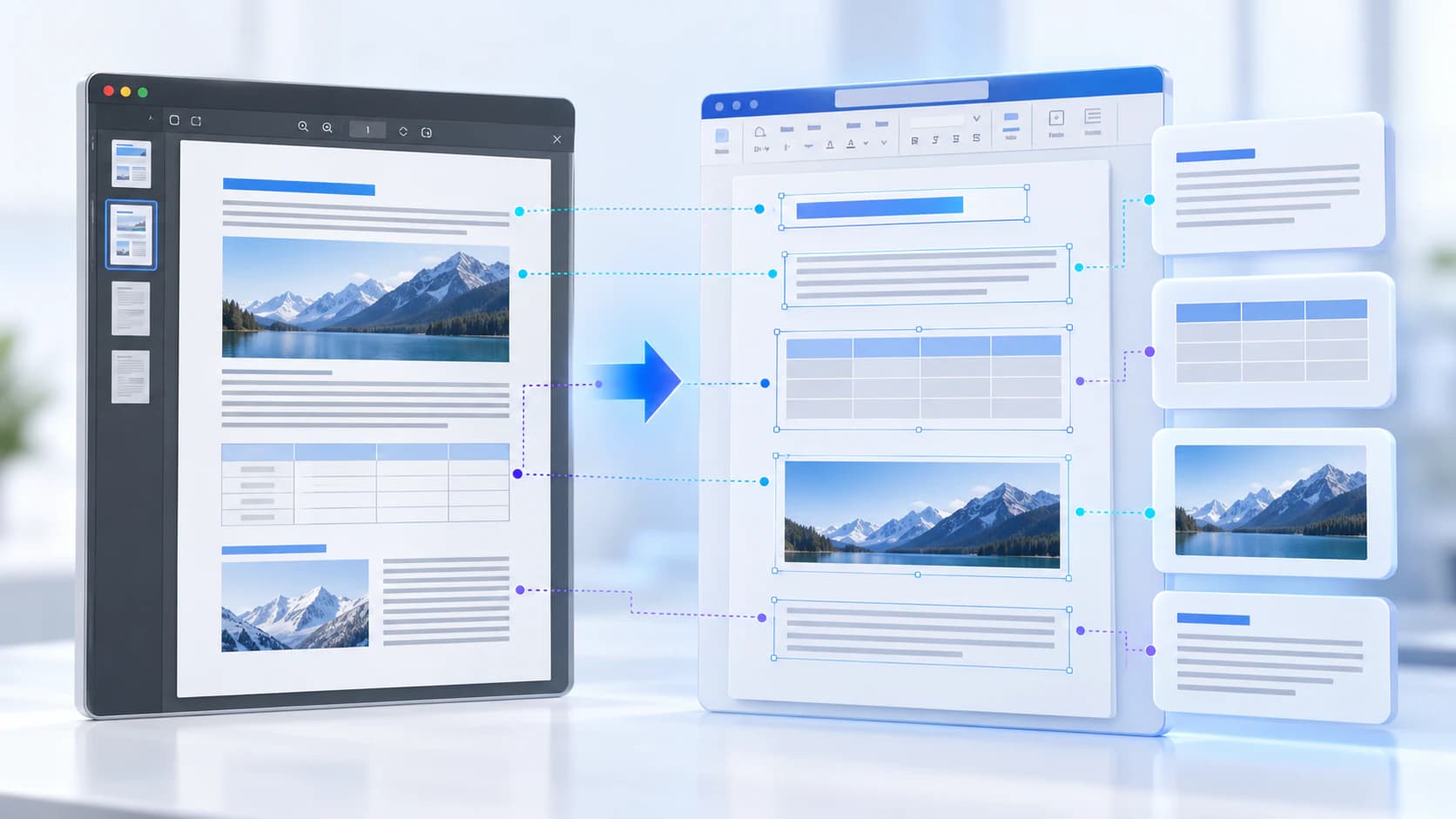
Word reflows paragraphs, while PDF places glyphs on fixed page coordinates. A conversion engine must group spans into lines and paragraphs, recover styles, identify tables and place images without turning every text fragment into a separate paragraph.
Keep the source PDF beside the DOCX during review. Compare headings, lists, captions, tables, headers, footers and page transitions rather than judging only the first page.
- Check font substitutions.
- Verify paragraph and list boundaries.
- Inspect table cells and merged regions.
- Open preserved hyperlinks.
- Review page breaks and orientation.
Review the editable result deliberately
Complex reports can require adjustment even when the text is correct. Check two-column reading order, floating images, unusual fonts and repeated header or footer content.
Treat the DOCX as an editable reconstruction, not a pixel-identical replica. Save a reviewed version under a clear name and retain the source PDF.
Put the workflow into practice
Analyze the source structure, choose the pages you need, and reconstruct an editable DOCX with truthful expectations about reflow and OCR.
Try PDF to WordFrequently asked questions
Clear answers before you convert
Can formatting always be preserved exactly?
No. PDF and Word use different layout models, so complex fixed designs can reflow.
Should I convert a scan directly?
Use OCR PDF to Word when the page is image-only and editable recognized text is required.
Do page ranges improve quality?
They reduce the conversion scope and cleanup burden but do not change the structure of selected pages.