On this page
Choose the sections readers need
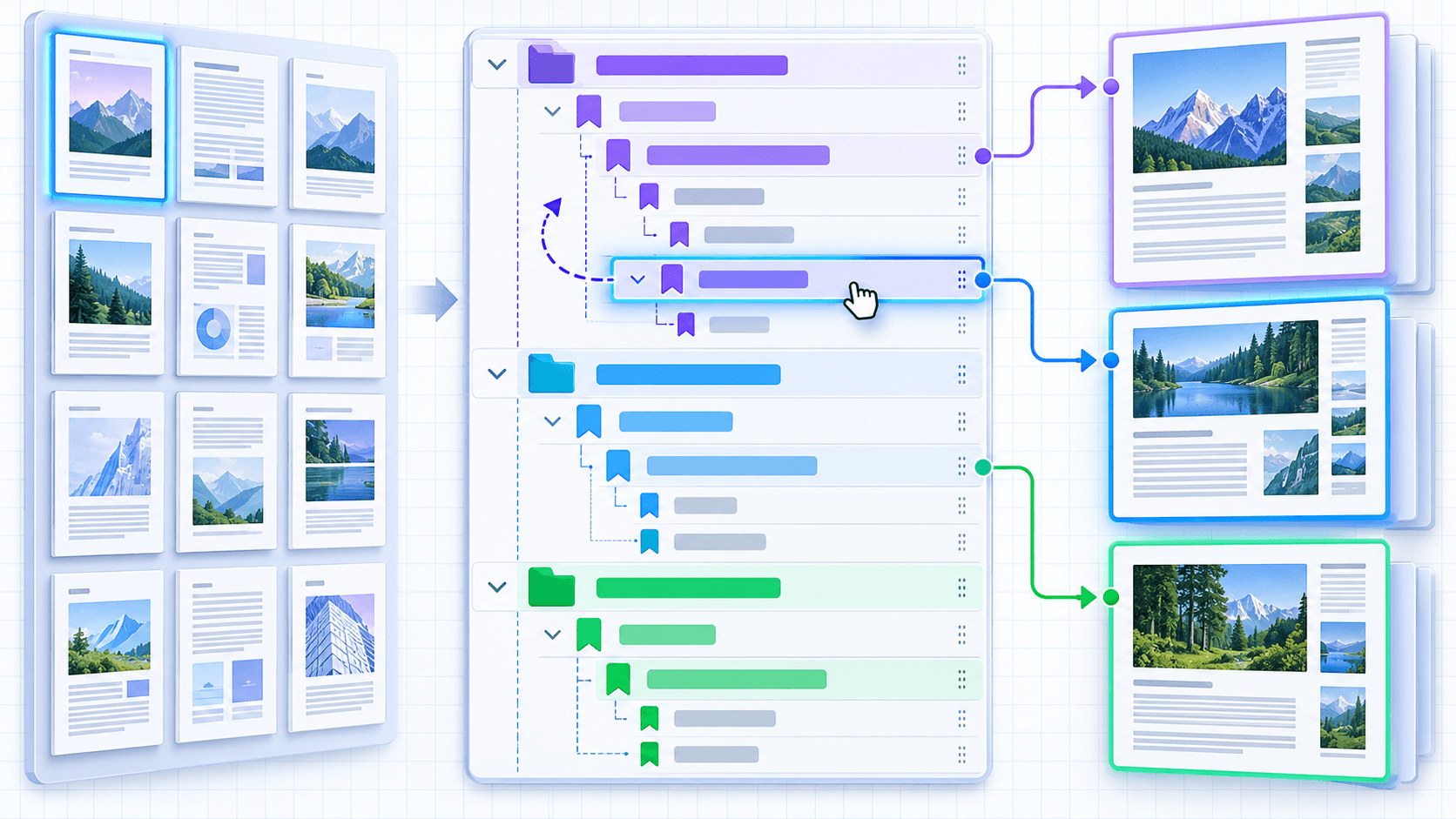
Start with major chapters, schedules or exhibits. Add lower levels only where they shorten a real navigation task. A dense bookmark tree can be as difficult to use as no outline at all.
Use short descriptive labels instead of copying long page headings verbatim. Keep terminology consistent across sibling entries.
Assign deliberate destinations
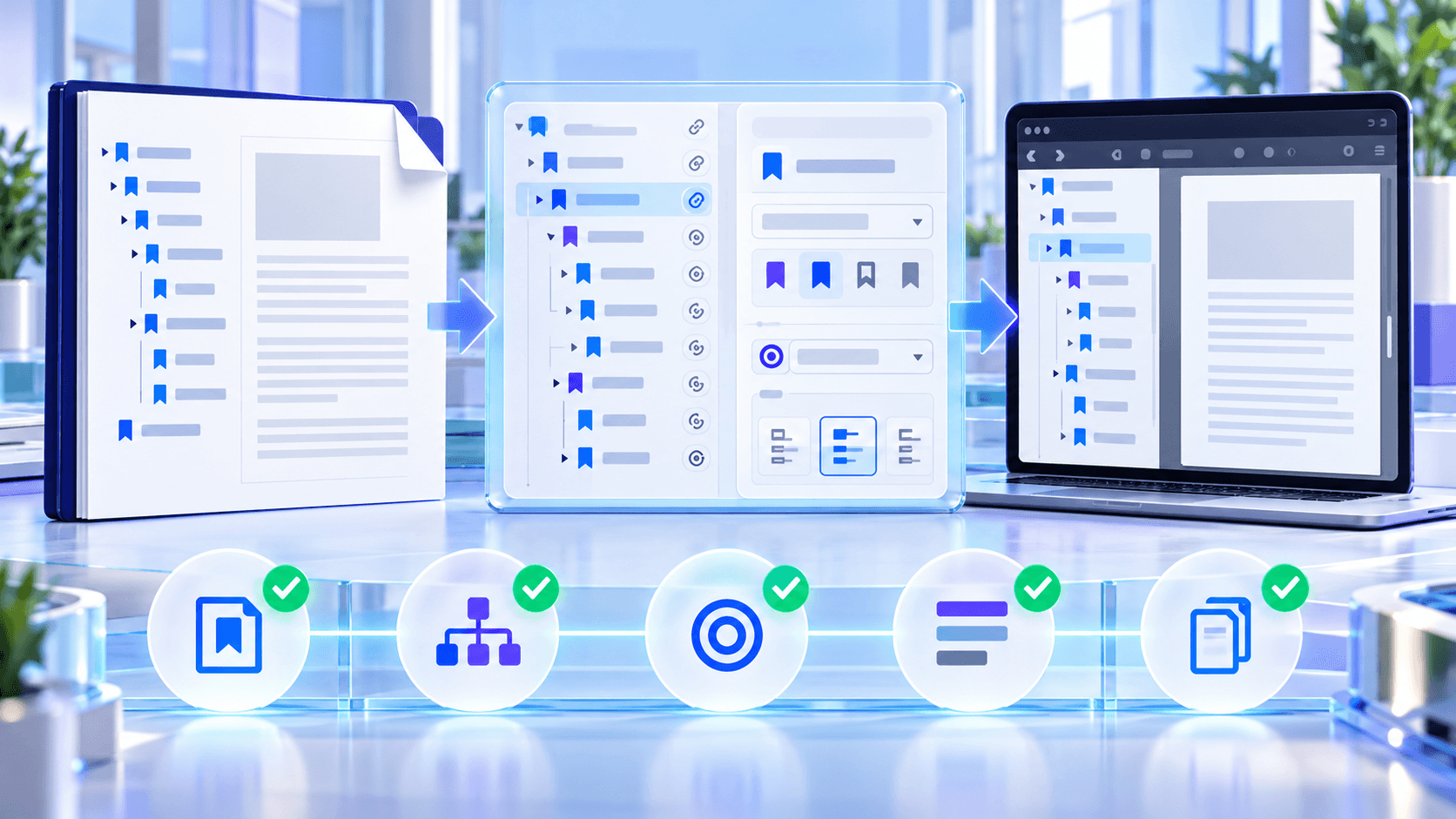
Fit page is dependable for visual pages, while fit width is useful for text-heavy reading. A custom zoom can emphasize a small region, but aggressive zoom values may feel disorienting on small screens.
Preview every selected destination page before creating the output. Page numbers in a printed footer may differ from the PDF page index.
Create a reviewed copy
Save bookmark changes into a new PDF and preserve the source. Reopen the result, check its page count and test representative root and child destinations.
Changing a PDF after a cryptographic signature can invalidate that signature, so keep signed originals as records.
Put the workflow into practice
Arrange source documents, select the pages you need, and create one PDF locally in your browser. Review the result before choosing any optional next step.
Try Edit PDF BookmarksFrequently asked questions
Clear answers before you merge
Do bookmarks change visible content?
No. They add or change document navigation.
Can one bookmark open a specific page?
Yes. Assign an exact PDF page destination.
Which view should I use?
Fit page is a safe default; fit width suits continuous text.
Should I replace the source?
Keep the source and download a reviewed copy.