On this page
Choose the source and inspect its pages
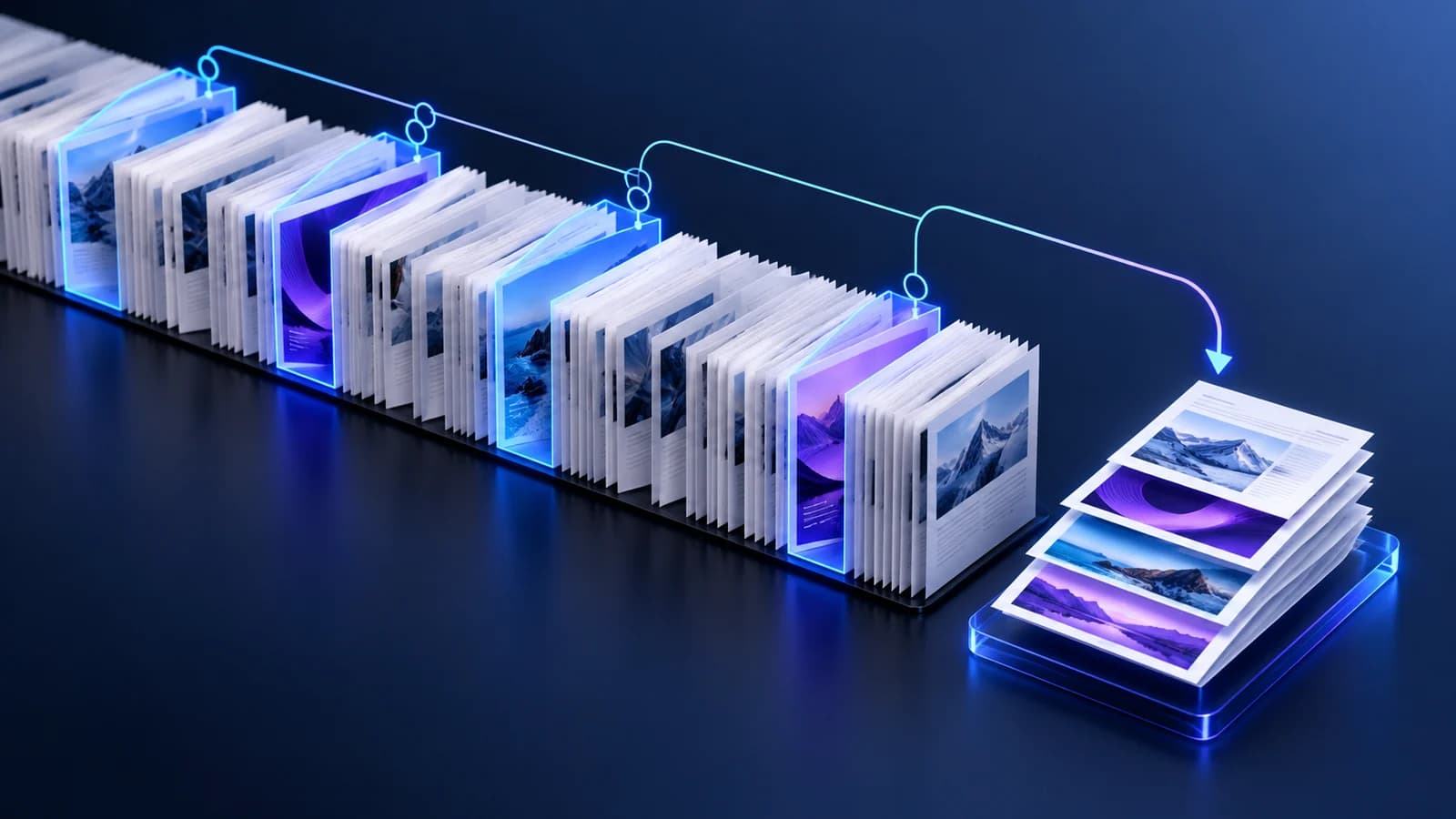
Open one PDF and confirm its source page count. Thumbnails help you find candidate pages, while the full-page preview protects against selecting a similar-looking but incorrect page.
For long files, load thumbnails progressively or jump directly to a known page number instead of rendering the entire document at once.
Build the extraction set
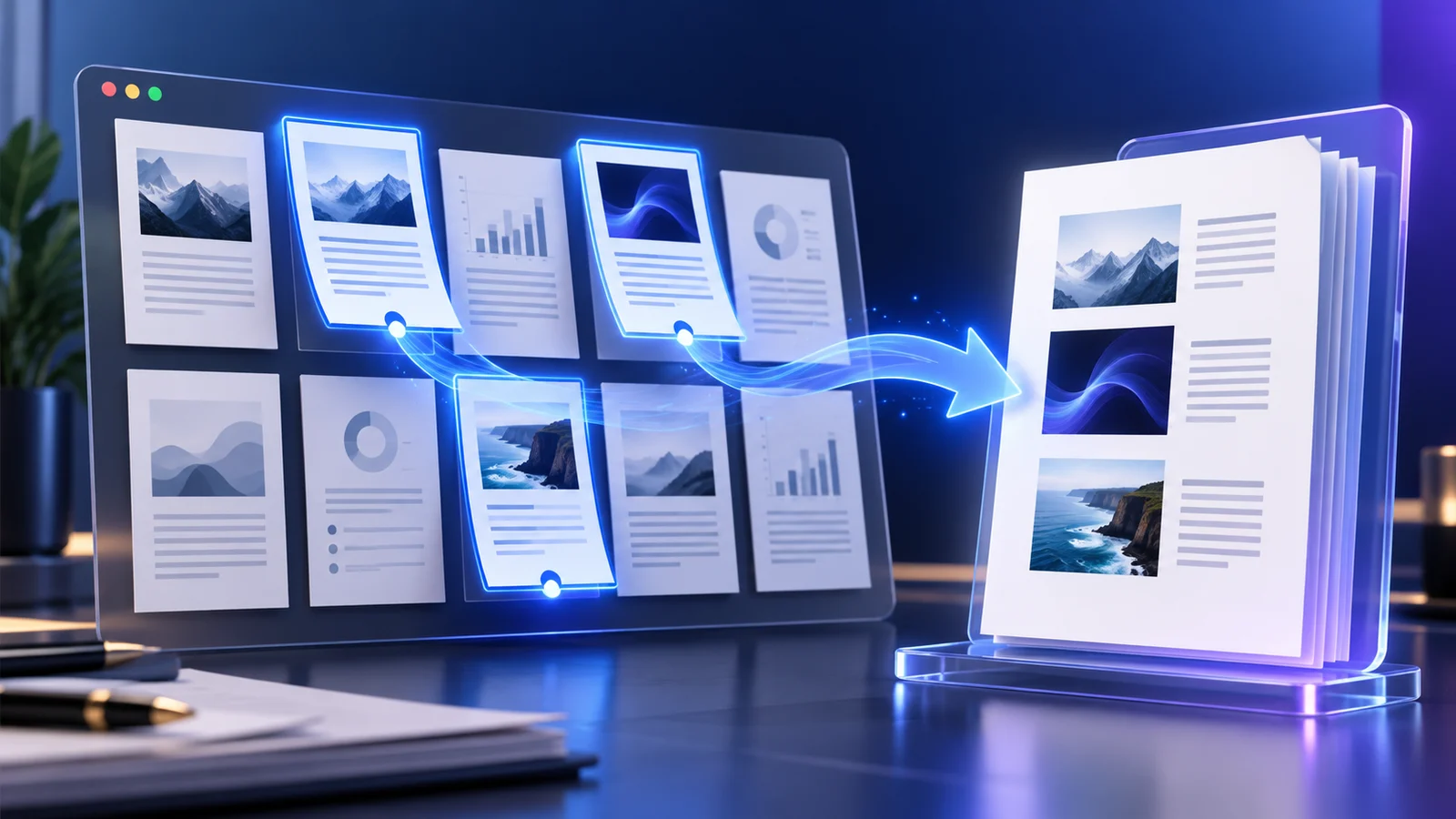
Click individual thumbnails for a small set, or enter a range such as 2-6, 9, 14-18. Odd, even and invert controls are useful for scanned duplex material and alternating page patterns.
Filter to selected pages before export and compare the count with the material you intend to share.
Choose source or custom order
Source order preserves the original reading sequence regardless of the order in which you clicked pages. Custom order uses your deliberate selection sequence and supports moving pages before output.
Use custom order only when the new document needs a different narrative. Otherwise, source order is safer and easier to audit.
Create and verify the new PDF
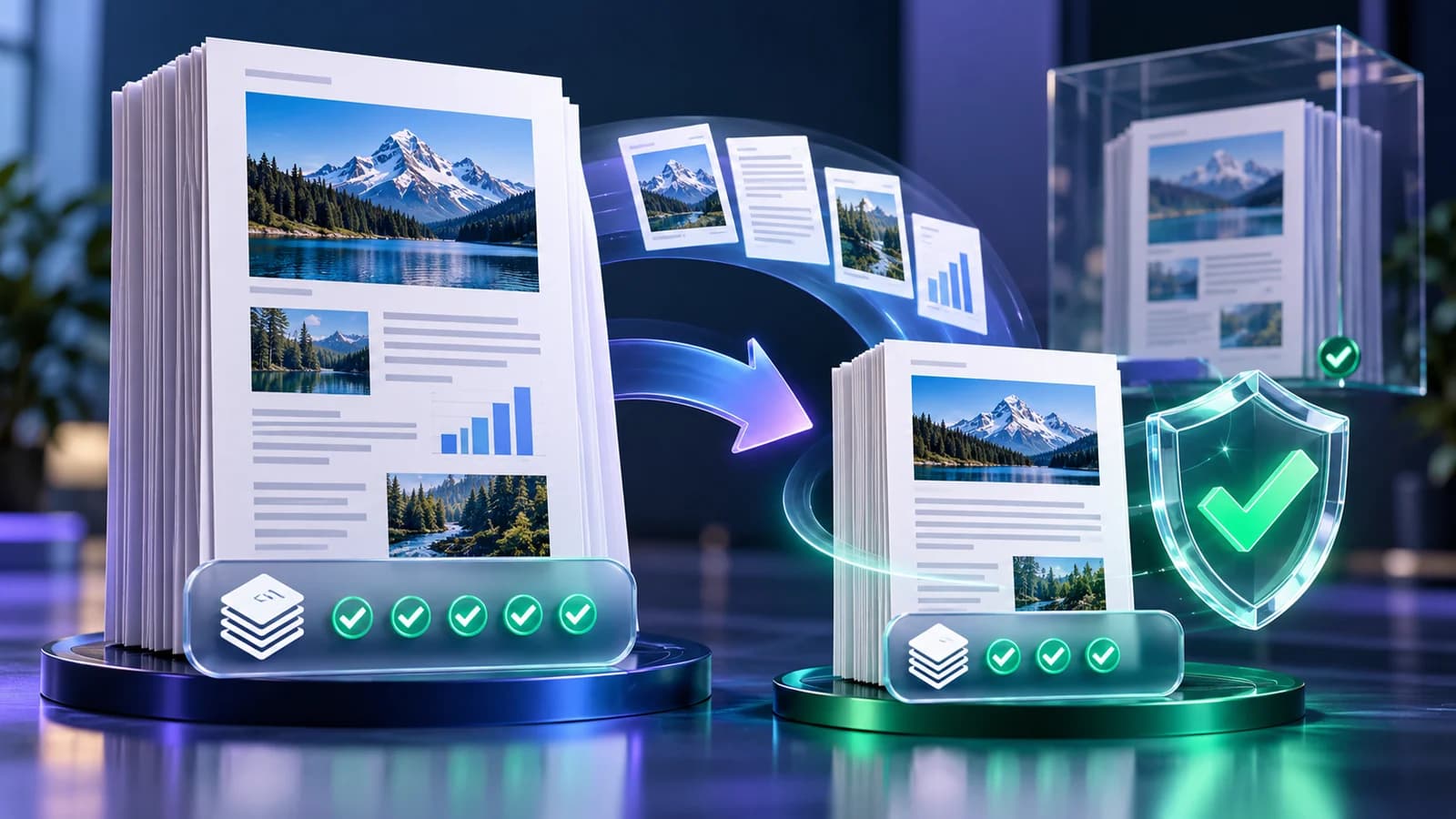
The selected source pages are copied into a new PDF without rasterizing their page content. The source remains unchanged.
Reopen the output, reconcile its page count and render its first and last pages before downloading. Keep the source until the extracted copy has been reviewed and accepted.
Put the workflow into practice
Select exact pages visually or by range, choose their output order, then create and verify one focused PDF while preserving the source.
Try Extract PDF PagesFrequently asked questions
Clear answers before you extract pages
Does extraction delete pages from the original?
No. It creates a separate PDF and leaves the source unchanged.
Can I extract non-consecutive pages?
Yes. Combine individual page numbers and ranges or select thumbnails directly.
Is page quality reduced?
Pages are copied into a new PDF rather than converted into screenshots, so their original page content is retained.
Can I make several output PDFs?
Extract PDF Pages creates one output. Use Split PDF for several separate files.