Processed in your browser

Split PDF

Separate PDF pages, extract exact ranges, or use advanced splitting rules with a visual page workspace.

Extract page rangesSplit every N pagesSplit by bookmarksSplit by file sizeSeparate double-page scansText-based splitting

Simple from start to finish

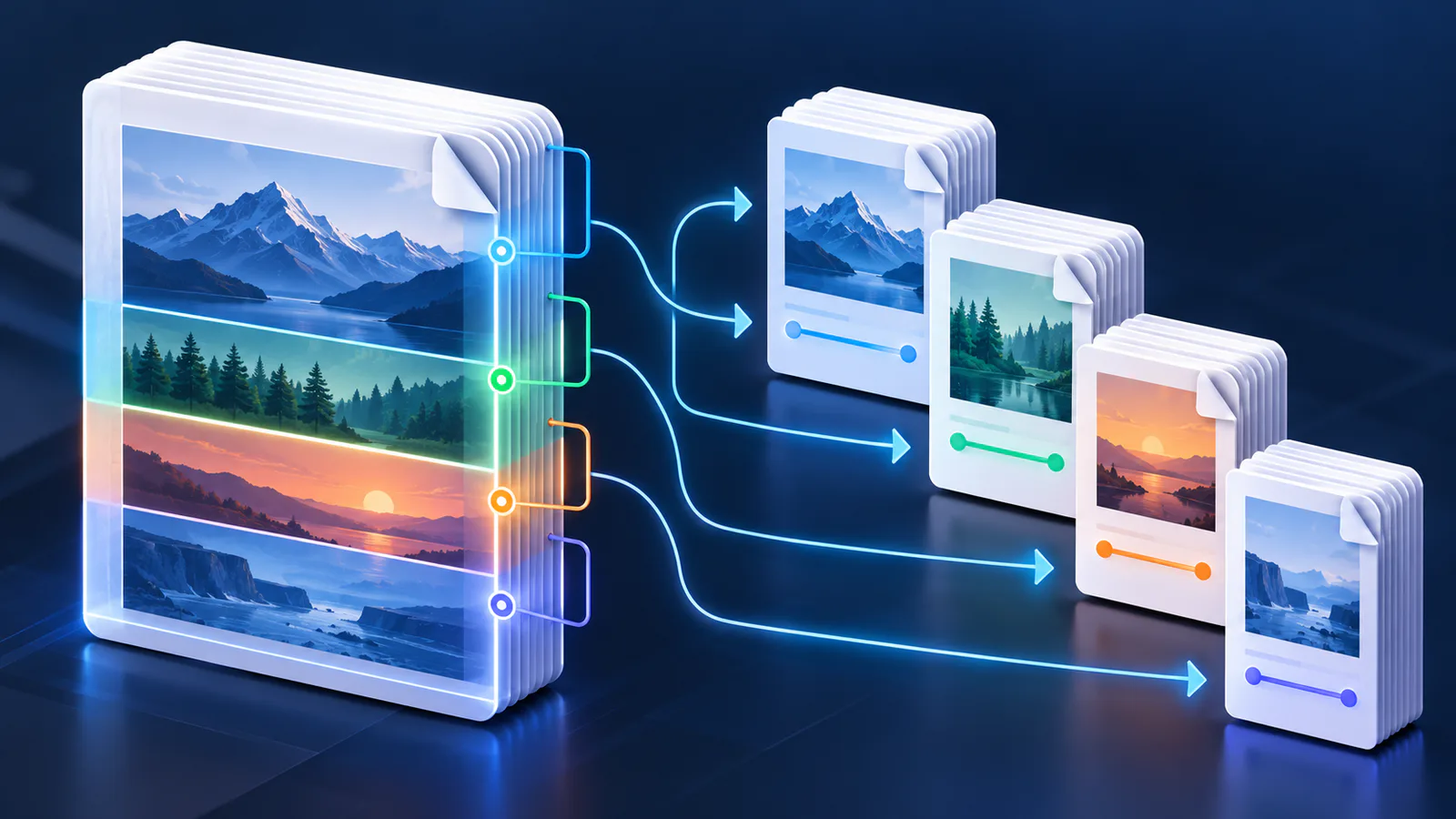
From one PDF to organized files

Choose a rule, confirm the planned groups, and create every result locally in your browser.

  1. Upload your PDF

    Choose one PDF from your device.

  2. Choose a split rule

    Use ranges, selections or smart rules.

  3. Review the groups

    See each planned output before processing.

  4. Download the results

    Save one PDF or package everything as ZIP.

10 ways to split

The right split for every document

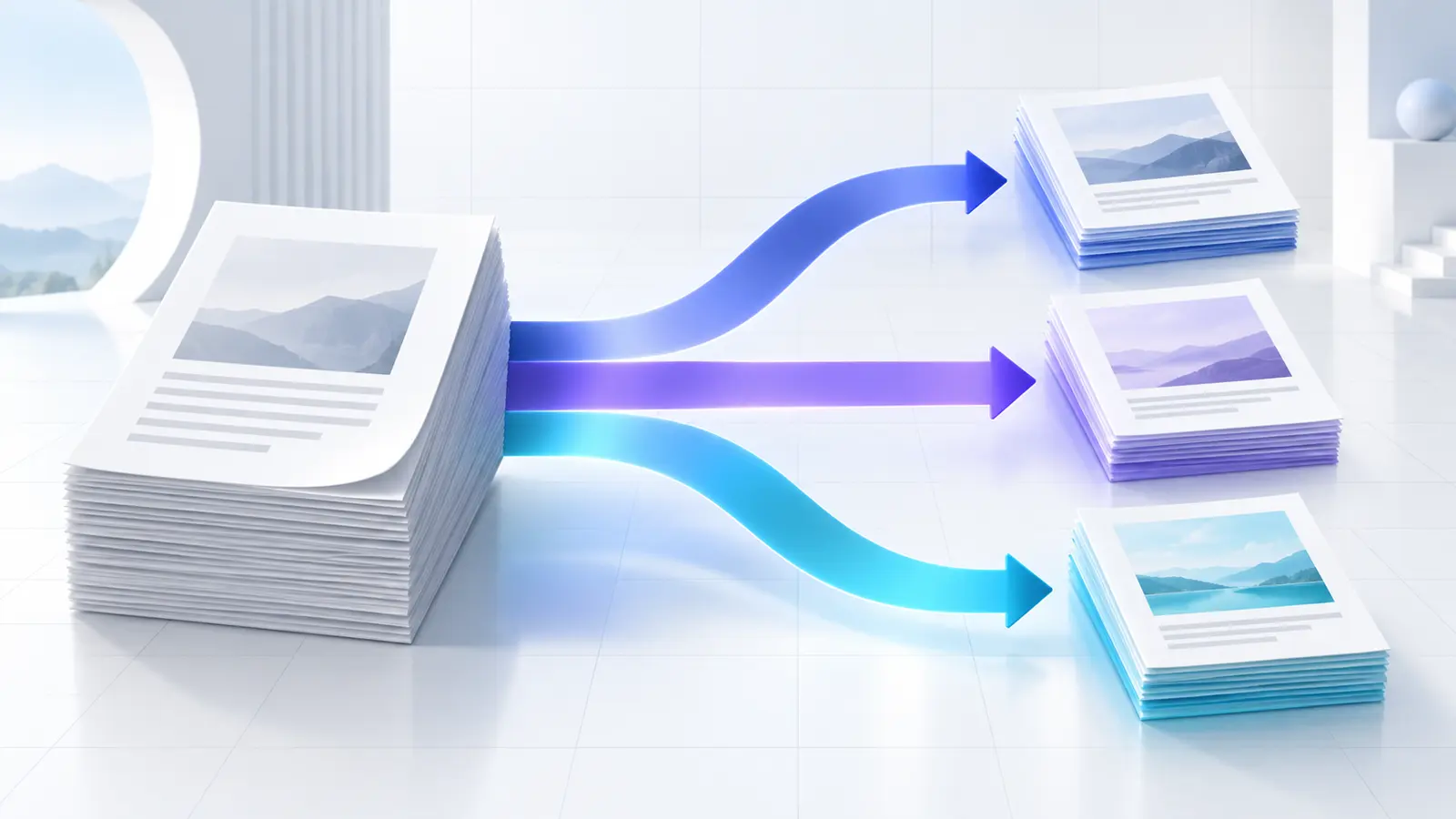
Start with simple page controls, or use document structure, generated size and detected text when the file needs a more precise rule.

One source PDFOrganized outputs

Every method shows its planned files before processing.

Basic page controls

Fast, direct and predictable

Split by Page Ranges

Create one PDF for each range, such as 1-3,5,8-10.

Split Every Page

Create one PDF file per page.

Split Every N Pages

Automatically create equal-size page chunks.

Extract Selected Pages

Create one PDF from the pages you select below.

Split at Selected Pages

Mark breakpoints and split after those pages.

Split into Equal Parts

Divide the PDF into a chosen number of parts.
Advanced document rules

Structure and content aware

Split by Bookmarks

Create files from the document’s top-level bookmark boundaries.

Split by Target Size

Estimate sequential parts near a preferred maximum file size.

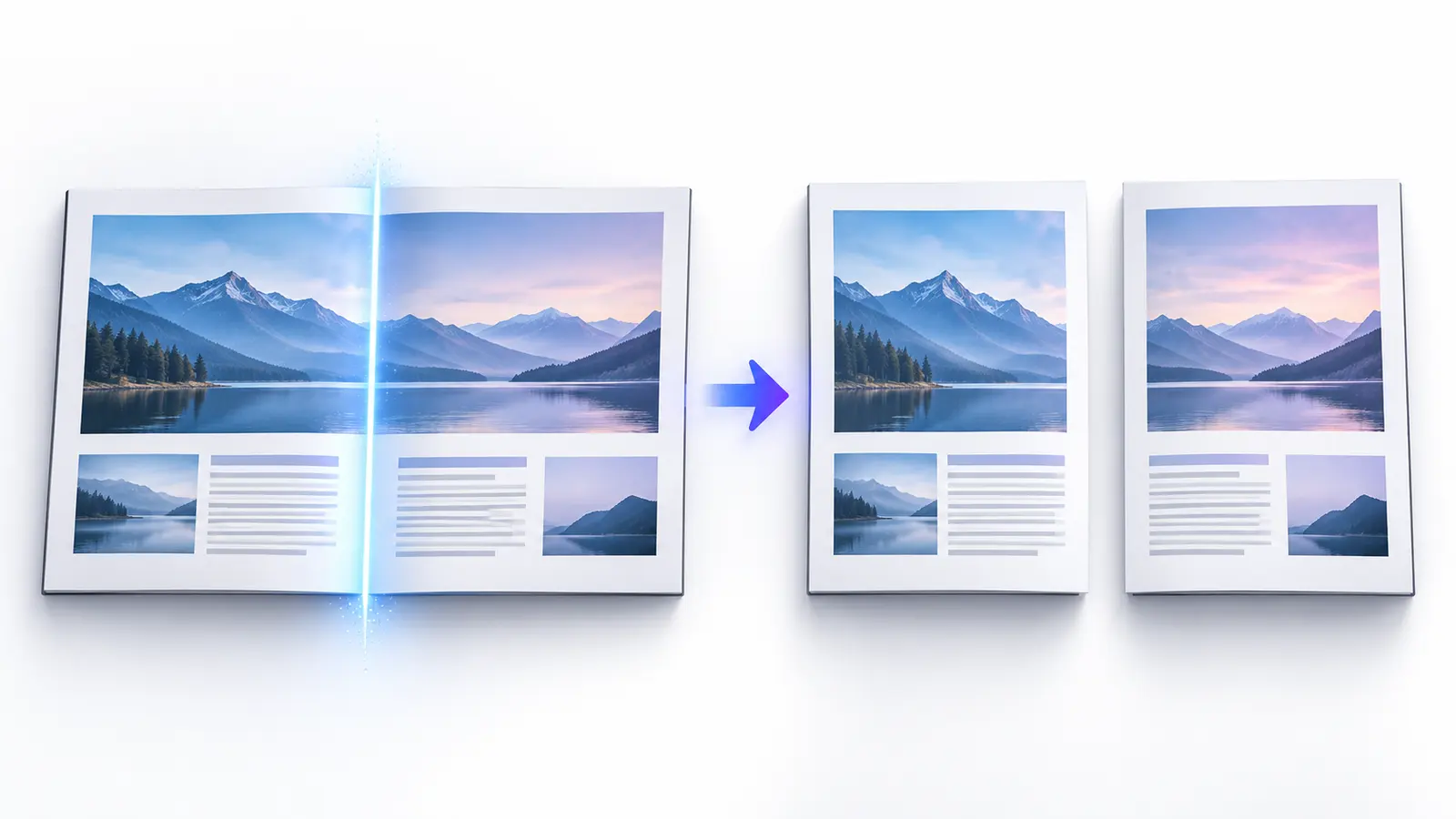
Split Double-Page Scans

Cut each wide scan into left and right pages at a reviewed gutter.

Split by Changing Text

Preview boundaries when a regex match changes between pages.

Page-level control

See the split before you create it

Visual review

Inspect page thumbnails, boundaries and generated groups before processing.

Flexible export

Preview individual results, download one output, or create a local ZIP.

Private, browser-local PDF splitting

The Split PDF operation runs on your device. No Nexynto server upload or account is required, and the generated downloads are created locally.

Local processingNo server uploadNo signup

Common questions

Split PDF questions

How do I split a PDF?

Upload a PDF, choose a split method, review the planned page groups, then create and download the new PDFs.

Can I split every page into a separate PDF?

Yes. Split Every Page creates one PDF per page and lets you download the files individually or together as a ZIP.

Can I split specific page ranges?

Yes. Enter ranges such as 1-3,5,8-10. Each range becomes a separate PDF.

Can I extract selected pages?

Yes. Select pages in the preview grid to create one new PDF containing only those pages. For a dedicated extraction workflow, use Extract PDF Pages.

Can I split a PDF every few pages?

Yes. Split Every N Pages creates equal-size chunks, while Equal Parts divides the document into a chosen number of outputs.

Can I preview pages before splitting?

Yes. The page grid provides thumbnails and a larger preview so you can verify page numbers before processing.

Is my PDF uploaded?

No. Splitting and ZIP creation run in your browser, so the selected PDF does not need to be uploaded to Nexynto Tools.

Does splitting change page quality?

No intentional rasterization is applied. Selected pages are copied into new PDF files with their original page content.

Can I split a PDF using bookmarks?

Yes. When a PDF contains usable top-level bookmarks, Nexynto can use their destinations as sequential split boundaries. If no bookmarks are present, use page ranges instead.

Can I split a PDF by target file size?

Yes. The target-size planner verifies generated sequential groups against the chosen size. A single indivisible page can still exceed the target and is clearly flagged.

Can I separate scanned double pages?

Yes. Choose the reviewed vertical gutter, confirm left-to-right or right-to-left output order, and split all or selected source spreads.

Can I split when text changes between pages?

Yes. Enter a regular expression and review detected values. Native PDF text is used first, with OCR fallback for weak or scanned pages; uncertain matches require approval.

Does Split PDF work on phones and tablets?

Yes. The interface is responsive and uses bounded scrolling workspaces. Very large or image-heavy PDFs may perform better on a device with more memory.

Practical guides

Learn more about splitting PDFs

Exact ranges, large documents and scanned spreads—explained clearly.

Browse all guides

Related PDF tools

Keep working with PDF pages

Need only a few pages? Use Extract PDF Pages. Need page order changes first? Use Rearrange PDF.