On this page
Identify true double-page scans
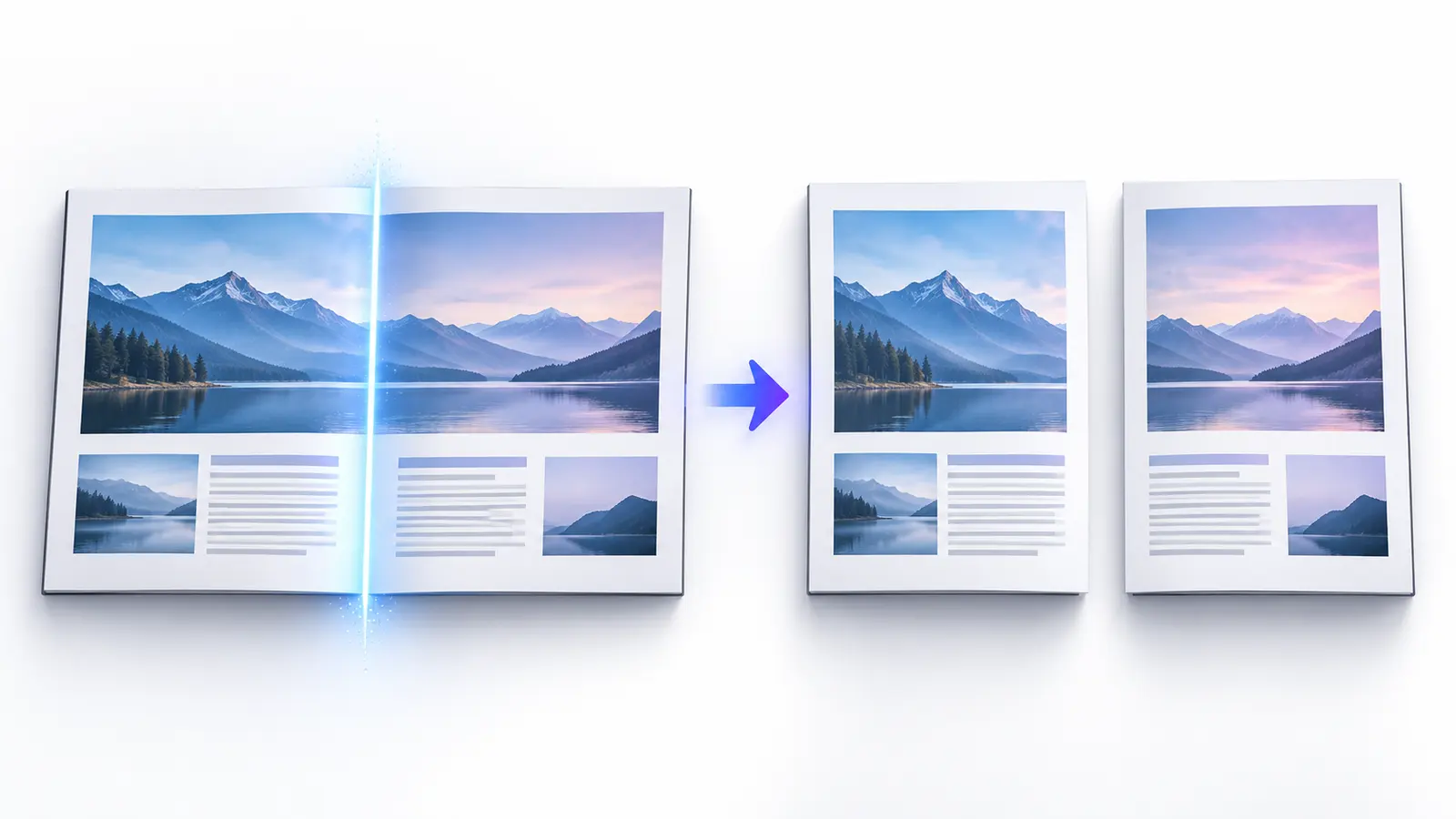
A double-page source usually has landscape page dimensions and a visible center gutter. It may come from a flatbed scan of a book, register, magazine or bound report. Do not use this mode merely because a normal document contains two columns; geometric splitting creates two physical PDF pages.
Preview several source pages. Mixed documents sometimes contain a single-page cover followed by spreads. Nexynto can apply the split only to selected pages when the exceptions are identified first.
Understand the split geometry
The splitter embeds the original source page twice using two crop boxes. The left output includes content from the left edge to the chosen gutter; the right output includes content from the gutter to the right edge. No screenshot conversion is required.
A centered book normally uses a 50 percent gutter. Off-center scanning may require a modest adjustment. The workspace shows the vertical cut line on source thumbnails so the choice can be checked before processing.
Set the gutter without cutting content
Start at 50 percent, then inspect pages where text or images approach the binding. Move the gutter only enough to exclude the opposite page without trimming meaningful content. Nexynto constrains the control to a practical central region rather than allowing a cut at an unusable edge.
If the physical scan is skewed or curved, one straight gutter may not fit every page. Deskew or rescan the document when geometry varies significantly across the file.
Choose left-to-right or right-to-left order
For most left-to-right books, each source spread becomes the left page followed by the right page. Right-to-left publications may require the opposite. The choice applies consistently across the processed spreads.
Check the first two source spreads and the last spread after processing. A correct gutter with the wrong order produces visually clean pages that read incorrectly.
Apply the split to all or selected pages
Use All Pages when every source page is a spread with the same layout. Use Selected Pages for a mixed PDF containing covers, inserts or single-page scans. The selected-page count should be visible before processing.
If untouched pages must remain in the same final document, split the spreads first and then use Merge PDF or Rearrange PDF to assemble the desired order. Keep the original as the reference.
Preserve source detail
Geometric page embedding keeps the source PDF page content and crops its visible region. It does not intentionally lower image resolution. The output cannot improve blur, shadows, low contrast or detail missing from the original scan.
OCR is separate. After verifying the separated pages, use OCR when image-only pages need a searchable text layer. Review recognition carefully around curved bindings and decorative layouts.
Verify the output before distribution
Confirm that each processed spread created two pages, the page order is correct, and no center content was lost. Preview representative outputs at the beginning, middle and end. Compare the result page count with twice the number of processed spreads.
Download the created PDF locally. A selected output can continue to compatible editing, compression or protection tools through the temporary browser-session handoff.
Put the workflow into practice
Choose a split method, review page boundaries and filenames, then create organized PDF outputs locally in your browser.
Try Split PDFFrequently asked questions
Clear answers before you split
What is a double-page scan?
It is one wide PDF page containing two facing physical pages, usually separated by a visible center gutter.
Does the tool reduce scan quality?
No intentional resampling is required. The original page is embedded with left and right crop regions.
Can I change the split position?
Yes. The current interface supports a reviewed vertical gutter between 35 and 65 percent of page width.
Can I choose right page first?
Yes. Choose either Left then Right or Right then Left before processing.
Can I split only some spreads?
Yes. Select the source pages and apply double-page splitting only to that selection.