On this page
How page-range splitting works
Original pages
Text, vectors and images
Copy pages
Keep source objects intact
Merged PDF
New order, same page detail
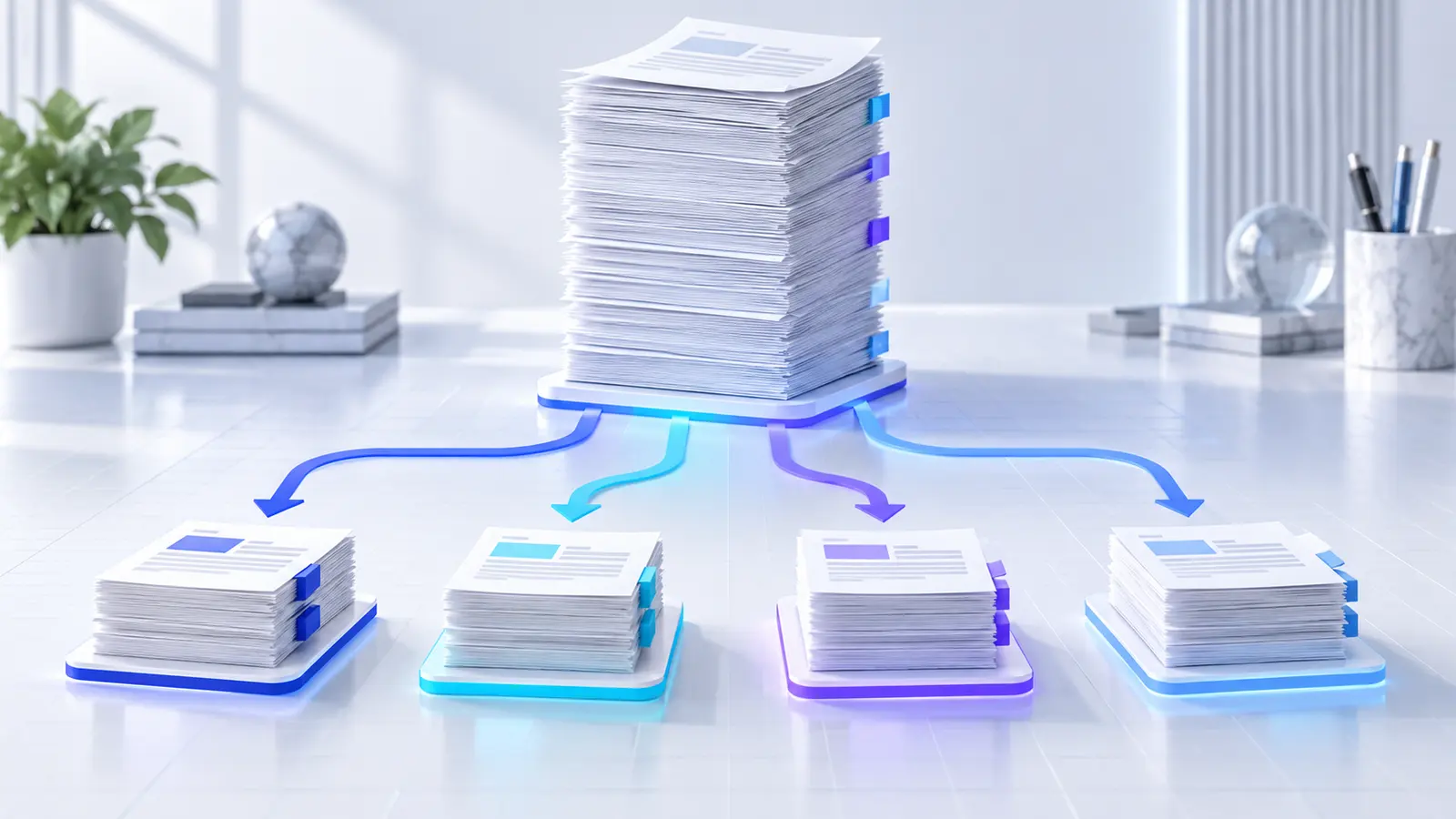
A PDF range describes physical page positions in the file. Entering 1-5, 6-12, 13-18 creates three output groups: pages one through five, pages six through twelve, and pages thirteen through eighteen. Each group becomes a separate PDF while the source stays unchanged.
Printed page labels can differ from physical positions. A report may call its seventh physical page “Page 1” after a cover and contents section. Use the thumbnail workspace and the page number shown by the tool when defining boundaries.
Prepare a range plan before processing
Identify the natural document boundaries first: chapters, accounts, cases, invoices or attachments. Write the expected start and end page for every output. A short manifest prevents gaps and overlaps that are difficult to notice after export.
Use consecutive ranges when every page must appear exactly once. If pages should be intentionally omitted, record that exception. Nexynto rejects duplicated pages in range mode so one source page cannot silently enter two outputs.
Enter valid page-range syntax
Use a hyphen for a continuous span and commas to separate output groups. For example, 1-3,5,8-10 creates three PDFs: pages 1-3, page 5, and pages 8-10. Reverse ranges such as 10-8 are rejected because their reading order is ambiguous.
Every value must fall inside the source page count. An invalid character, empty group or page beyond the document should block processing and explain the correction. This is safer than silently dropping a page.
| Input | Outputs | Meaning |
|---|---|---|
| 1-5 | 1 file | Pages 1 through 5 |
| 1-3,5 | 2 files | Pages 1-3, then page 5 |
| 1-3,5,8-10 | 3 files | Three independent page groups |
| 10-8 | Blocked | Reverse ranges are not accepted |
Use thumbnails to verify boundaries
Open the first and last thumbnail in each planned range. Confirm that a heading, signature, attachment or continuation page has not been separated from the pages it belongs with. For repetitive forms, compare visible identifiers rather than relying only on page appearance.
On a large PDF, use Go to Page instead of scrolling through hundreds of thumbnails. The bounded page workspace keeps the controls available and prevents the whole webpage from becoming document-length.
Choose output names that remain understandable
A useful filename identifies both the source and the resulting section. Templates such as {original}-{range} produce names that can be traced back to the input. For controlled workflows, edit individual names to include the case, chapter or recipient.
Avoid invalid filesystem characters and ambiguous names such as final.pdf. Nexynto adds the PDF extension and prevents empty or duplicated names before processing. Keep the original file separately so the outputs never become the only record.
Review, download and continue
After splitting, compare the number of created files and processed pages with the plan. Preview each important boundary, then download individual outputs or package multiple files into one ZIP. ZIP changes only the delivery container; each PDF remains independently usable.
A selected result can continue to compatible Nexynto tools through a temporary browser-session handoff. Use compression for a smaller delivery copy, protection for password-based access, or editing when content still needs changes.
Quality and privacy considerations
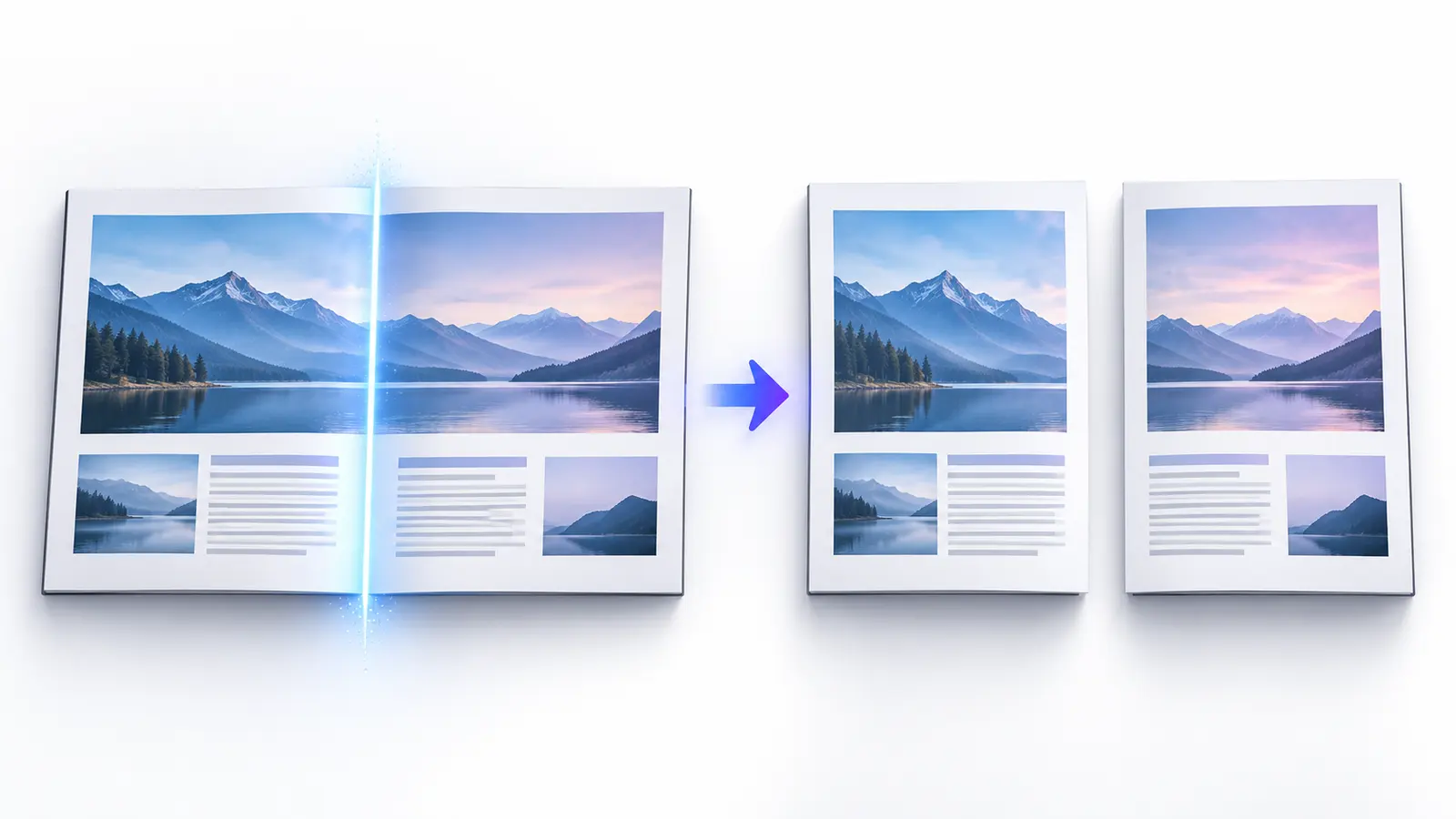
Standard page-range splitting copies existing PDF pages into new containers. It does not need to rasterize or intentionally downsample the page content, so text, vectors and embedded images retain their source characteristics.
Nexynto performs the Split PDF operation in the browser. This avoids a Nexynto server upload for the split itself, although downloaded files still remain on the device and must be handled according to the user’s security and retention requirements.
Put the workflow into practice
Choose a split method, review page boundaries and filenames, then create organized PDF outputs locally in your browser.
Try Split PDFFrequently asked questions
Clear answers before you split
Does each comma-separated range become a separate PDF?
Yes. In page-range mode, each valid comma-separated range is one output group and becomes its own PDF.
Can I omit pages?
Yes. Include only the ranges you need. Review the planned-page total so intentional omissions are not confused with mistakes.
Can the same page appear in two ranges?
Nexynto blocks duplicated pages in page-range mode to prevent accidental overlap.
Does splitting lower PDF quality?
The original PDF pages are copied without intentional rasterization or image downsampling.
Can I download all outputs together?
Yes. Multiple outputs can be downloaded as one locally created ZIP archive.