
On this page
Inspect the complete document first
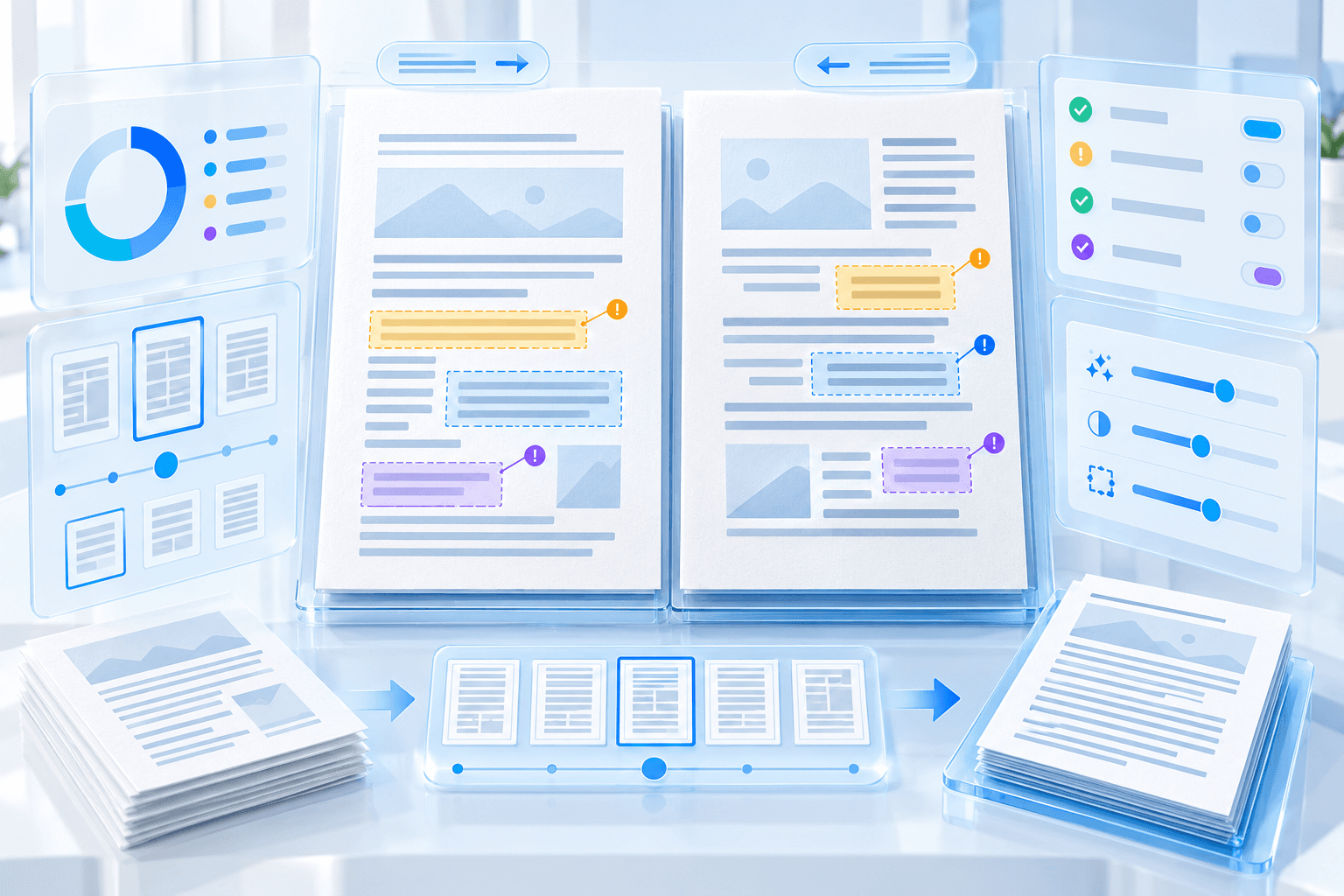
Navigate every page and identify names, identifiers, signatures, faces, account details and contextual clues that should not appear in the delivery copy.
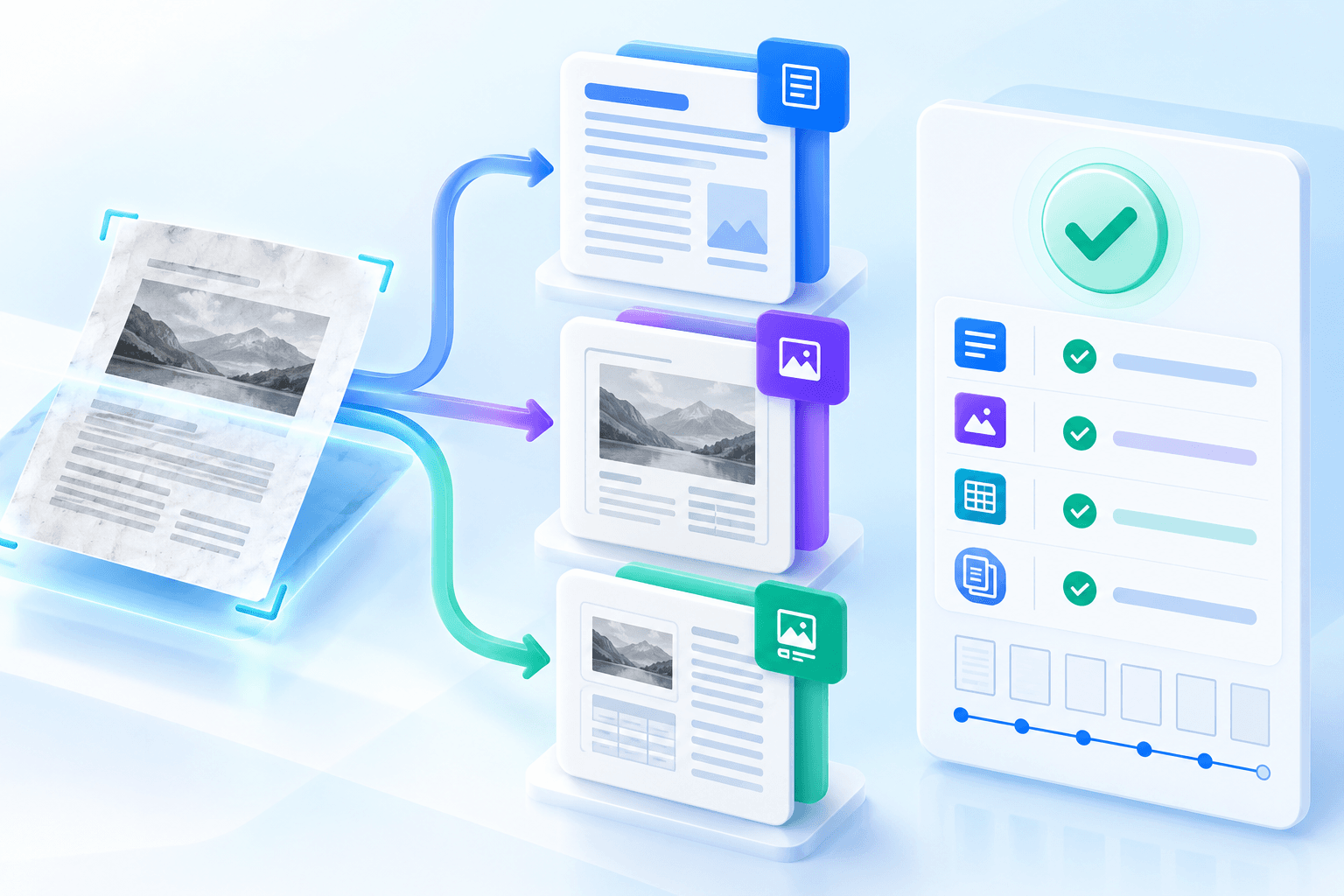
Scanned pages need visual review because their sensitive content may exist only as image pixels. Search alone is not sufficient.
Draw regions with a safety margin
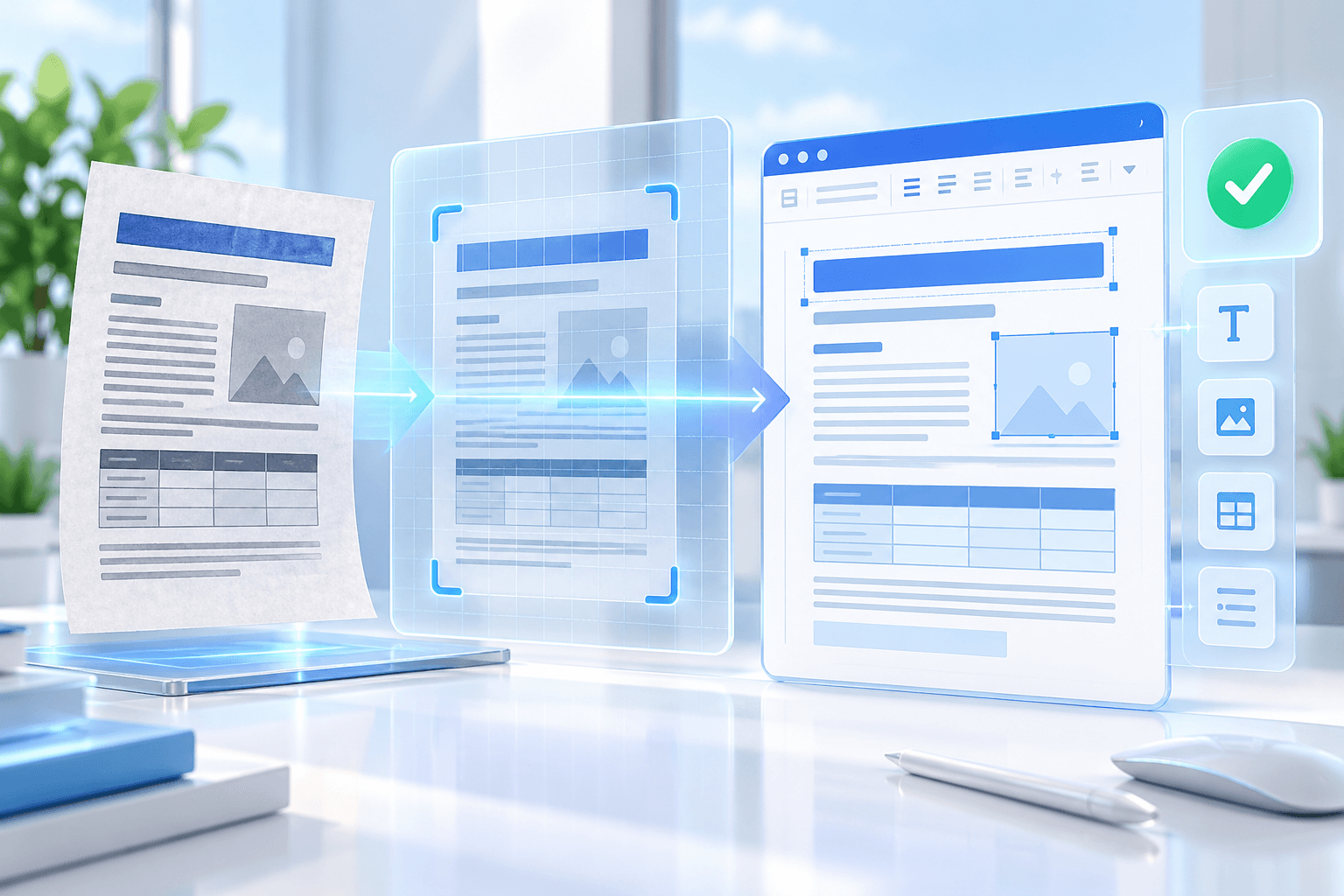
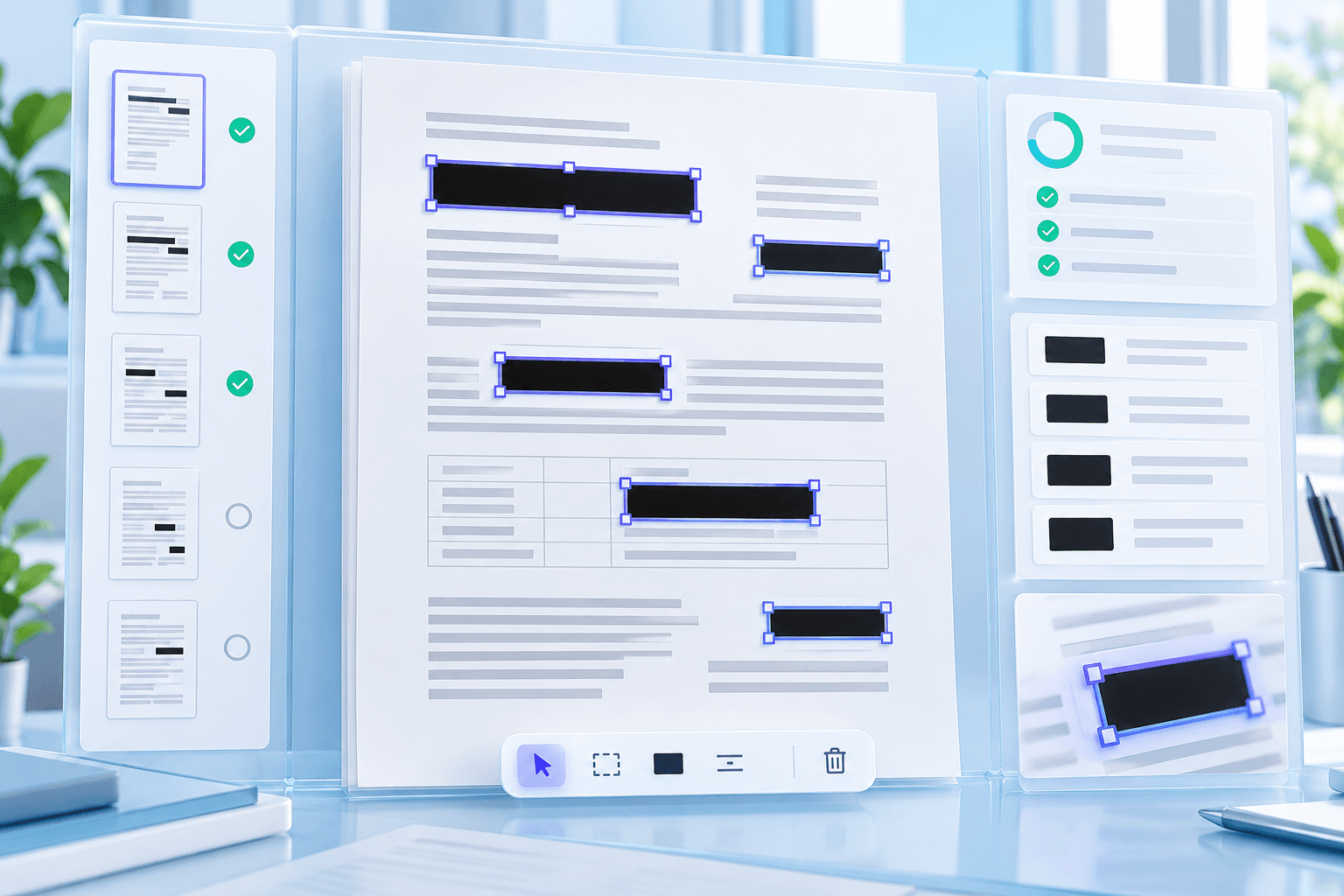
Draw around the full content, then switch to selection mode to move or resize the box. Include descenders, punctuation, borders and surrounding image pixels.
Use undo and redo while reviewing. A page counter helps distinguish reviewed pages from pages with no selected regions.
Confirm the complete selection set
Review the number of regions and affected pages before processing. Choose whether to remove metadata, attachments, annotations and links in the same delivery copy.
After permanent redaction, download the output and visually inspect representative pages at high zoom. Search for known source phrases when the content was searchable.
Put the workflow into practice
Arrange source documents, select the pages you need, and create one PDF locally in your browser. Review the result before choosing any optional next step.
Try Redact PDFFrequently asked questions
Clear answers before you merge
Can I adjust a region after drawing it?
Yes. Select it, move it or resize it from its corner handles before processing.
Can scanned documents be redacted?
Yes. The selected image pixels are removed, but the reviewer must visually locate the sensitive regions.
Can I redact hundreds of pages?
The workspace supports multi-page documents, but every region still requires human review before permanent removal.