
On this page
Match the language and reading direction
Select English, Arabic or combined English and Arabic recognition to match the page. Combined recognition is useful for bilingual documents but can take longer than a single-language pass.
Choose automatic direction for mixed batches. Force right-to-left output only when the reviewed document should consistently use RTL paragraph behavior.
Use preprocessing with restraint
Automatic cleanup is a practical default. Grayscale or contrast enhancement can help uneven scans, while threshold profiles are better reserved for clearly black-and-white pages.
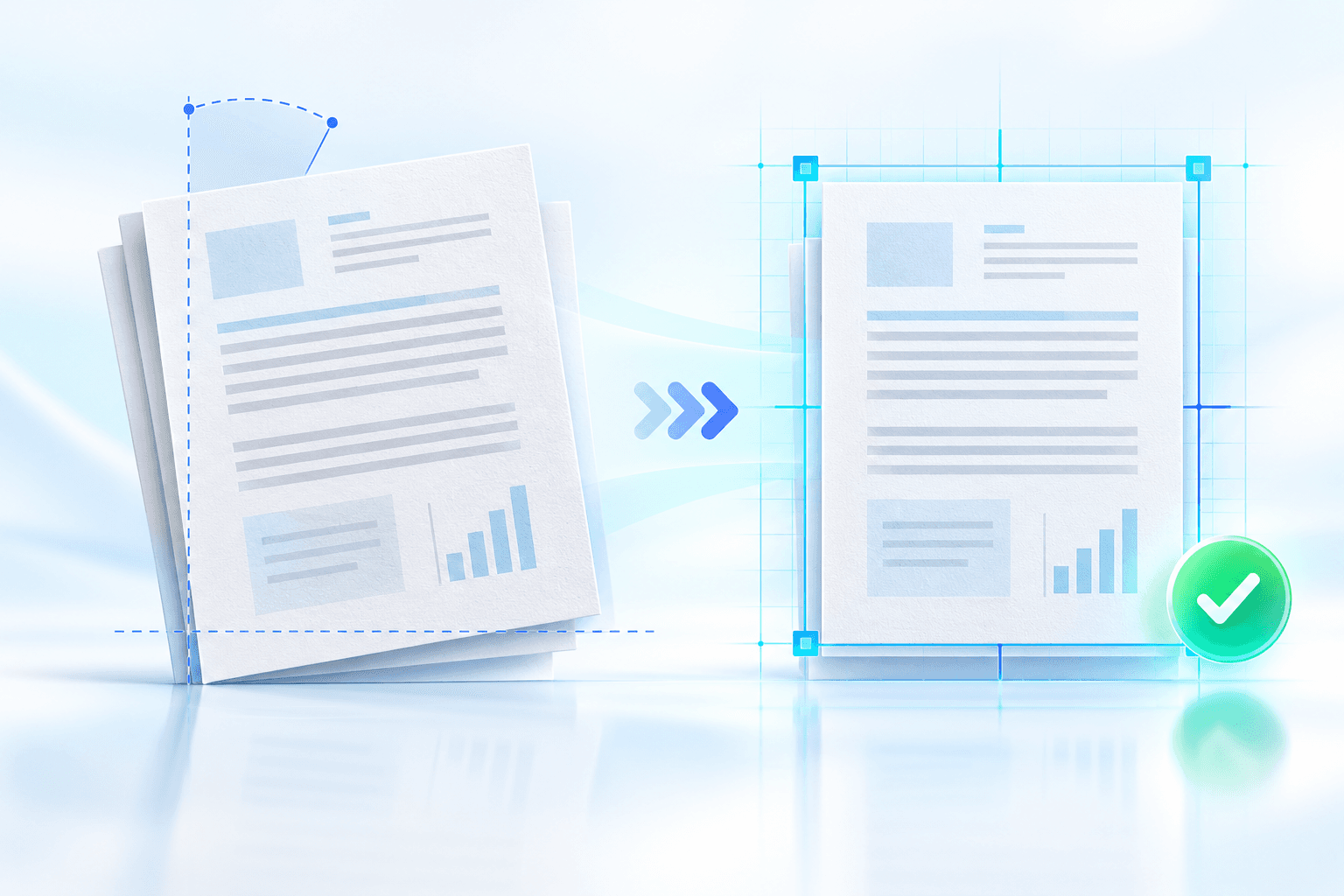
Deskew tilted scans before OCR. Strong thresholding can remove light punctuation, signatures, stamps and background details that matter to the document.
Prioritize low-confidence evidence
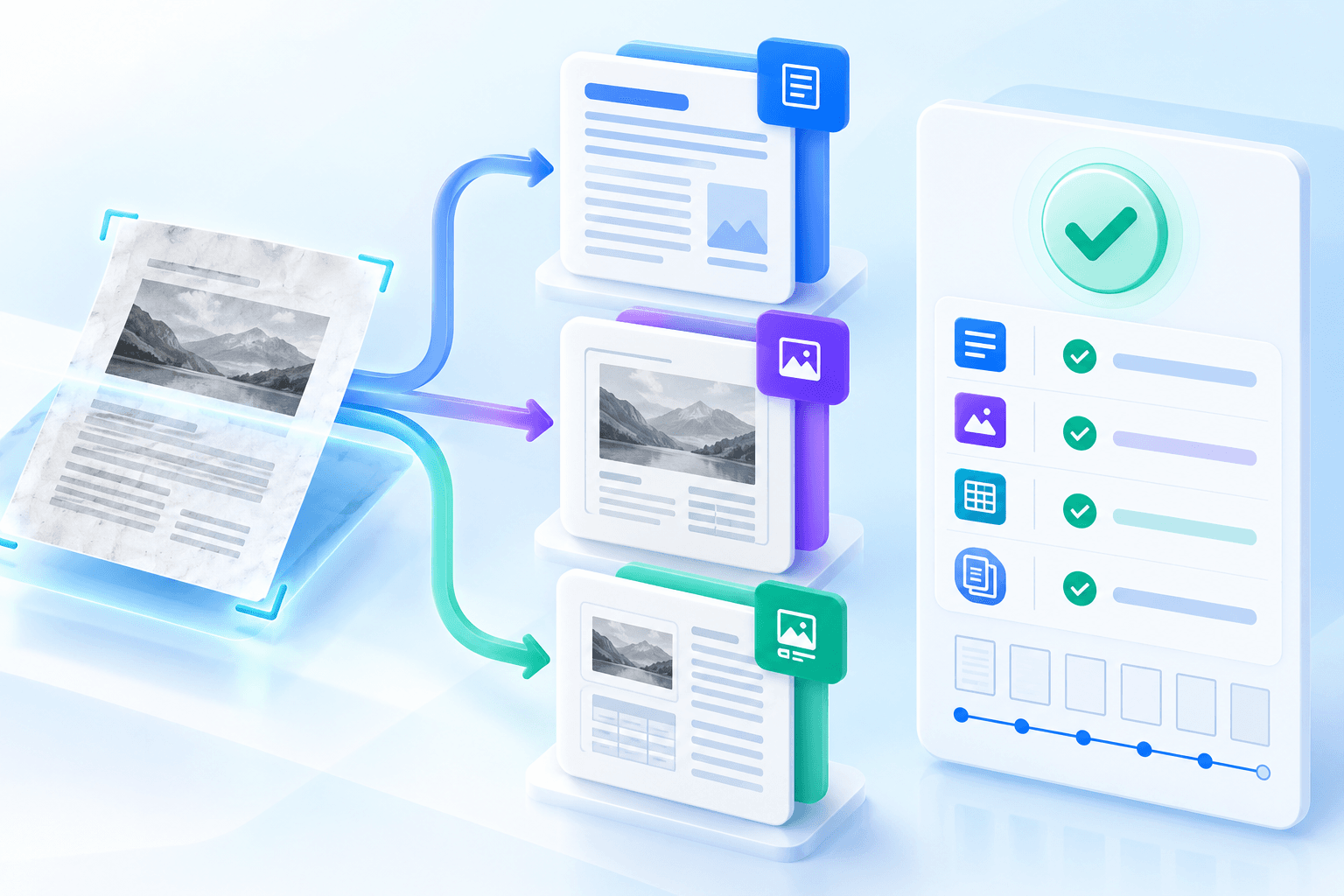
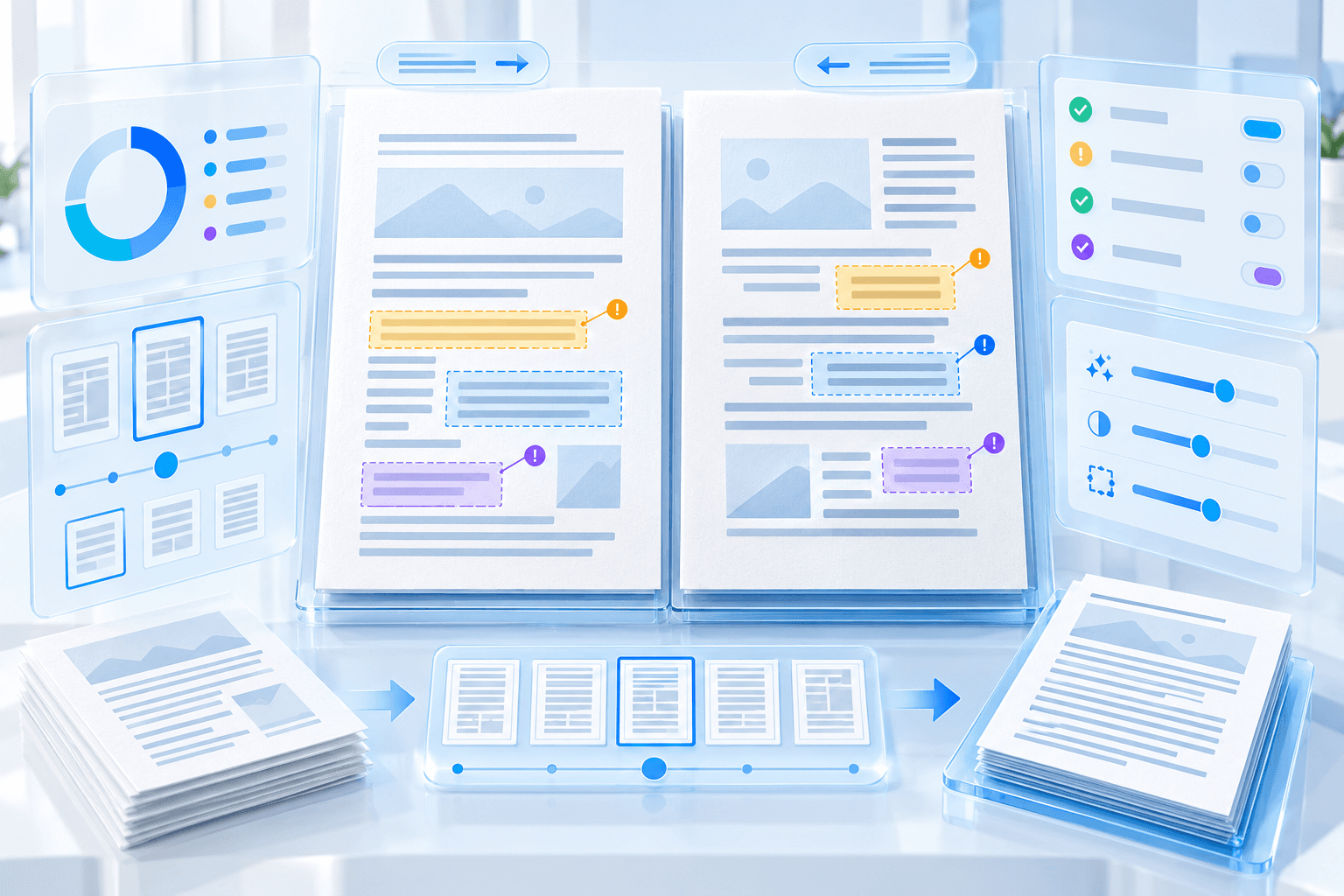
Use the studio to compare the active source page with its editable text. Review highlighted uncertain words, pages with weak average confidence and pages where OCR produced unusually little text.
For critical documents, verify names, identifiers, dates, totals and legal clauses independently. OCR quality metrics reduce review effort but do not replace validation.
- Check the selected OCR language.
- Inspect the lowest-confidence pages first.
- Compare critical values with the source.
- Keep the original PDF unchanged.
- Open the DOCX in the intended editor.
Put the workflow into practice
Arrange source documents, select the pages you need, and create one PDF locally in your browser. Review the result before choosing any optional next step.
Try OCR PDF to WordFrequently asked questions
Clear answers before you merge
Does higher DPI always improve OCR?
Not always. Clear source pixels help, but excessive rendering increases memory and time without recovering detail absent from the scan.
Which segmentation mode should I use?
Automatic Document suits mixed pages, Single Column suits continuous text, and Sparse Text helps forms or pages with isolated labels.
Can OCR accurately recognize Arabic and English together?
Combined language recognition supports bilingual pages, but reading order and visually similar characters should still be reviewed.