On this page
Choose a stable label
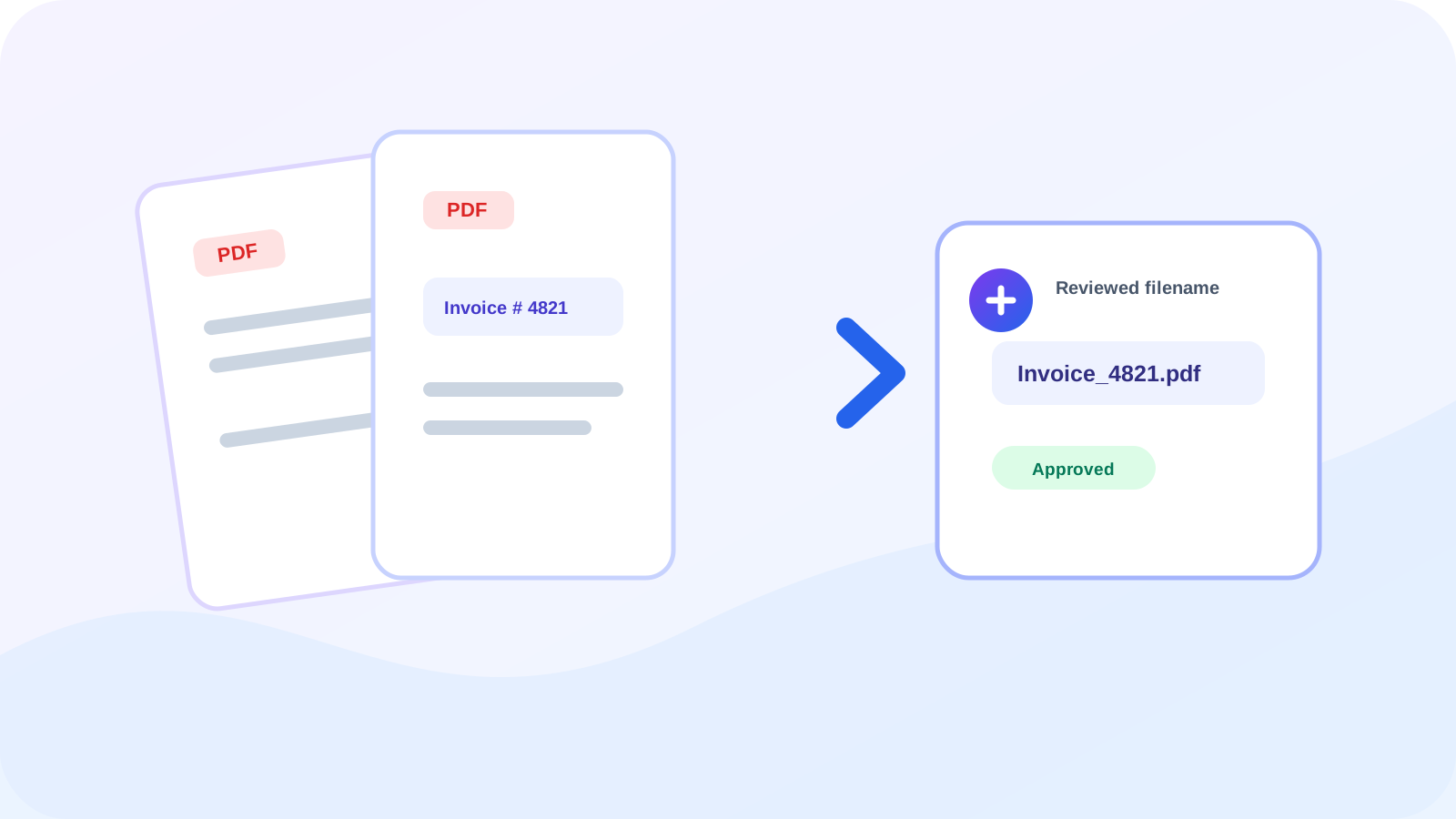
Use a label that appears consistently, such as Invoice Number, Case ID, Purchase Order, or Account Reference. Avoid broad words that occur in several unrelated sections.
Start with a small sample and confirm that punctuation and spacing are consistent enough for the chosen rule.
Build a predictable filename pattern
A prefix identifies the document family while the detected value distinguishes each file. Keep names short enough for common operating systems and shared drives.
- Use a stable prefix.
- Remove path characters and control marks.
- Resolve duplicate names deterministically.
- Do not include confidential values unless the storage location is appropriate.
Approve uncertain results
OCR values and unmatched files should not silently enter the final batch. Review the proposed name, correct it when needed, and approve it before downloading the renamed copy.
Put the workflow into practice
Create consistent PDF filenames from invoice numbers, reference labels, dates, or other reviewed document text.
Try Rename PDF FilesFrequently asked questions
Clear answers before you rename
Can filenames use invoice numbers?
Yes. Select the text-after-label rule and enter the label used by the documents.
Are the PDF contents changed?
No. Only the downloaded filename changes; the PDF bytes remain unchanged.
What happens when two names match?
The batch download resolves collisions so each file has a distinct safe name.