On this page
Inspect orientation page by page
Use thumbnails to scan the complete document and open uncertain pages in the larger preview. The angle displayed by the studio includes the page’s existing source rotation.
Printed page numbers and PDF positions can differ, so use the studio position labels when building selections or ranges.
Target only the pages that need correction
Select individual thumbnails or a continuous group. Current, selected and typed-range scopes keep unrelated pages unchanged.
Odd and even scopes are useful for duplex scanner output, but review several page pairs before applying a pattern to a long document.
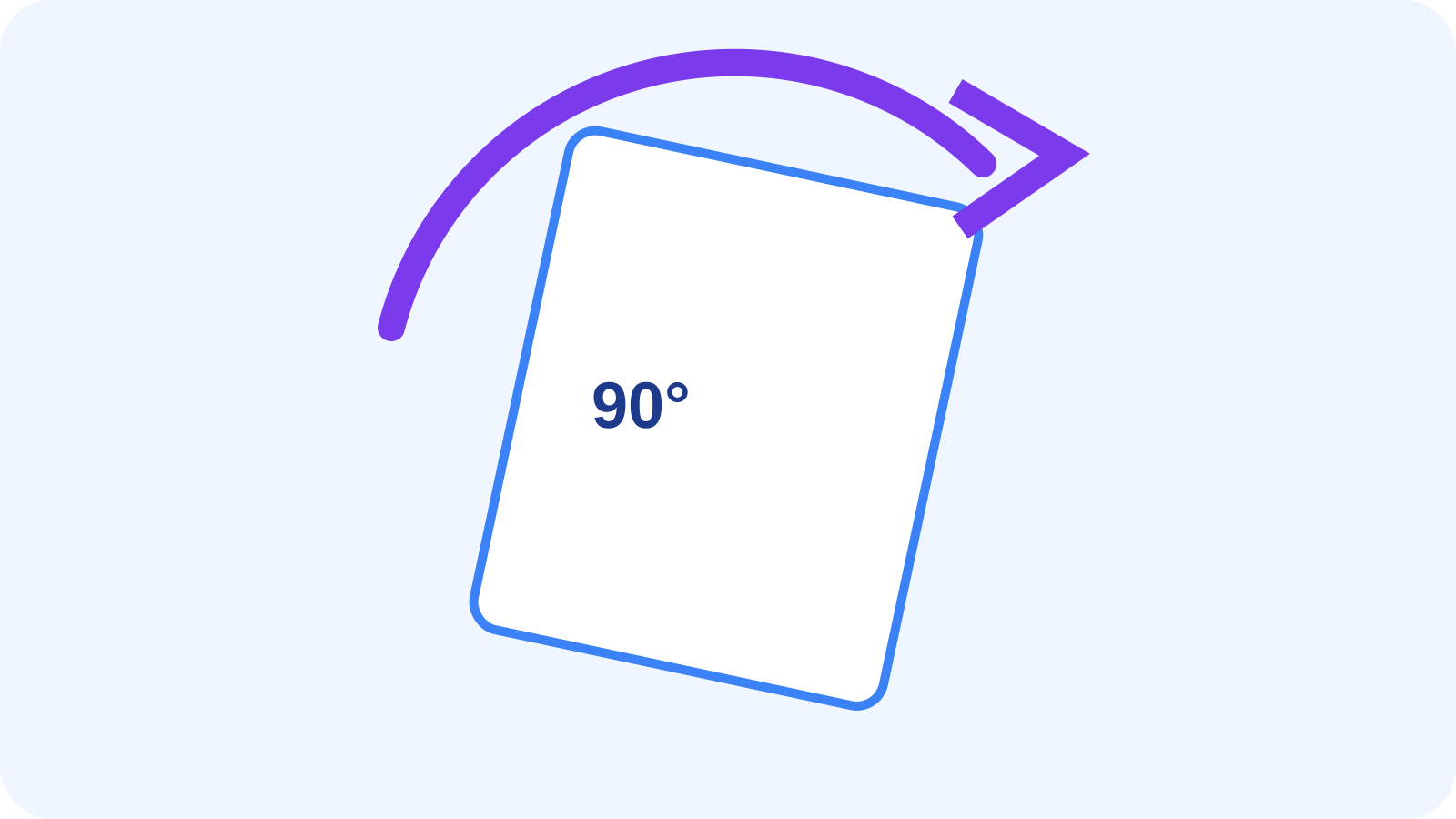
Apply a left, right or 180-degree turn
Use a quarter turn for sideways pages and a half turn for upside-down pages. Reset to source orientation removes only changes made in the studio.
Undo and redo make experiments reversible before any output is written.
Verify the corrected output
Create a new PDF, reopen it and check that every output rotation matches the reviewed angle. The source document should remain unchanged.
Review pages around every changed position, especially forms, annotations and signed content.
Put the workflow into practice
Arrange source documents, select the pages you need, and create one PDF locally in your browser. Review the result before choosing any optional next step.
Try Rotate PDFFrequently asked questions
Clear answers before you merge
Can I rotate one page only?
Yes. Activate that page and use the Current scope.
Can I rotate several non-adjacent pages?
Yes. Select their thumbnails and use the Selected scope.
Does rotation flatten the PDF?
No. Page content remains PDF content rather than being converted into an image.
Can I restore the original angles?
Yes. Reset to source orientation restores the detected source angle for target pages.