On this page
Reconcile every requested page angle
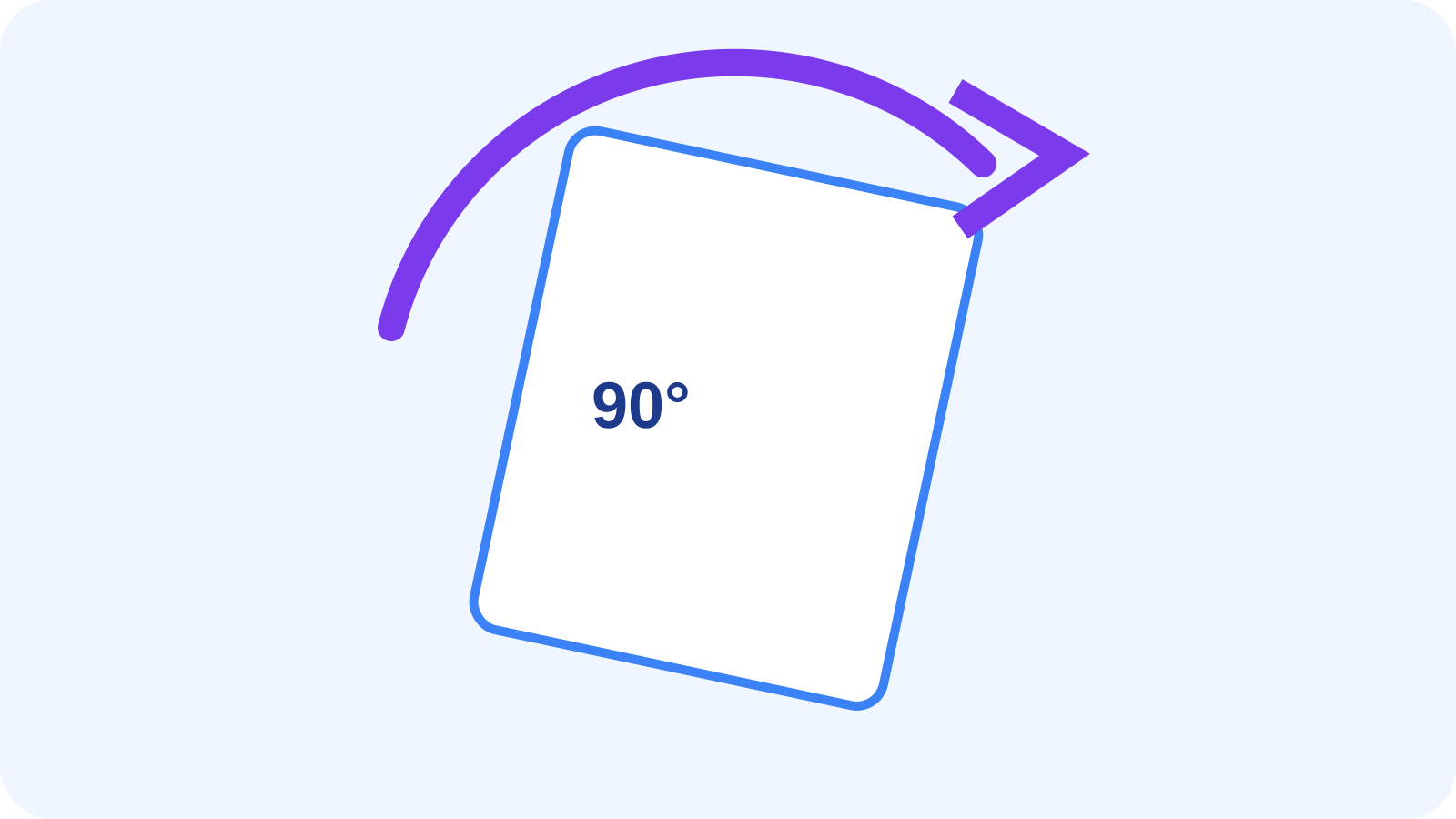
The output rotation for each page should equal its source angle plus the reviewed studio change, normalized to 0, 90, 180 or 270 degrees.
This matters for PDFs that already contain rotation metadata before editing.
Confirm the page count is unchanged
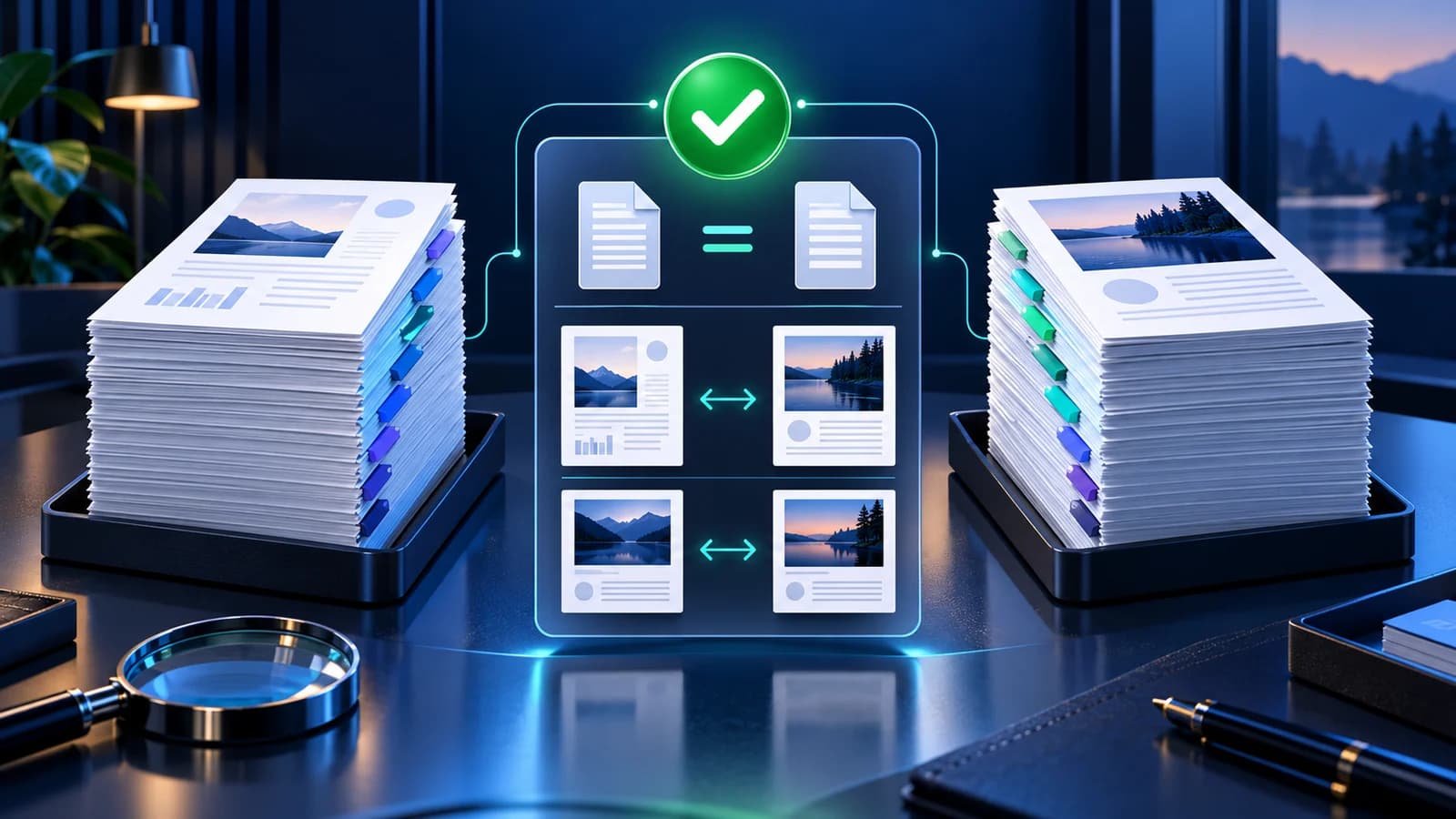
A rotation operation should not add, remove or reorder pages. Reopen the output and compare its page count with the source.
Render the first and last page to catch boundary corruption and verify that the document remains readable.
Review forms and annotations
PDF viewers can position annotations and form widgets differently after page orientation changes. Test interactive pages in the intended viewer.
Keep the original file when the document contains important links, forms or annotations.
Preserve digitally signed originals
Saving a modified copy usually invalidates existing digital signatures even when only page orientation changed.
Treat the signed source as authoritative and label the rotated copy clearly.
Put the workflow into practice
Arrange source documents, select the pages you need, and create one PDF locally in your browser. Review the result before choosing any optional next step.
Try Rotate PDFFrequently asked questions
Clear answers before you merge
How is rotation verified?
The output is reopened, every page angle and the page count are checked, and boundary pages are rendered.
Can page count change?
It should not. A mismatch is treated as a verification failure.
Will signatures remain valid?
Usually not. Preserve the signed source and treat the rotated file as a derivative.
Should I overwrite the original?
No. Download and review a separate corrected copy.