On this page
Preview before selecting pages
Printed page labels can differ from PDF positions because of covers and inserts. Use thumbnails with file page numbers and open ambiguous pages at readable size. Record the expected output count before processing.
Check the pages immediately before and after each removal. Those transitions expose missing headings, orphaned references and selections made in the wrong repeated section.
Use ranges without hiding the selection
Ranges are efficient for appendices, while individual selection is safer for scattered pages. A good interface resolves a range into visible selected thumbnails before processing.
Keep and remove counts should remain visible. An invalid or out-of-range selection should be corrected instead of silently ignored.
Remove, extract and blank cleanup differ
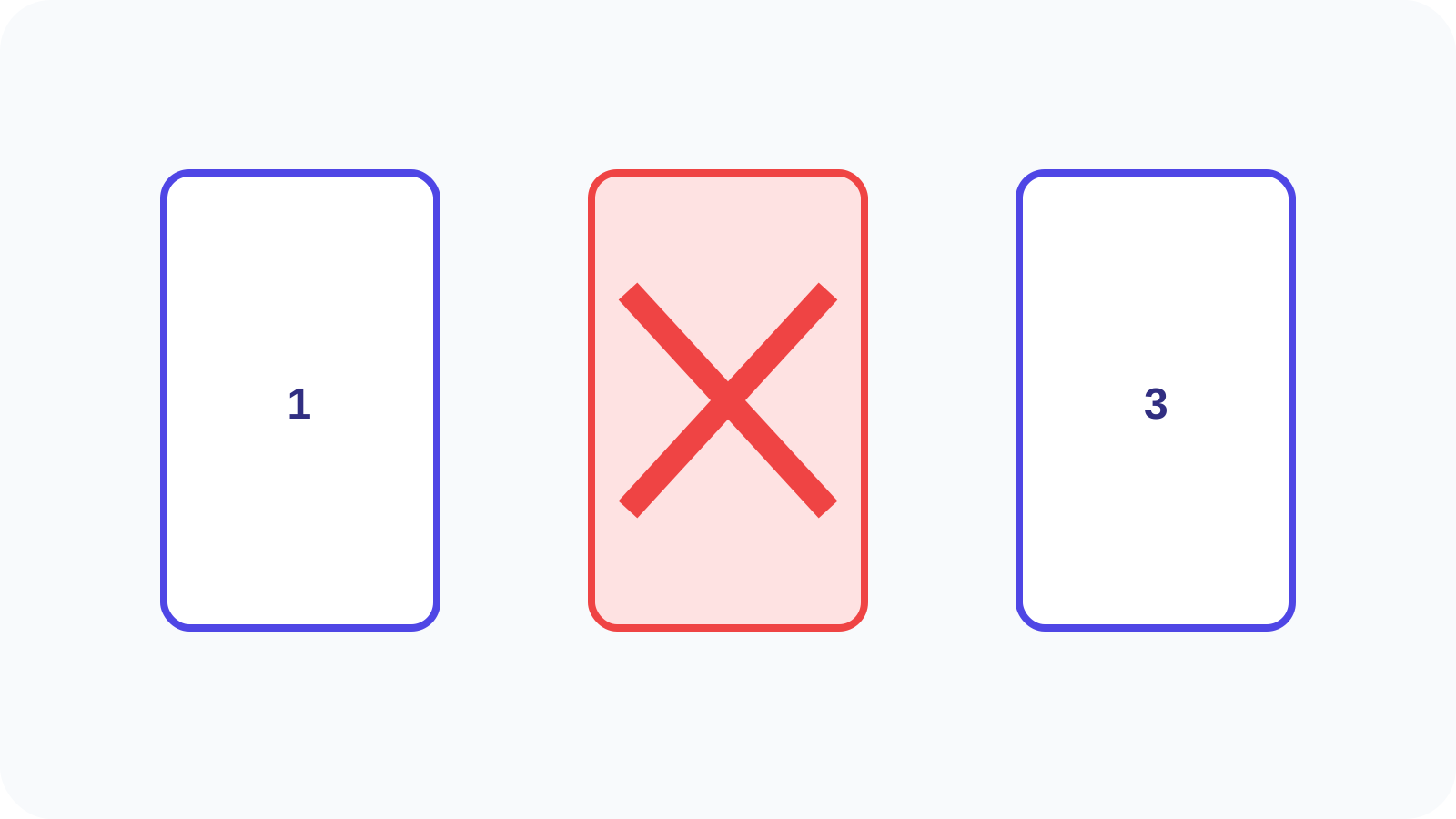
Remove creates one copy without selected pages. Extract keeps only selected pages. Split creates multiple outputs. Remove Blank Pages uses detection and still needs review because intentionally sparse pages can appear blank.
| Task | Tool |
|---|---|
| Exclude selected pages | Remove PDF Pages |
| Keep selected pages | Extract PDF Pages |
| Create several outputs | Split PDF |
| Find likely empty pages | Remove Blank Pages |
Preserve and verify the record
Removing pages changes the document and generally invalidates cryptographic signatures tied to the original bytes. Retain signed or authoritative sources and name the edited copy clearly.
Reopen the result, confirm count and order, and inspect bookmarks or references that may point to removed pages. Deleting a page does not remove duplicate sensitive information elsewhere.
Put the workflow into practice
Arrange source documents, select the pages you need, and create one PDF locally in your browser. Review the result before choosing any optional next step.
Try Remove PDF PagesFrequently asked questions
Clear answers before you merge
Does Remove Pages change the original?
The workflow creates a new output; keep the original until review is complete.
Can I use ranges?
Yes, but inspect the resolved selection before removal.
Should I use Remove or Extract?
Remove excludes selected pages; Extract keeps only selected pages.
Are blank pages always safe to remove?
No. Sparse separator, signature or form pages need review.