On this page
Keep width and height linked
Aspect-ratio lock updates height when width changes and updates width when height changes. This keeps circles round and faces natural.
Common ratios are useful only when the destination requires them. Select a ratio intentionally instead of applying one automatically.
Choose a proportional resize mode
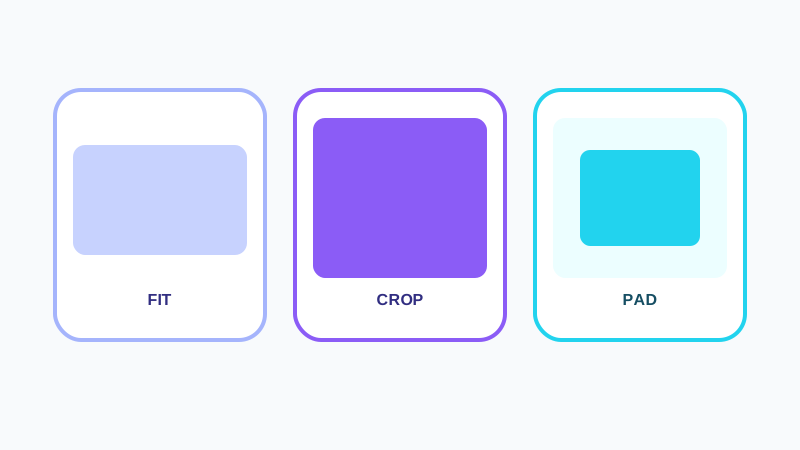
Fit keeps the complete image visible. Crop fills an exact frame by removing overflow. Pad creates an exact canvas around the complete image. Percentage changes both dimensions together.
Stretch is the only mode that intentionally changes proportions and should be used with a visible warning.
Review the real output
Compare the original and browser-rendered preview, dimensions, scale and Blob size. Fine text, faces and high-contrast edges deserve particular attention.
Upscaling creates more pixels but cannot recreate source detail.
Put the workflow into practice
Arrange source documents, select the pages you need, and create one PDF locally in your browser. Review the result before choosing any optional next step.
Try Bulk Image ResizerFrequently asked questions
Clear answers before you merge
Which modes avoid distortion?
Fit, Crop, Pad and Percentage preserve source proportions.
Does upscaling improve detail?
No. It increases pixel dimensions without recreating missing detail.