On this page
Review the batch before resizing
Use filename search and sorting to check dimensions, sizes and orientations. A bounded internal list keeps large practical batches usable without extending the page indefinitely.
Remove unsupported or unintended files before applying the shared profile.
Build one shared resize profile
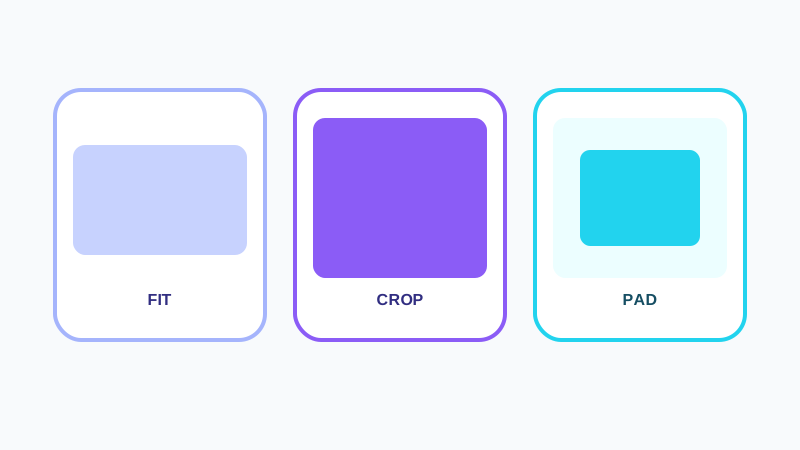
Choose target dimensions, aspect behavior, mode, crop anchor, background, output format and quality. The live preview uses the currently selected file.
Different source ratios may produce different crops. Switch between files before processing the batch.
Use informative output names
Dimension-based filenames such as photo-1200x800.jpg describe what changed and reduce accidental replacement of source files.
Keep the original files. Browser canvas exports usually remove embedded metadata.
Put the workflow into practice
Arrange source documents, select the pages you need, and create one PDF locally in your browser. Review the result before choosing any optional next step.
Try Bulk Image ResizerFrequently asked questions
Clear answers before you merge
Can every file use the same profile?
Yes. Command 1 applies one shared profile to the batch.
Are files uploaded?
No. Ordinary batch resizing runs in the browser.