
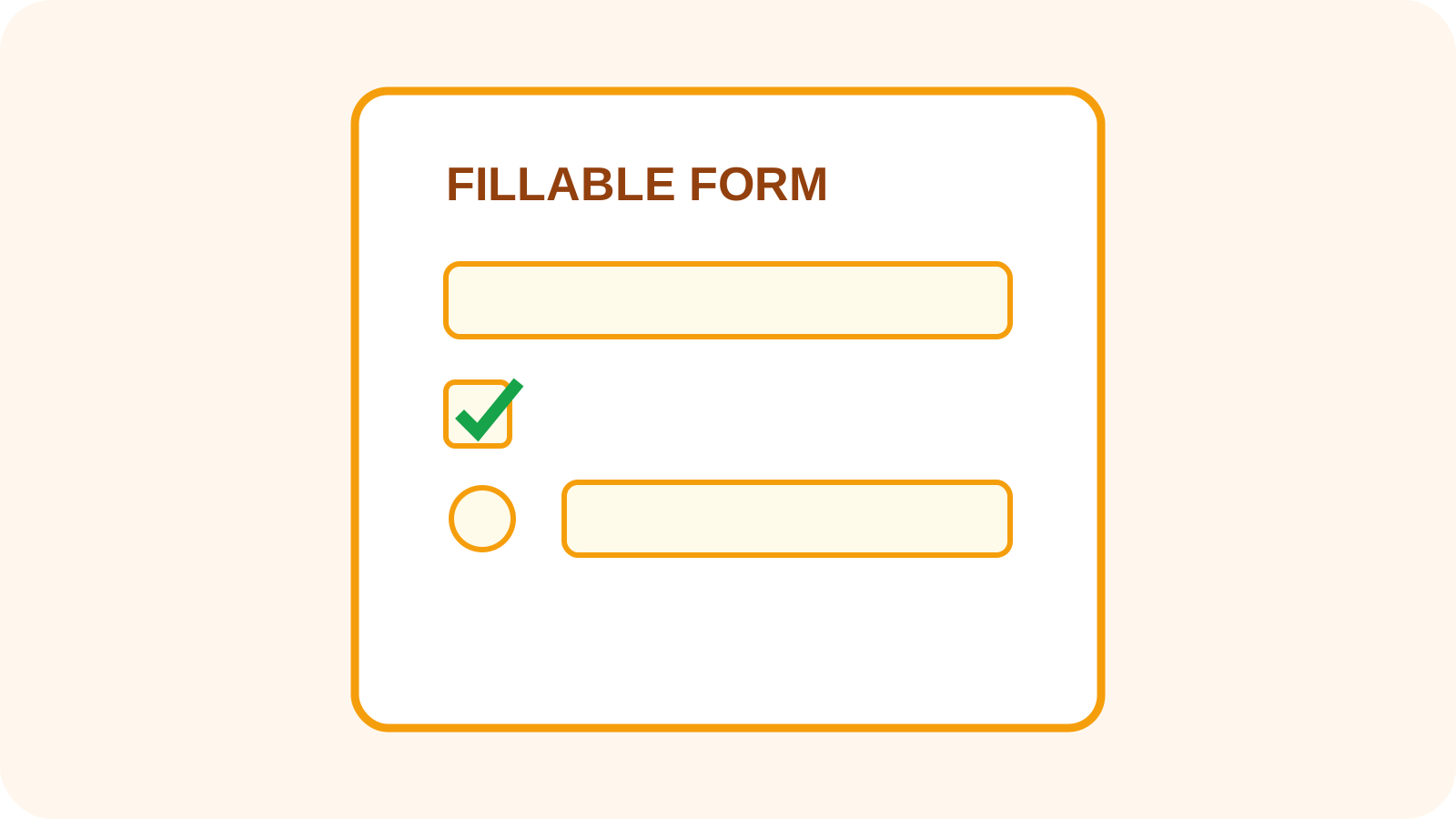
Forms
How to Create a Fillable PDF Form
Field types, naming, multi-page behavior, flattening and accessibility.
Read articleInteractive form studio
Upload an existing PDF or start with a blank document. The full form designer loads only when you are ready to build.
A clear three-step workflow
The tool stays focused: add the right source, make an informed choice, then inspect the output before using it.
Start from the final visual document and identify every response needed.
Add appropriately typed fields with unique names and a logical reading order.
Export, reopen, complete a test response and verify saved values.
Tool profile
Create Fillable PDF places standard form fields onto an uploaded PDF or blank design. Field names, required states and multi-page placement remain visible so the exported form can be tested before distribution.
Practical example: Turn an approved onboarding document into a reusable form with contact fields, role selection, consent checkbox and signature handoff.
Know before processing: A visual field label is not automatically an accessible name. Test keyboard order, instructions, required states and viewer compatibility; flatten only when interactivity is no longer needed.
Add text, checkbox, radio and dropdown fields
Name fields and mark required inputs
Place fields across multiple pages
Export reusable form templates
Core tasks
Specific needs
Detailed questions
Frequently asked questions
Yes. Standard form fields store names, values and interaction behavior.
Yes, but labels, field names and keyboard order must be tested across page boundaries.
No. Require only information essential to completing the workflow.
It creates a fixed visual copy and removes normal field interaction from that output.
Connected workflow
Expert guides
Detailed, tool-specific guidance with practical limits and verification steps—not generic conversion copy.
Forms
Field types, naming, multi-page behavior, flattening and accessibility.
Read article
Signing
Continue from completed fields to a reviewed visual signature workflow.
Read article
Signature methods
Understand what each signature method represents and does not represent.
Read articleWhat this tool does
Design reusable PDF forms with real interactive AcroForm fields and branded page elements.
How it works
Upload a PDF, select a format or begin with a blank page.
Place and label interactive form controls.
Adjust branding, typography, alignment and field settings.
Export a reusable interactive PDF form.
Yes. Supported fields are exported as interactive AcroForm controls.
Supported existing AcroForm fields are preserved; editing support depends on field type.
No. This builder creates interactive fields. Use Flatten PDF Form when fixed output is required.
No. XFA form architecture is not supported.
The form-building workflow runs in your browser.
Yes. Start from a saved PDF/template and configure it again for another form.
Use Fill PDF Form to make focused changes while keeping the document workflow clear.
Use Flatten PDF Form to make focused changes while keeping the document workflow clear.
Use Spreadsheet To Filled PDF to make focused changes while keeping the document workflow clear.
Use Smart Fill PDF for a focused document analysis or multi-file workflow.