
On this page
Prepare the document and signing details
Use the final reviewed PDF whenever possible. Confirm the signer name, date format, required initials, and each page that needs a mark before editing.
Keep the original separately. Adding any visible element changes the PDF and can invalidate an existing cryptographic signature.
Choose a signature method
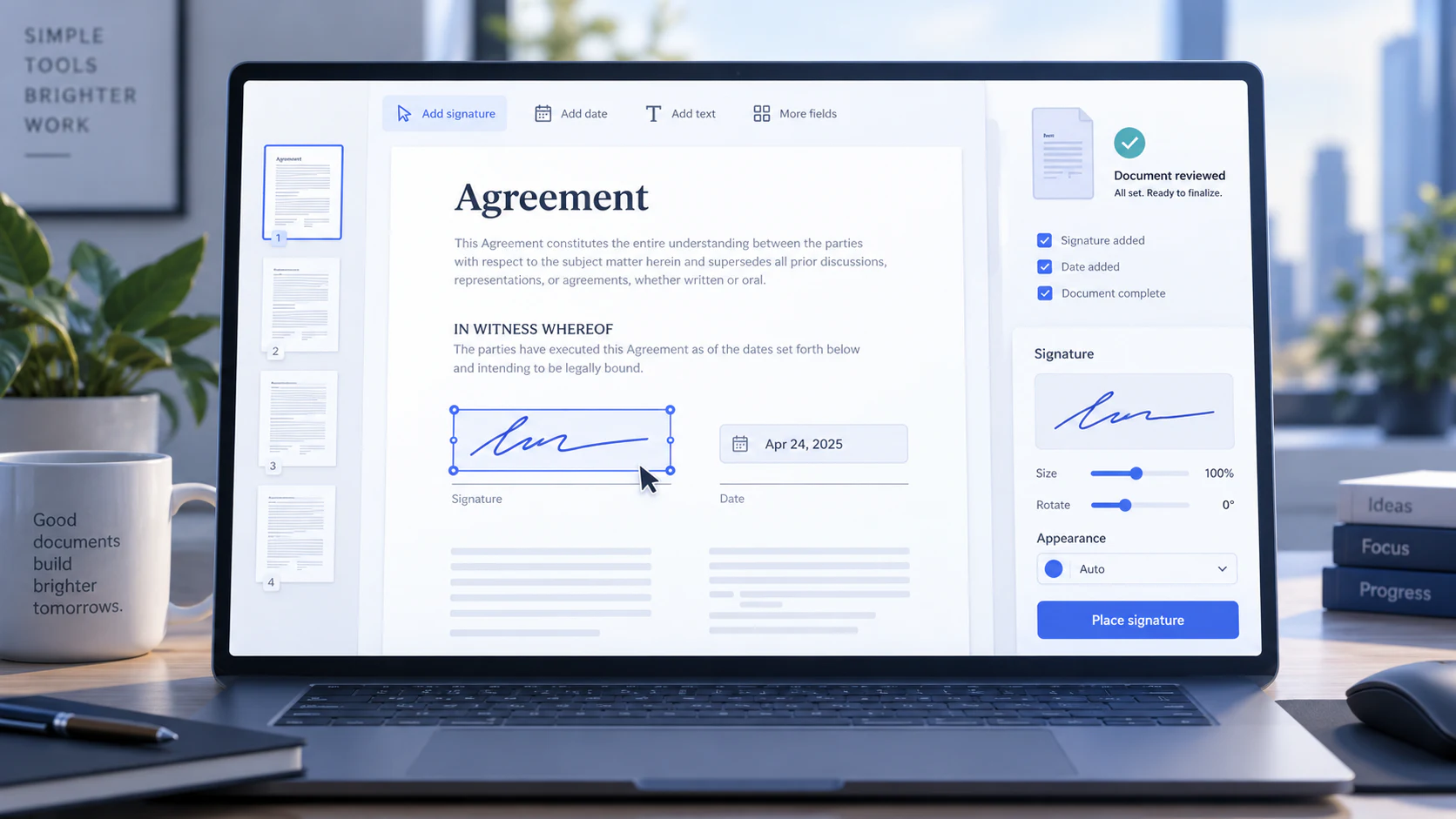
Type a name for a clean signature-style mark, draw with a mouse, touch screen, or stylus, or use a local PNG, JPEG, or WebP image. A transparent PNG usually blends most naturally with the page.
Only save a reusable signature on the device when the device and browser profile are appropriately controlled.
Place and review every element
Zoom in around each placement and verify that the visual mark does not obscure important text.
- Move and resize the mark inside the page boundary.
- Check initials and dates on every required page.
- Use duplication carefully and confirm document-wide placement.
- Review the exported filename and page count.
Understand what the output proves
A visible signature can record intent in many ordinary workflows, but the image itself does not verify identity or protect document integrity cryptographically.
When policy requires a certificate, identity assurance, audit trail, or remote signature request, use a service designed and approved for that requirement.
Put the workflow into practice
Create a visual signature, place it with initials or dates on the required pages, and review every mark before exporting the signed copy.
Try Sign PDFFrequently asked questions
Clear answers before you sign
Is the signature certificate-based?
No. Nexynto Sign PDF currently places visual elements and does not issue or validate signing certificates.
Is the PDF uploaded?
The normal signing workflow renders and exports in the browser.
Can I sign on mobile?
Yes. Touch drawing, page navigation, placement, and the finish action are available on supported mobile browsers.