On this page
Choose text or image based on purpose
Text works for DRAFT, CONFIDENTIAL or REVIEW COPY. An image can apply a logo, but detailed artwork distracts and reproduces poorly at small scale. Use concise wording and do not imply a security effect the mark cannot provide.
Keep an unwatermarked authoritative source when policy requires it.
Balance opacity with contrast
Low opacity protects readability, but a mark that disappears on white or dark regions fails its purpose. Preview photographs, tables and small text.
Screen and paper differ, so print a sample when physical distribution matters.
Rotation, placement and repetition
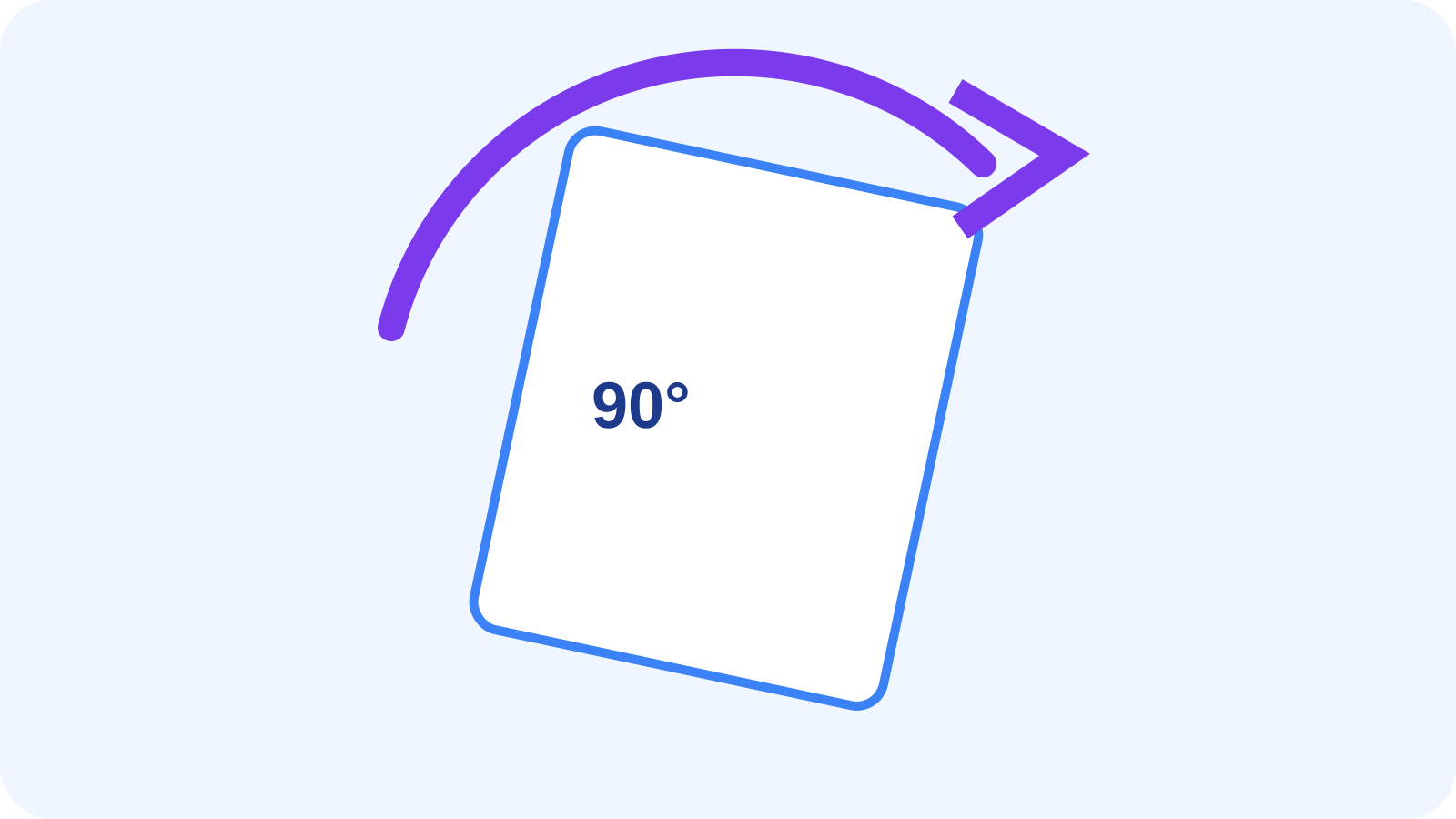
A diagonal center mark is visible but can cross content. Corner placement is quieter but easier to crop. Repeated patterns are harder to overlook and create more noise.
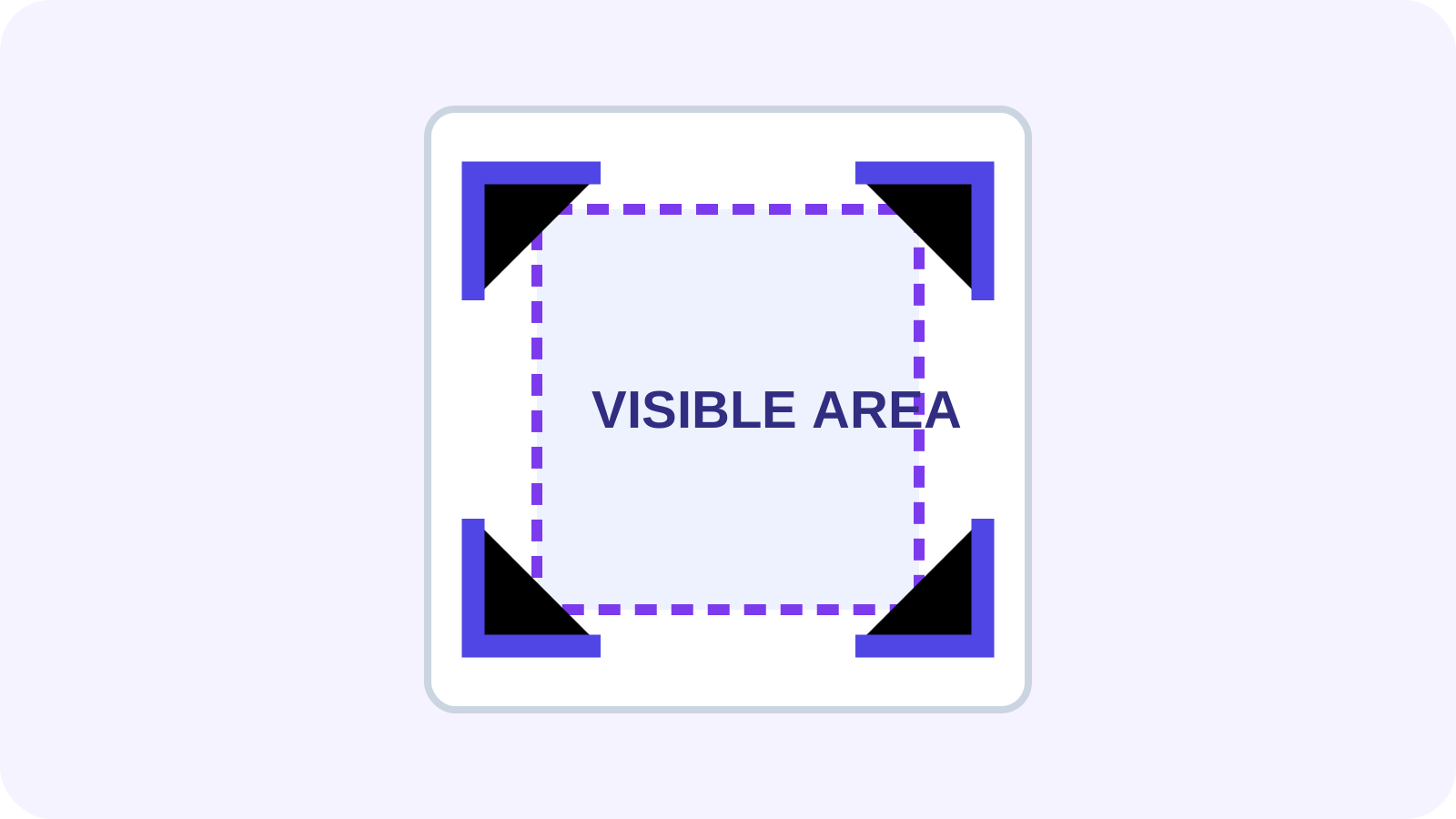
Offsets and scale must account for mixed page sizes and orientation. Review landscape and portrait separately.
Page selection and limitations
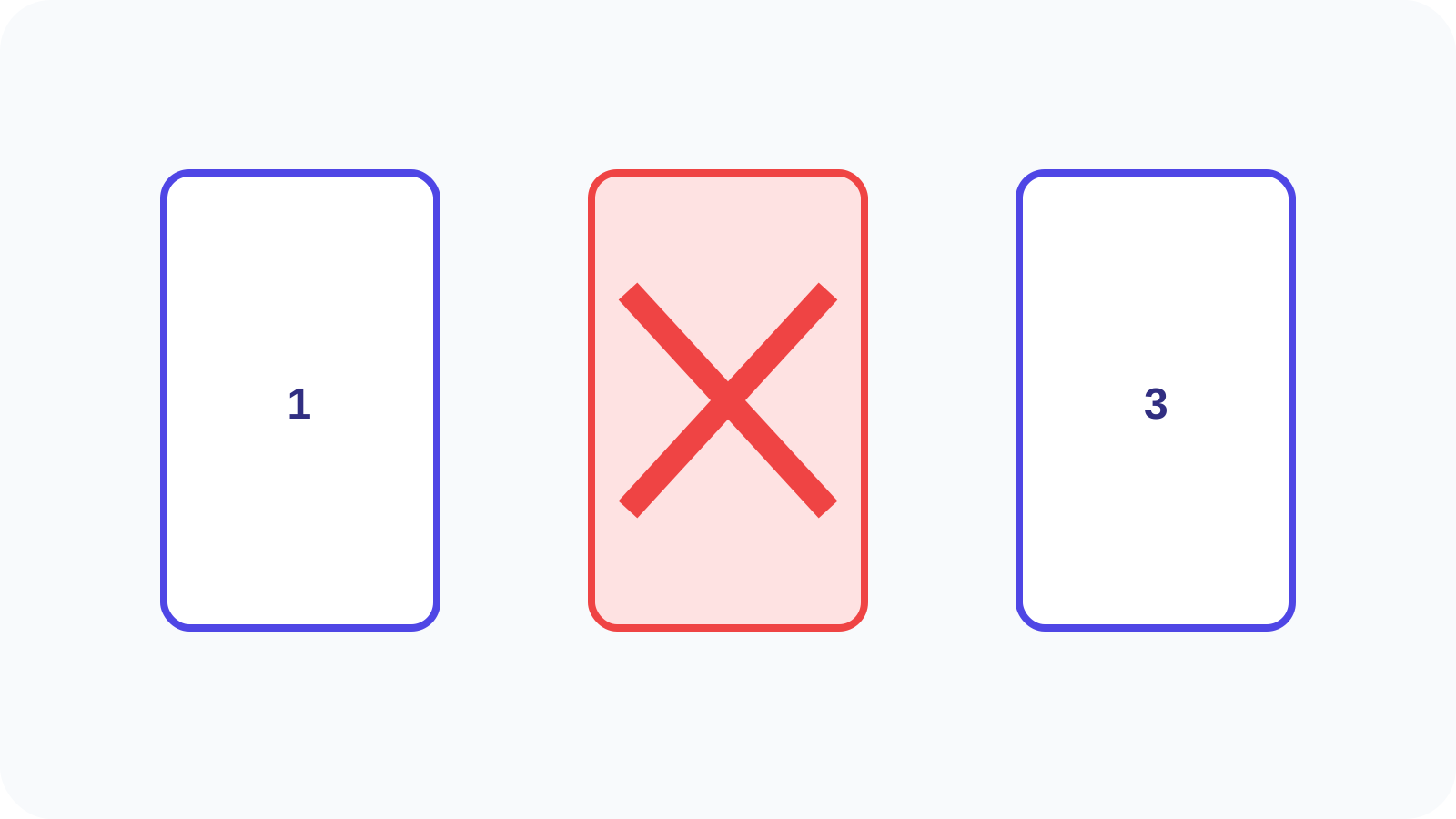
A cover may need a prominent mark while body pages use a lighter one, or every page may need a consistent identifier. Confirm the selected range and batch profile.
A watermark does not prevent copying, screenshots or editing and is not secure redaction. Use protection for access control and redaction for content removal.
| Need | Tool |
|---|---|
| Communicate status | Watermark PDF |
| Require password | Protect PDF |
| Remove content | Redact PDF |
| Clear hidden identity fields | Remove PDF Metadata |
Put the workflow into practice
Arrange source documents, select the pages you need, and create one PDF locally in your browser. Review the result before choosing any optional next step.
Try Watermark PDFFrequently asked questions
Clear answers before you merge
What opacity should I use?
Choose the lowest opacity that remains visible across representative light and dark areas.
Text or image?
Text suits status labels; images suit simple logos.
Can a watermark prevent copying?
No. It communicates status but is not access control.
Can I choose pages?
Yes. Review the selected range and mixed orientations.