On this page
Start with the complete document
PDF to Excel includes every page by default so long reports, statements and operational records can be handled as one conversion. Use a custom range only when excluded pages clearly do not belong in the workbook.
Preview the source first. A bilingual permit with photos, stamps and free-positioned labels needs a different output from a bordered financial table intended for calculation.
Choose fidelity, editability or both
Exact Layout renders each selected page intact and embeds it on its own worksheet. This is the appropriate choice when Arabic or other bidirectional text, photos, barcodes, stamps, typography and spacing must look the same. Those page visuals are not editable cells.
Hybrid places the original page sheets first and adds reconstructed data sheets. Editable Data omits the visual page sheets and infers rows and columns for analysis.
| Output mode | Best for | Tradeoff |
|---|---|---|
| Exact Layout | Forms, certificates, bilingual fixed layouts | Page content is a visual image |
| Hybrid Workbook | Visual verification plus reusable data | Larger workbook and inferred cells |
| Editable Data | Tables and analysis | Page appearance can change |
| OCR PDF to Excel | Scanned text that must be editable | Recognition requires review |
PDF to Excel and Extract Tables solve different jobs
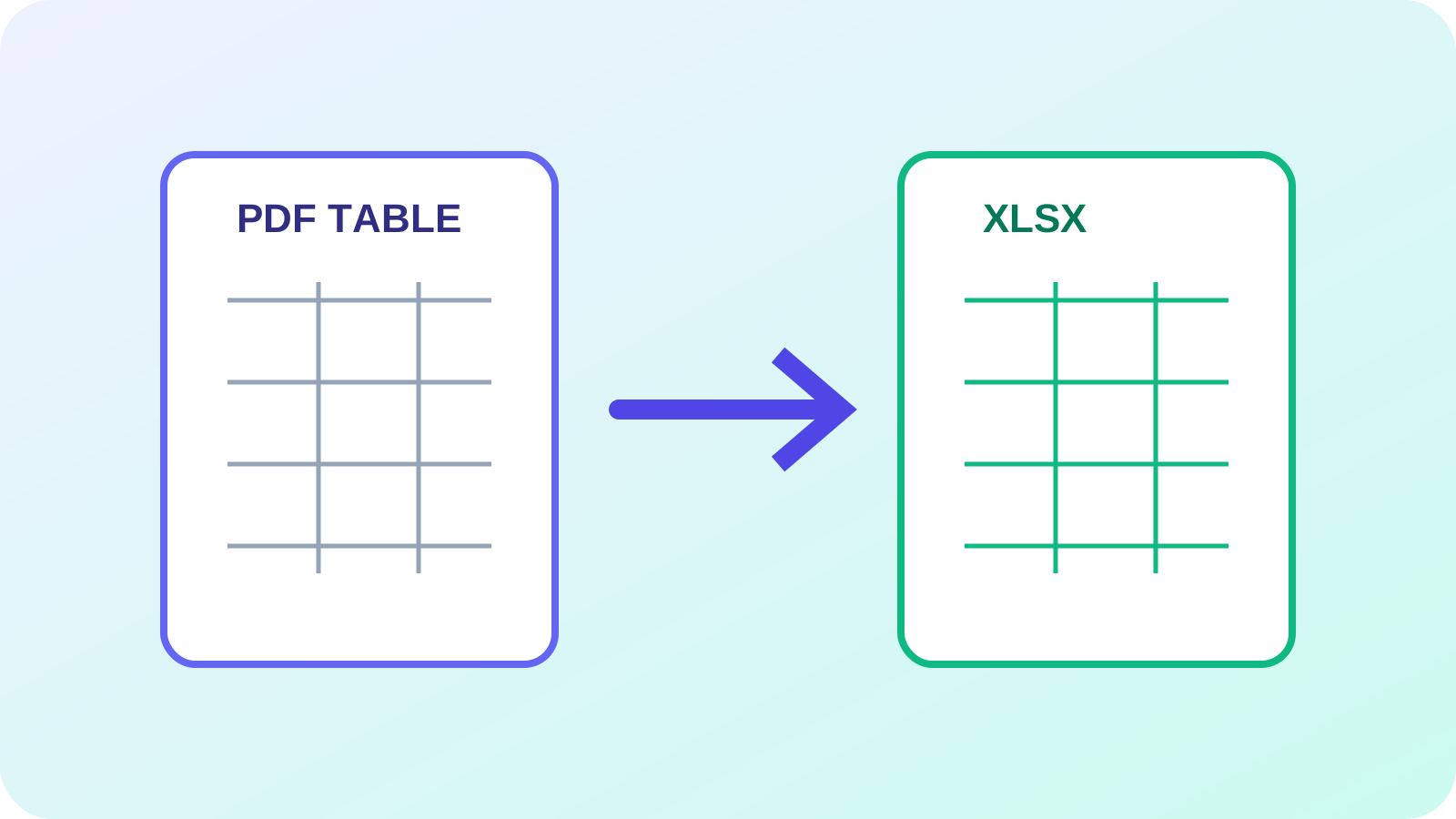
Use PDF to Excel when the intended unit is the whole document or a defined page range. It creates a workbook directly from the structured content it finds across those pages.
Use Extract Tables when the intended unit is a particular region and you need to inspect, select or exclude candidate tables before export. Keeping these workflows separate prevents a full-document converter from becoming a confusing region-selection tool.
Verify the workbook page by page
In Exact Layout, confirm every selected page appears, opens clearly and prints at the expected orientation. In Hybrid or Editable Data, also compare the first and last record from each section, totals, dates, bidirectional text and page transitions.
Keep the PDF with the reviewed workbook. Formulas are normally not recoverable because the PDF contains displayed values, not the original spreadsheet logic.
- Confirm every intended page was represented
- Inspect Arabic and other bidirectional text
- Check photos, stamps and page geometry
- Reconcile editable totals and record counts
- Record any manual cleanup
Put the workflow into practice
Arrange source documents, select the pages you need, and create one PDF locally in your browser. Review the result before choosing any optional next step.
Try PDF to ExcelFrequently asked questions
Clear answers before you merge
Will every PDF page become one Excel sheet?
In Exact Layout, yes. Each selected page becomes its own visual worksheet. Hybrid also adds editable data sheets.
Can exact-layout sheets be edited as cells?
No. Their page contents are embedded as high-resolution images to preserve appearance.
Can I convert only part of a long PDF?
Yes. All pages are the default, and an inclusive custom range can limit the conversion.
Does this recover the original Excel workbook?
No. PDF does not contain the original formulas or workbook metadata.